
TRANSCRIPT
Free Audio Transcript Generator
Supported: YouTube, TikTok, Instagram, LinkedIn, Twitter — video, short, reel, or playlist.
Upload or drag a video or audio here
One audio or video file at a time. Common formats are supported.
What Is an Audio Transcript?
An audio transcript is the full written text of everything spoken in a recording, split into timestamped lines. It is different from the subtitle or caption file that plays over a video: an audio transcript is the plain text you can read, search, copy, quote, translate, and feed into AI tools, while captions are a timed track built for a player. A recording arrives with no text attached at all — a voice memo, an interview, a meeting capture, or a podcast export sitting in MP3, WAV, or M4A. That is where most tools stop and where a real audio transcript generator earns its place: it transcribes the spoken audio with AI instead of waiting for a caption track that will never exist. Whether you search for an audio transcript generator, a free audio transcript generator, or an audio transcript, the result should be readable, searchable text you can reuse.
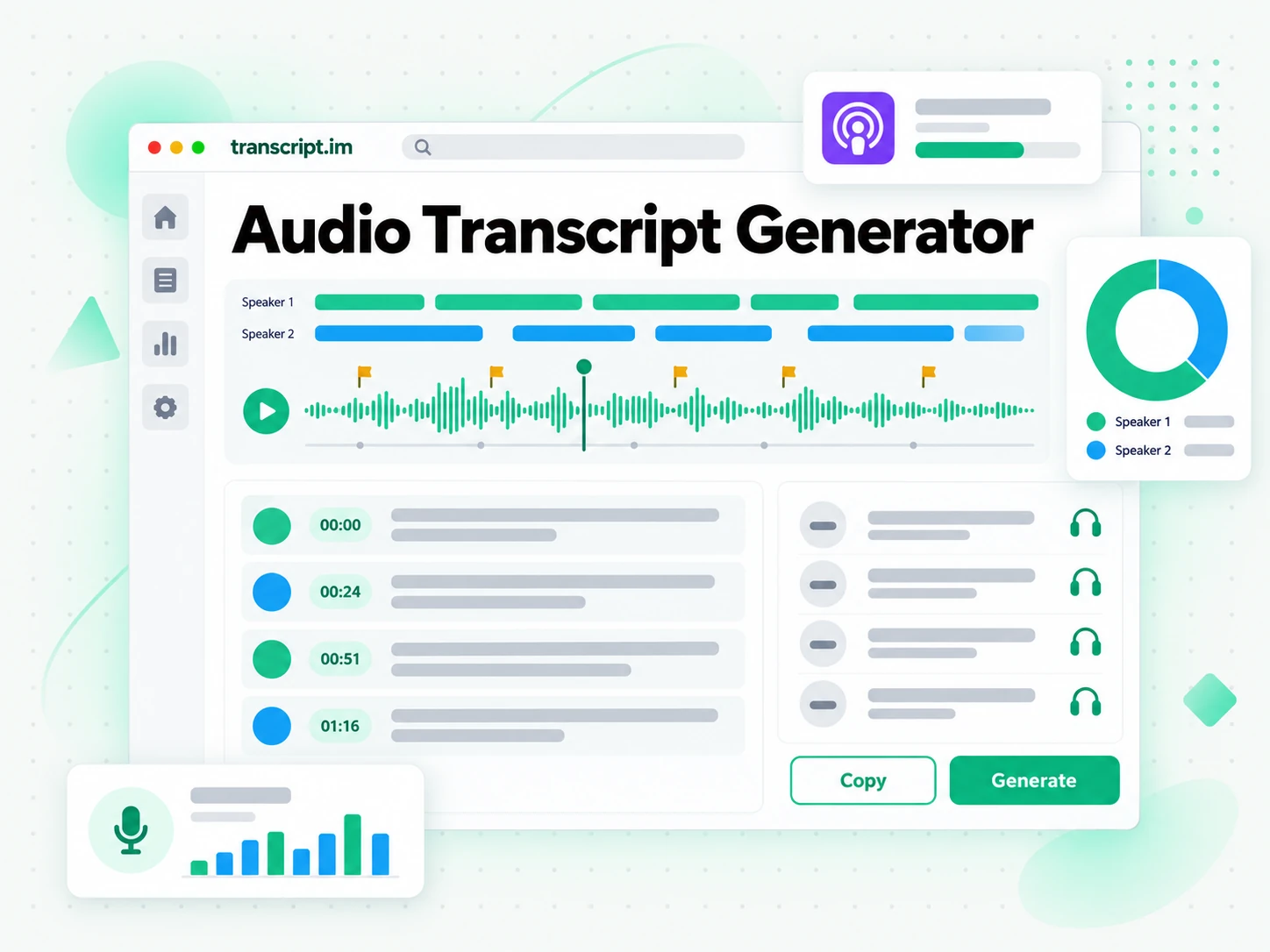
How the Audio Transcript Generator Works
One uploaded audio file or pasted link takes you from a recording to a searchable, exportable transcript in three steps.
Turn an Audio File or Link Into a Transcript
Upload a local audio file — MP3, WAV, M4A, or another common format — or paste a YouTube, TikTok, or Instagram link into the audio transcript generator. Because a recording carries no caption track, every source is transcribed from the spoken audio with AI, and the result is the complete audio transcript with timestamps that stay aligned to what was actually said. A voice memo from your phone and a meeting export from your laptop both come back as text. The point is to turn any recording into a transcript without installing software or hunting for a text version that does not exist.
- Works from an uploaded file or a pasted link
- Transcribes the spoken audio with AI
- Keeps timestamps aligned to the recording
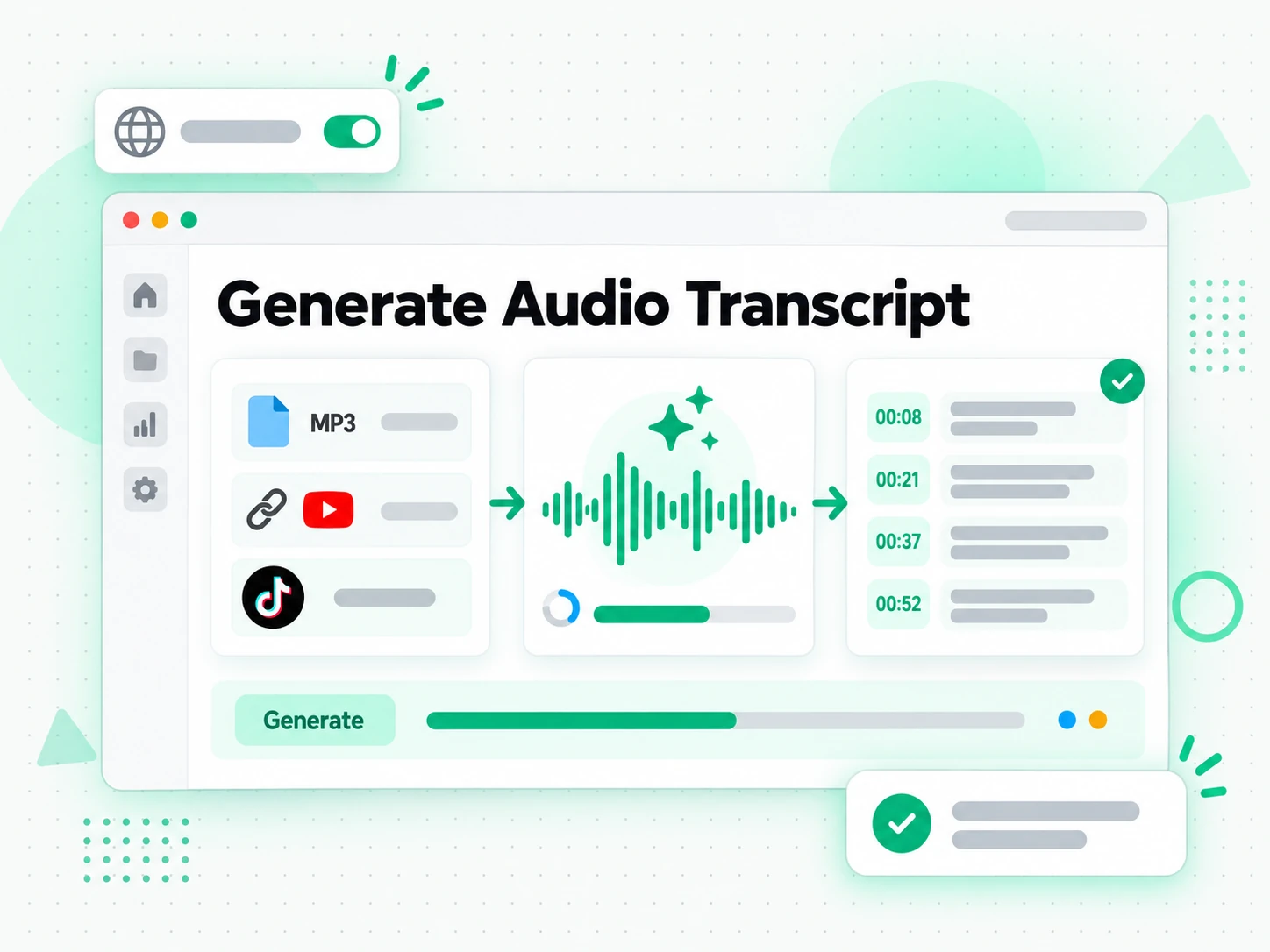
Read and Search the Transcript
Once the audio transcript is generated you can search it for a quote, jump to a moment by timestamp, or run Summarize, Outline, and MindMap to see how the recording is structured. Instead of replaying a long file and hoping you catch the wording, you read the audio transcript as text and find the exact line you need. Copying a line takes one click, the full transcript stays searchable in the browser, and an hour-long recording stops being something you have to listen to again to reference.
- Summary, outline, and mind map views from one transcript
- Search and copy the full text in the browser
- Jump straight to any moment by timestamp
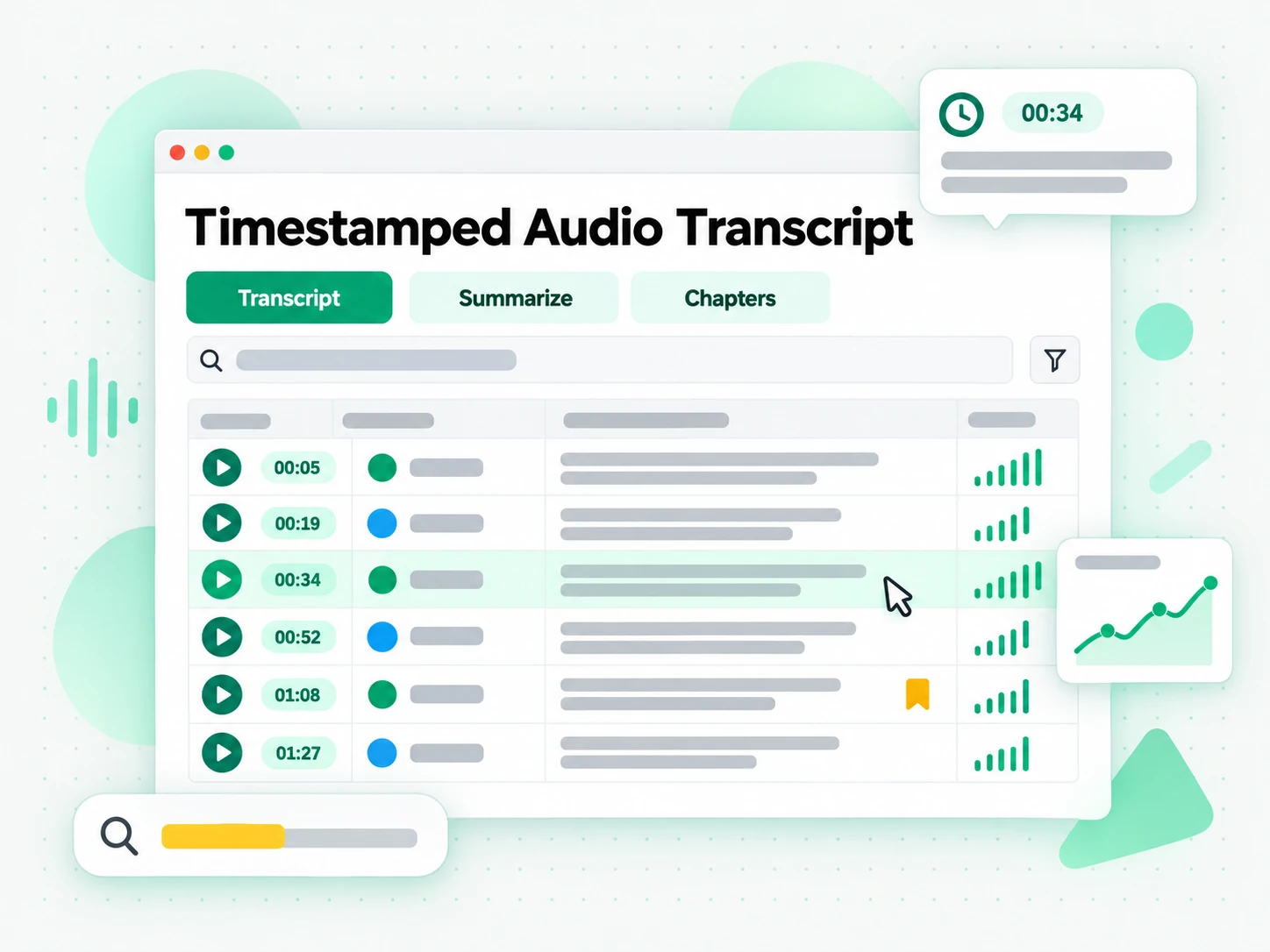
Export, Translate, or Reuse the Text
Download the audio transcript as TXT, SRT, or VTT, translate it into another supported language with the timestamps preserved, or hand it to an AI tool as a brief for a new draft. A transcript you can export is a transcript you can reuse, whether that means pasting audio transcript text into your notes, turning an interview into an article, or building subtitles for your own recording. Because the output keeps its timestamps, the same audio transcript can become show notes, a summary, a mind map, or a first draft. The text leaves as a clean file you keep.
- Download as TXT, SRT, or VTT
- Translate into another supported language
- Rewrite into notes, a post, or a script
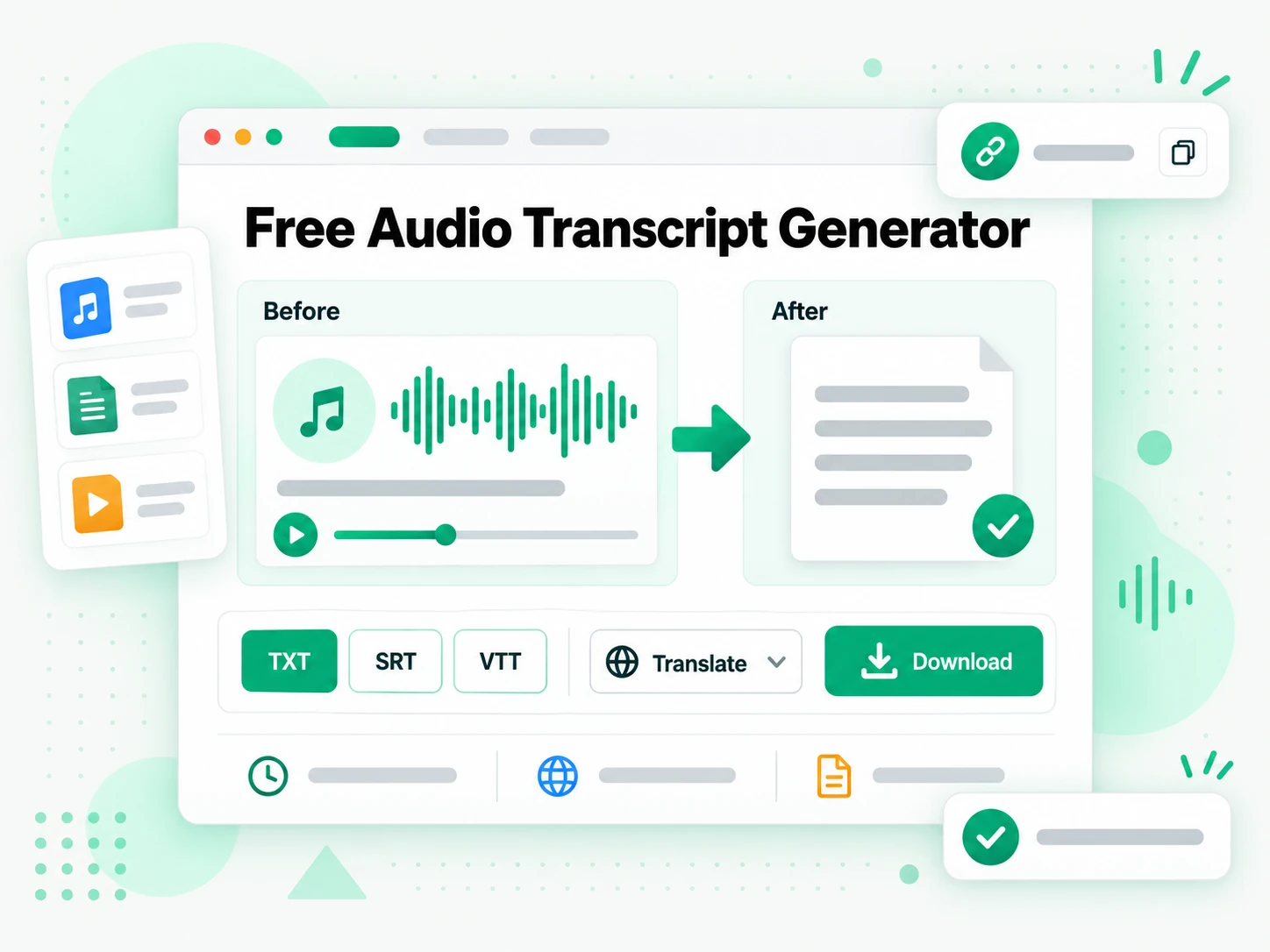
Why transcript.im Beats Built-In Audio Players
✅ transcript.im
Upload an audio file or paste a public link and get the full, timestamped audio transcript, whatever the source format. The text stays searchable, copyable, exportable as TXT, SRT, or VTT, and translatable, and you can summarise it in the same place you read it.
❌ Built-in audio players
A media player plays the file and shows nothing more — there is no text to read, search, or copy. Voice-memo and podcast apps may show a rough auto-caption at best, with no clean copy of the whole passage, no export, no translation, and nothing useful for a recording you made yourself.
Who an Audio Transcript Generator Is For
An audio transcript generator helps anyone who would rather read, quote, or reuse spoken words than replay a recording.
For Podcasters and Show Notes
An episode export is a long recording with no text attached. Turn the audio transcript into show notes, quotes, and a readable page listeners can scan.
- Upload the episode export as MP3, WAV, or M4A and transcribe it in one pass.
- Draft show notes from the audio transcript instead of starting from a blank page.
- Pull quotable lines and check each one against its timestamp.
- Publish a readable version so listeners who prefer text can follow the episode.
- Export SRT or VTT to caption a video version of the same episode.
For Meeting and Voice-Memo Recorders
Meetings, calls, and voice memos pile up as audio files nobody re-listens to. Read them as searchable audio transcript text instead.
- Upload the recording from a phone, a call recorder, or a meeting export.
- Find a decision by searching a phrase, then check the timestamp it came from.
- Share the exact wording with a colleague instead of forwarding a long file.
- Keep a written record of what was agreed, exported as TXT for your notes.
- Translate the transcript when the meeting was not in your first language.
For Journalists and Researchers
Interviews and field recordings hold the precise wording, and you need it verbatim. A searchable audio transcript turns a vague recollection into a citation you can stand behind.
- Find the exact quote and the timestamp that proves where it came from.
- Compare how a claim changed across several interviews and follow-ups.
- Quote accurately instead of reconstructing a sentence from memory.
- Archive the source by exporting the transcript before a file is lost or overwritten.
- Search one term across recordings to cross-check speakers and dates.
For Students and Note Takers
Lectures, seminars, and recorded talks are easier to work through as text. Read a timestamped audio transcript instead of pausing and rewinding every few minutes.
- Copy the exact line you need into your notes, with the timestamp to check it later.
- Search a whole lecture for a definition, a formula, or a name you half-remember.
- Translate the transcript into your own language when the recording is not in it.
- Export as TXT to keep a clean, printable study document you can read offline.
- Summarise first when you only need the argument, then read the parts that matter.
For AI Power Users and Builders
A transcript is the clean text layer AI tools work best from. Drop it into the assistant you already use, then summarise and question the source instead of feeding it audio the model cannot listen to.
- Google NotebookLM: add the transcript as a source to summarise the recording and ask questions about it.
- ChatGPT, Claude, Gemini, Kimi, and Manus: paste the transcript as a brief for summaries, rewrites, or new drafts.
- Generate notes and mind maps from the text, then keep the ones that are useful.
- Translate or restructure the transcript for a different audience.
- Feed an agent or an API with the transcript so the rest of your pipeline has the text it needs.
How to Generate an Audio Transcript
- 1
Upload an Audio File or Paste a Link
Add your input at the top of the page: drop a local recording on the File tab, or switch to the Link tab and paste a public YouTube, TikTok, or Instagram URL. There is no software to install, and the file or link itself is all the audio transcript generator needs, whether you are on a phone, a laptop, or a shared computer.
Upload or drag a video or audio here
One audio or video file at a time. Common formats are supported.
- 2
Generate the Transcript
Start the generator and it transcribes the spoken audio with AI, since an audio recording carries no caption track to read. The result is a full audio transcript with timestamps that stay aligned to what was said, so a voice memo, an interview, or a meeting export all come back as readable text.
- 3
Read, Search, and Copy
Search the transcript for a phrase, jump to a timestamp, and copy a single line or the whole passage. Instead of replaying the file to find a quote, you read the audio transcript as text and reuse the exact wording you need.
- 4
Export, Translate, or Reuse
Download the audio transcript as TXT, SRT, or VTT, translate the text into another supported language with the timestamps preserved, or hand it to an AI tool as a brief. The same audio transcript can become notes, subtitles, a summary, or a first draft.
Use Your Audio Transcript in the Apps You Already Have
Google NotebookLM
Add the audio transcript as a text source to summarise the recording and ask questions about it. NotebookLM works from text, so a clean audio transcript is exactly what it needs.
ChatGPT, Claude, Gemini, Kimi, and Manus
Paste the audio transcript into the assistant you already use — ChatGPT, Claude, Gemini, Kimi, or Manus — and treat it as a brief: draft a summary, rewrite it for a different audience, or pull out the arguments in order.
Subtitle Tools and Video Editors
Export SRT or VTT and drop it straight into a player or editor to caption the recording, or start a translation from the same timestamped file.
Builders Using the API and MCP
transcript.im also exposes an API and an MCP server, so a script or an agent can generate an audio transcript and pass it into the rest of your pipeline.
transcript.im vs Other Audio Transcript Generators
Different tools answer different questions. Use this table to pick the one that matches what you actually need from an audio transcript.
| Tool | What it does | Use it when |
|---|---|---|
| transcript.im | Full timestamped transcript from an uploaded audio file or a public link, with search, export, translation, and AI views. | When you need a clean transcript you can reuse, not just listen to. |
| Built-in audio players | Play the file and show no text at all, or a rough read-along caption with no export or translation. | When you only need to hear the recording once. |
| Google NotebookLM | Summarises a source and answers questions about it inside a notebook. | When the goal is Q&A over the recording, not the transcript text itself. |
| Transcript downloader sites | Return the caption track for captioned videos, with no support for a local audio file. | When a captioned video is all you need. |
| Manual transcription | Listening back and typing the words yourself, line by line. | For a short clip, if you have the time and patience. |
Related tools
Audio Transcript Generator FAQs
What is an audio transcript?
An audio transcript is the written text of everything spoken in a recording, broken into timestamped lines. It is generated from the spoken audio with AI, so it works for a voice memo, an interview, a meeting export, or a podcast file.
How do I generate a transcript from an audio file?
Upload the recording to the audio transcript generator on the File tab. It transcribes the spoken audio with AI and returns the full audio transcript with timestamps you can read, search, and export.
Can the audio transcript generator work without any caption track?
Yes. An audio recording carries no caption track at all, so the generator always transcribes the spoken audio with AI. You get a complete timestamped audio transcript even though no text existed when you started.
What audio formats can I upload to the audio transcript generator?
MP3, WAV, M4A, FLAC, and other common audio formats. The generator reads the spoken audio from any of them, whether the file came from a phone recorder, a meeting export, or a podcast download.
Can I paste a link instead of uploading an audio file?
Yes. Switch to the Link tab and paste a public YouTube, TikTok, or Instagram URL, and the generator transcribes the audio the same way it handles an uploaded file. Use the File tab for a recording that is not on a supported platform.
What formats can I export the audio transcript in?
TXT for plain text, SRT for subtitle tracks, and VTT for web-player captions. TXT is best for notes and documents, while SRT and VTT drop straight into a player or an editor.
Does the audio transcript generator support multiple languages?
Yes. It detects the spoken language automatically across supported source languages, and you can translate the finished audio transcript into another supported language with the timestamps preserved.
Can I use an audio transcript with Google NotebookLM?
Yes. Copy or export the transcript and add it to a notebook as a text source. NotebookLM then summarises the recording and answers questions about it, and the same text can be pasted into any assistant as a brief.
How accurate is the audio transcript generator?
Accuracy depends on the source. A clear recording with one speaker gives the best audio transcript, while background noise, heavy accents, or overlapping voices can cause misheard words. A cleaner recording can be re-run for a better result.
How is this different from an audio to text converter?
Both return timestamped text from the same AI engine. The audio transcript generator accepts either an uploaded file or a pasted link and frames the result as a reusable transcript, while an audio to text converter focuses on turning one uploaded file into text.
What is the difference between an audio transcript and a subtitle?
A subtitle is a timed track displayed over a video or player, while an audio transcript is the readable text of what was said. The transcript is what you copy and search; subtitles are what you export into a player or editor, and here you can get either from the same recording.
Can I generate a transcript for a voice memo or a meeting recording?
Yes. Upload the voice memo or meeting export as an audio file and the generator transcribes it with AI. Timestamps stay aligned to the recording, so you can search the audio transcript and jump back to the moment a decision was made.
Try the Audio Transcript Generator
Upload an audio file or paste a link to read a timestamped transcript and copy it.