NotebookLM API: Enterprise API, MCP Servers and CLI Tools
Is there a NotebookLM API? What Google offers in NotebookLM Enterprise, what notebooklm-py, MCP servers and CLI tools do, and how to automate transcripts.
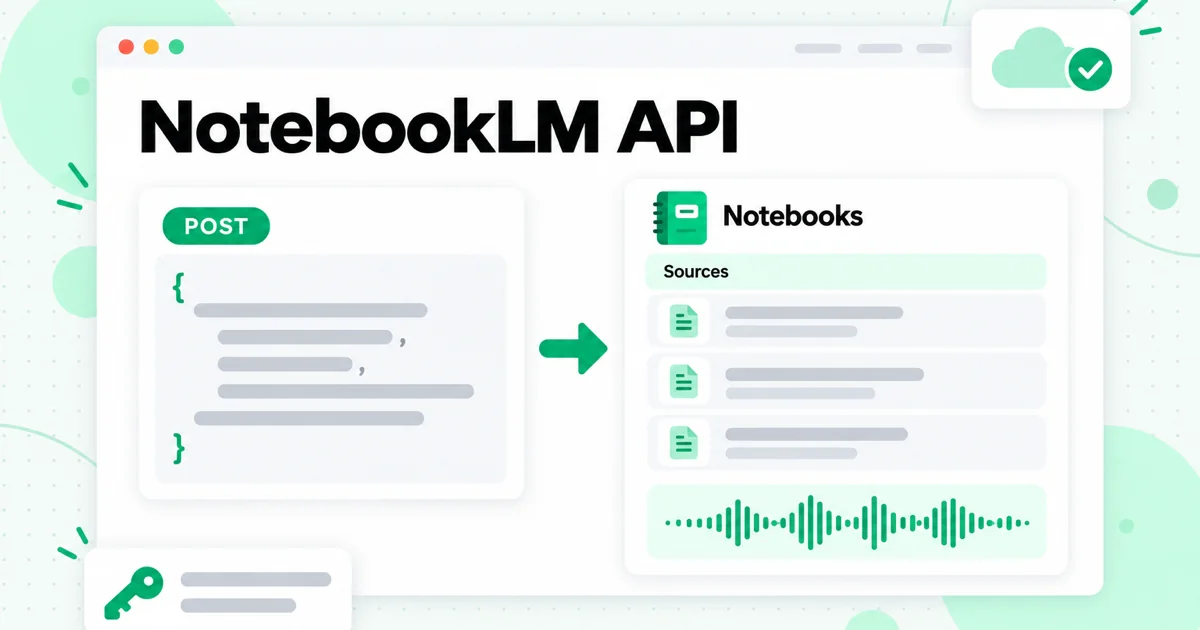
Is there a NotebookLM API? Yes, but only one that Google documents, and it is not for the free consumer app. The official NotebookLM API is part of NotebookLM Enterprise in Google Cloud: a preview REST API that creates notebooks, adds sources, shares notebooks and generates Audio Overviews inside a Google Cloud project. Everything else you will find when you search, including notebooklm-py, the many NotebookLM MCP servers and most NotebookLM CLI tools, is built by the community and is not an official Google product.
This guide sorts those options out. It covers what the NotebookLM Enterprise API can actually do, how the unofficial Python library, MCP servers and CLIs work, which one fits which job, and how to automate the part that usually comes first in a video-heavy notebook: turning YouTube videos, playlists and channels into clean text with the Transcript.im API and the Transcript.im MCP server.
A naming note before the details. On July 16, 2026, Google renamed NotebookLM to Gemini Notebook, and Google Cloud's documentation now says "Gemini Notebook Enterprise." It is the same product, and this article keeps the NotebookLM name because that is what most developers still search for. If you want the bigger picture of what the tool does well and where it falls short, start with our NotebookLM review. Every API detail below was checked against Google Cloud's documentation and each project's own page on October 24, 2026. Preview APIs and community projects change quickly, so treat their current pages as the final word.
Is There a NotebookLM API? The Short Answer
There is one official NotebookLM API, and it lives in Google Cloud. Google publishes REST documentation for NotebookLM Enterprise, the enterprise edition that runs inside a company's Google Cloud project. Google has not published a developer API for the consumer NotebookLM app that you open with a personal Google account. That gap is why so many unofficial tools exist: they reach the consumer app by driving a browser or by calling the same undocumented endpoints the web app uses.
Here is how the main routes compare:
| Route | Who makes it | Works with | How it signs in |
|---|---|---|---|
| NotebookLM Enterprise API | Google (preview) | NotebookLM Enterprise notebooks in a cloud project | Google Cloud credentials, for example a gcloud access token |
notebooklm-py | Community (unofficial) | The consumer app | Your Google account, through a browser login |
| NotebookLM MCP servers | Community (unofficial) | Mostly the consumer app | Usually a browser session you sign in to once |
| NotebookLM CLI tools | Community (unofficial) | Depends on the tool: consumer app or Enterprise API | Browser login or gcloud |
The split matters more than any single feature. If your notebooks live in a personal account, every NotebookLM API option you find is unofficial. If your company already runs NotebookLM Enterprise, you can use Google's own NotebookLM API and keep everything inside your cloud project.
The NotebookLM Enterprise API in Google Cloud
The NotebookLM Enterprise API is a set of REST methods on the Discovery Engine service, versioned v1alpha. Google's guide to creating and managing notebooks with the API marks the feature as Preview, which means it falls under Google's Pre-GA terms and may have limited support. Requests go to an endpoint in the us or eu multi-region or the global location, scoped to your project number, and authenticate with a Google Cloud bearer token.
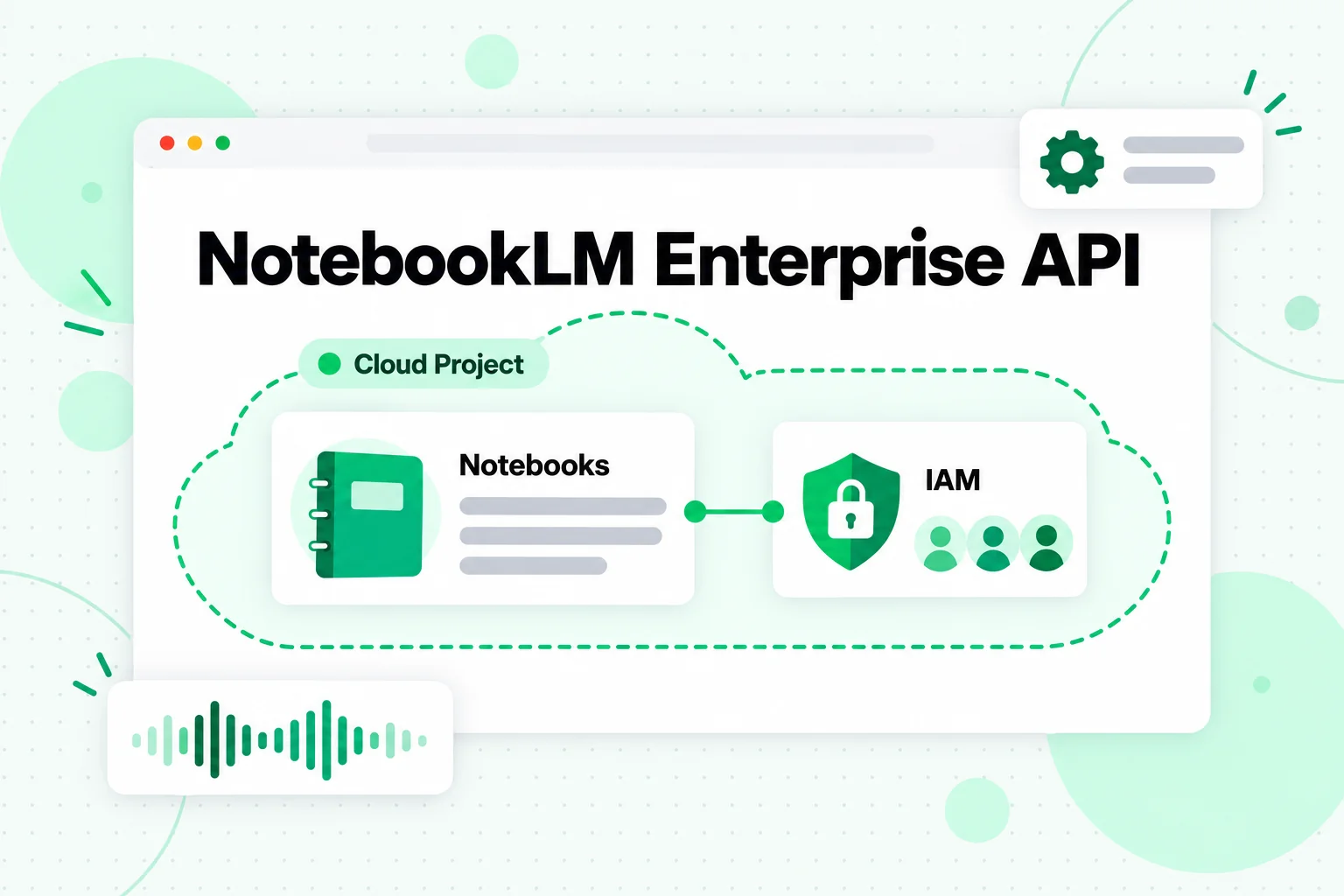
Think of this NotebookLM API as the official way to script the same notebooks your team opens in the browser. Notebooks stay inside your cloud project, and access is controlled with IAM roles rather than personal Google accounts.
What the Enterprise API Can Do With Notebooks
The notebook methods cover the basic lifecycle:
- Create a notebook with
notebooks.create. The request body carries atitle, and the response returns anotebookIdyou use in every later call. - Get one notebook with
notebooks.get. - List recently viewed notebooks with
notebooks.listRecentlyViewed, which returns up to the last 500, with optional paging. - Delete notebooks in bulk with
notebooks.batchDelete. - Share a notebook with
notebooks.share, giving people owner, writer or reader roles. Recipients also need the Cloud NotebookLM User IAM role.
Creating a notebook looks like this, with Google's placeholders in capitals:
curl -X POST \
  -H "Authorization: Bearer $(gcloud auth print-access-token)" \
  -H "Content-Type: application/json" \
  "https://ENDPOINT_LOCATION-discoveryengine.googleapis.com/v1alpha/projects/PROJECT_NUMBER/locations/LOCATION/notebooks" \
  -d '{"title": "Customer interviews Q4"}'
Adding Sources Through the API
Sources are where the NotebookLM Enterprise API becomes useful for automation. Google's companion guide to adding data sources lists four methods: sources.batchCreate to add several sources at once, sources.uploadFile to upload one file, sources.get to read a source and sources.batchDelete to remove sources. Each entry in a batchCreate request holds one type of content:
googleDriveContentfor a Google Doc or Slides file, which needs Drive authorization with user credentialstextContentfor raw text, with asourceNameand thecontentwebContentfor a web page URLvideoContentfor a YouTube video, with a singleyoutubeUrl
File uploads accept documents such as PDF, TXT, Markdown, DOCX, PPTX and XLSX, plus common audio formats and images. For text you generate yourself, such as a transcript, textContent or an uploaded .md file is the cleanest route, because you control exactly what goes in.
Audio Overviews and the Deprecated Podcast API
The Enterprise API can also create an Audio Overview with notebooks.audioOverviews.create. You can pass the source IDs to use, an episodeFocus that describes what to highlight, and a languageCode. Google notes that a notebook can have only one Audio Overview, that the notebook needs sources first, and that generation takes a few minutes. For what Audio Overviews sound like and the options the app offers, see our guide to the NotebookLM podcast and Audio Overview.
You may also run into Google's standalone Podcast API, which generated podcast-style MP3s from a context you supplied without needing a notebook. Google's page now marks the Podcast API as deprecated and says it isn't allowlisting new customers, so do not plan new work around it.
Who Can Use the NotebookLM Enterprise API
The API only works for organizations that run NotebookLM Enterprise. Google sells it as a standalone product or as part of Gemini Enterprise, users sign in through Cloud Identity or a third-party identity provider such as Microsoft Entra ID or Okta, and each user needs the Cloud NotebookLM User role. If you use NotebookLM with a personal Gmail account, this API cannot see your notebooks.
NotebookLM MCP Servers
A NotebookLM MCP server is a small program that lets an AI agent use NotebookLM as a tool. MCP, the Model Context Protocol, is an open standard for connecting AI applications such as Claude, ChatGPT, Cursor and other agents to outside tools and data. A client discovers the tools a server publishes and calls them in the middle of a conversation, so an agent can ask a notebook a question the same way it would read a file.
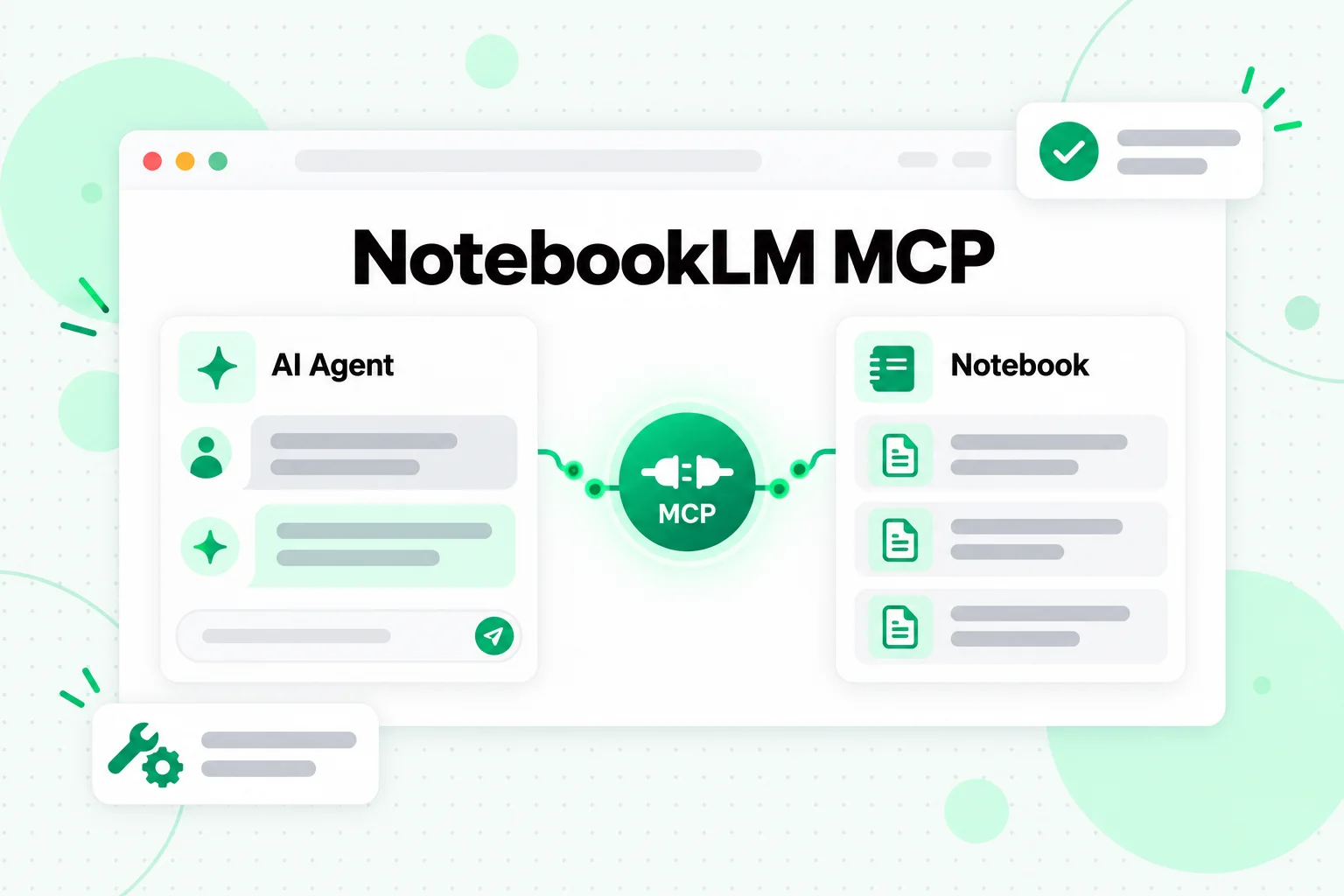
Searches for "NotebookLM MCP" and "NotebookLM MCP server" lead to community projects. None of the ones we checked is made by Google. They come in two common shapes.
Browser-Driven MCP Servers
The first shape drives a real Chrome window. You sign in to your Google account once, the server saves that browser session, and the agent's tool calls become clicks and typed text in the NotebookLM web app. One widely shared project of this type, PleasePrompto/notebooklm-mcp, offered tools to ask a notebook a question, add a URL or text source, generate and download an Audio Overview, and manage a library of notebooks; it was added to Claude Code with claude mcp add notebooklm -- npx notebooklm-mcp@latest. Its GitHub repository is now archived and no longer maintained, which is typical of how quickly this space moves.
MCP Servers Bundled With a Library
The second shape wraps an unofficial library and exposes its functions as MCP tools. notebooklm-py, covered in the next section, ships an MCP server for Claude Desktop, Claude Code and Codex that runs locally over stdio or as a self-hosted remote connector. Because it sits on top of a full library, it tends to cover more of NotebookLM than a browser script does.
What to Check Before You Connect One
Whatever NotebookLM MCP server you pick, check four things on its own page: whether it is still maintained, how it signs in to your Google account and where it keeps that session, which notebooks it can touch, and whether it reaches the consumer app or the Enterprise API. An agent with a NotebookLM MCP server can read and change every notebook the signed-in account can, so give it an account and notebooks you are comfortable automating.
notebooklm-py: The Unofficial Python Library
notebooklm-py is the most complete unofficial NotebookLM API for the consumer app. Its GitHub repository describes it as an "Unofficial Python API and agentic skill for Google Gemini Notebook" and states that it is a community project, not affiliated with Google, built on undocumented Google APIs that can change without notice.
It installs from PyPI under the name notebooklm-py. The project recommends installing the command-line tool with browser support:
pipx install "notebooklm-py[browser]"
# or, inside a virtual environment
pip install "notebooklm-py[browser]"
The library covers notebooks, sources and cited chat, generates and downloads Studio outputs such as audio, video, slide decks, infographics, quizzes, flashcards, reports, data tables and mind maps, and manages sharing. Sign-in defaults to an interactive browser login, with an option to import cookies from a browser you are already signed in to.
Use notebooklm-py when you want a personal or research workflow on top of the consumer app: building a notebook from a folder of files every week, asking the same set of questions across several notebooks, or downloading generated audio for an archive. For anything a business depends on, the Enterprise API is the route that Google documents and supports.
NotebookLM CLI Options
A NotebookLM CLI lets you run notebook tasks from a terminal or a shell script instead of a browser. There are two main options, and they reach different products.
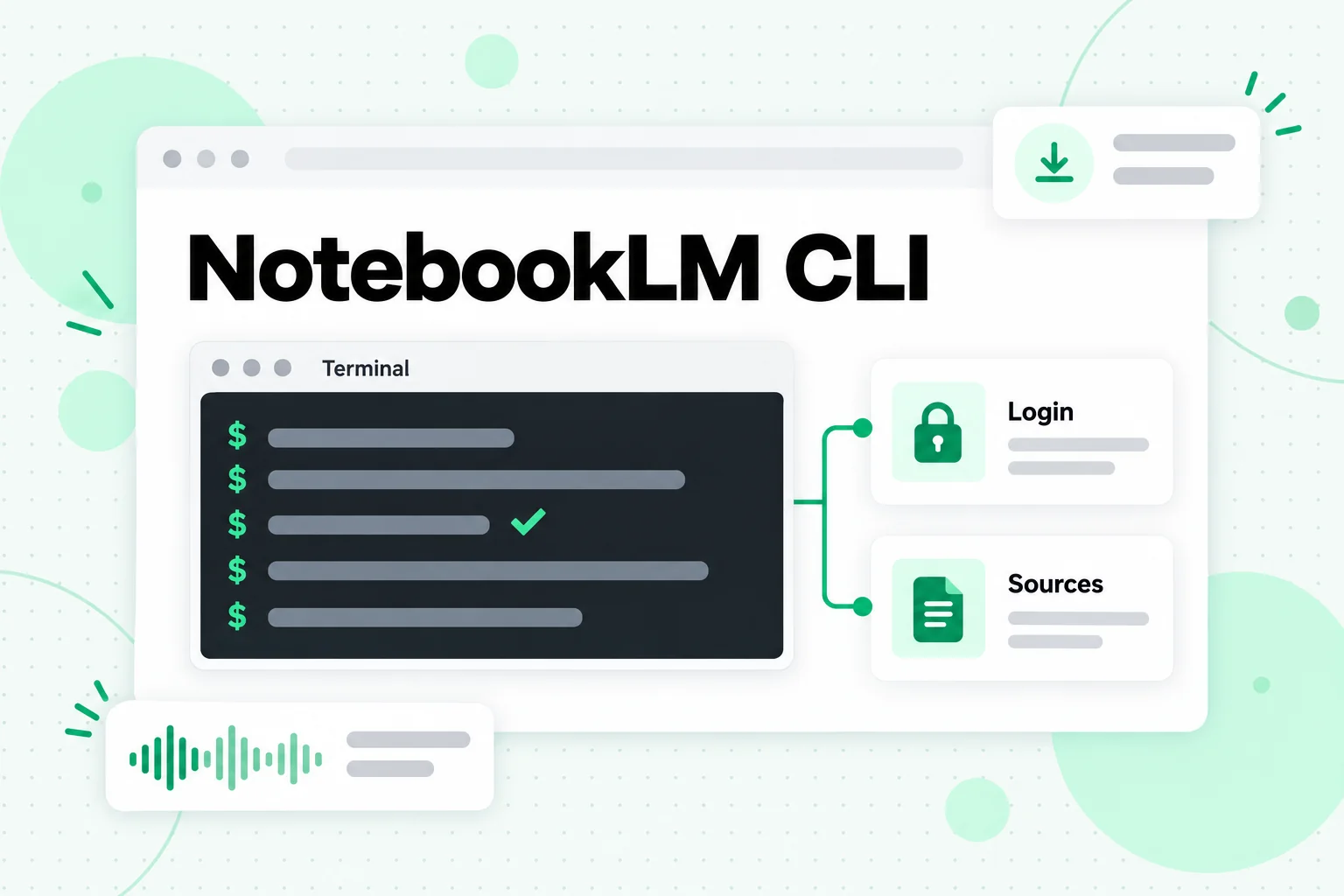
The notebooklm Command From notebooklm-py
Installing notebooklm-py also installs a notebooklm command for the consumer app. The project's own examples show the shape of a session:
notebooklm login
notebooklm create "My Research"
notebooklm source add "./paper.pdf"
notebooklm ask "What are the key themes?"
notebooklm generate audio "make it engaging" --wait
notebooklm download audio ./podcast.m4a
That is enough to script a full loop: create a notebook, add sources, ask questions, generate an Audio Overview and save it.
nblm for the Enterprise API
If your organization uses NotebookLM Enterprise, nblm is a NotebookLM CLI that targets the Enterprise API only. It is an unofficial client with a Rust core, a command-line tool and a Python SDK published on PyPI. It reuses your gcloud login, so a command such as nblm notebooks create --title "My Notebook" or nblm sources add --notebook-id YOUR_NOTEBOOK_ID --web-url "https://example.com" --web-name "Example" maps directly onto the official REST methods described above.
Which NotebookLM Automation Route Fits Your Job?
Pick the route by where your notebooks live and who will run the automation:
| Your situation | Best fit | Why |
|---|---|---|
| Company runs NotebookLM Enterprise | NotebookLM Enterprise API, or nblm on top of it | Official, documented NotebookLM API methods |
| Personal notebooks, scripted in Python | notebooklm-py | Widest coverage of the consumer app |
| Personal notebooks, driven by an AI agent | A NotebookLM MCP server | The agent calls NotebookLM as a tool mid-conversation |
| Personal notebooks, shell scripts | The notebooklm CLI | Same library, no Python code to write |
If your real question is whether NotebookLM is the right tool at all, compare it with ChatGPT, Claude, Gemini and note apps in our guide to NotebookLM alternatives. This article stays with automation.
The Missing Step: Getting Video Into Text First
Every NotebookLM API route above automates what happens inside a notebook. None of them solves the most common problem with video sources: getting complete, reliable text out of the videos in the first place.
NotebookLM's own YouTube import reads only the caption text of a public video. Each link becomes one source, and a playlist or channel link is not expanded into its videos. The Enterprise API works the same way, since videoContent takes a single youtubeUrl. A video without captions, a 60-video course or a creator's full back catalog therefore needs a step before the notebook. Our guide to using YouTube videos in NotebookLM covers those import rules and their workarounds in detail.
The automated version of that step is the Transcript.im API: send a video, playlist or channel, get text back, and pass the text to whichever notebook route you chose. Text sources also behave better in a notebook. You can merge related transcripts into one file, add headings, and keep many videos inside a single source slot.
Automating YouTube Transcripts With the Transcript.im API
The Transcript.im API is a REST API that turns a public video or audio link into a timestamped transcript. It is the same extraction pipeline behind the YouTube transcript tool on the website: the creator's captions are used first, and when a video has none, AI transcribes the spoken audio. Besides YouTube, it detects TikTok, Instagram, LinkedIn and Twitter/X links, and the full contract is published as an OpenAPI document on the Transcript.im API documentation page.
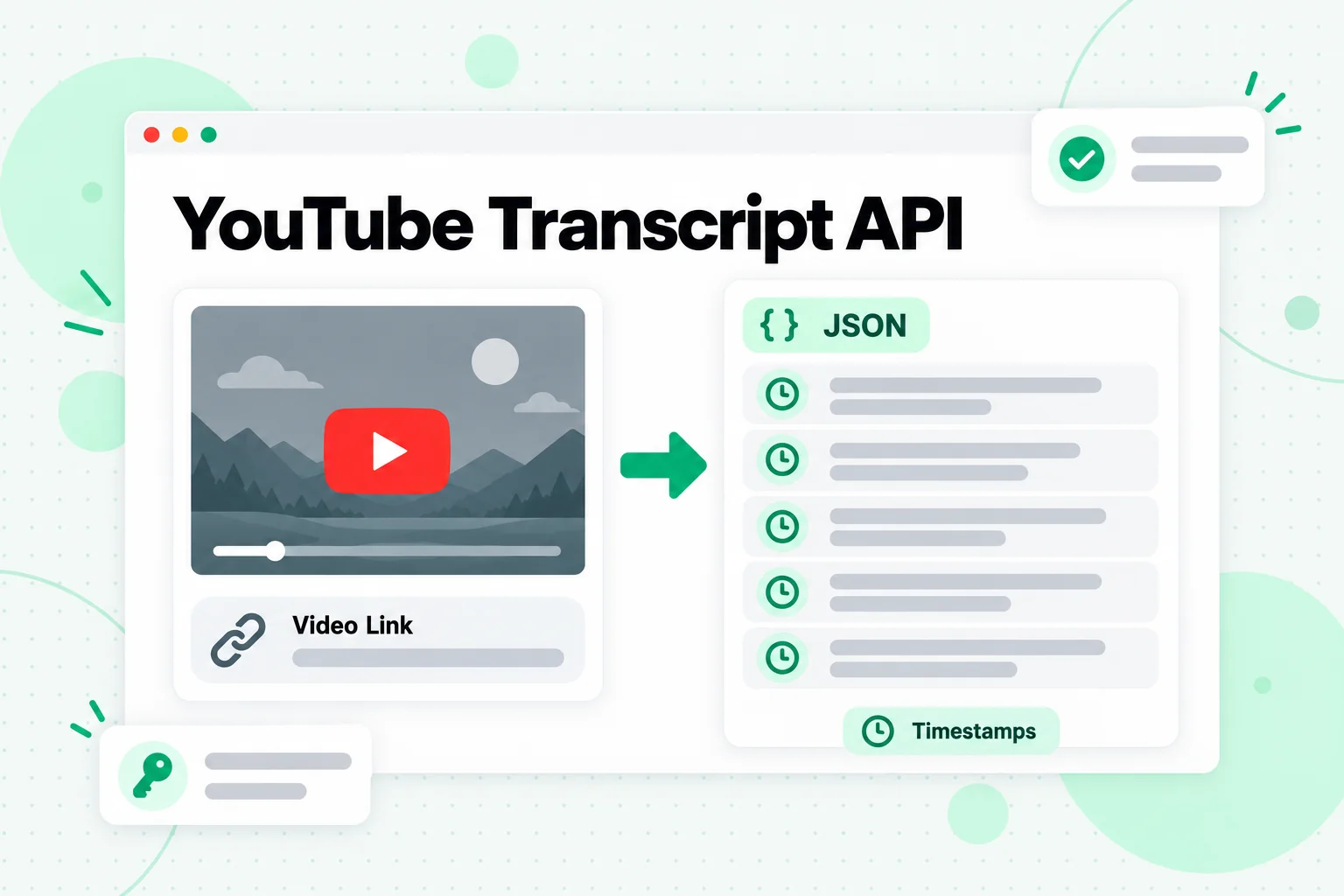
As a YouTube transcript API, it covers the three shapes a notebook project usually needs: one video, one playlist and one channel. Authentication is an API key sent as a Bearer token or an X-API-Key header. The examples below use YOUR_API_KEY as a placeholder.
Fetch One Video
Send the video URL to POST /v1/transcript. format is json for timestamped segments or text for plain text, and language is a priority list such as en or de,en.
curl -X POST https://api.transcript.im/v1/transcript \
  -H "Authorization: Bearer YOUR_API_KEY" \
  -H "Content-Type: application/json" \
  -d '{"url": "https://www.youtube.com/watch?v=VIDEO_ID", "format": "text", "language": "en"}'
A video with a matching caption track comes back in the response. A video without captions returns 202 with a job ID instead, because AI transcription runs asynchronously. Poll GET /v1/transcript/job/{id} until the job succeeds or fails, or subscribe to its /events stream for progress. If you only want to know what a video offers first, GET /v1/transcript/info lists the languages it can serve before you extract anything.
Fetch a Whole Playlist or Channel
POST /v1/batch accepts a list of URLs, a playlist or a channel. The shape of the body picks the mode: urls, playlist (an ID or URL) or channel (an ID, @handle or URL).
curl -X POST https://api.transcript.im/v1/batch \
  -H "Authorization: Bearer YOUR_API_KEY" \
  -H "Content-Type: application/json" \
  -d '{"playlist": "https://www.youtube.com/playlist?list=PLAYLIST_ID", "language": "auto"}'
The response includes a batch ID and counts for total, pending, succeeded and failed items. One failed video is marked on its own and never discards the rest, and failed items can be retried with /retry. The same jobs are available without code in the YouTube playlist transcript and YouTube channel transcript tools.
Poll and Export the Results
Read progress with GET /v1/batch/{batchId} and follow the returned page token for the remaining items. When the batch is finished, download it from /export as txt, csv, json, srt, vtt or zip:
curl -L -H "Authorization: Bearer YOUR_API_KEY" \
  "https://api.transcript.im/v1/batch/BATCH_ID/export?format=txt" -o playlist.txt
A single transcript saved to your account Library can also be downloaded as Markdown (md), which keeps a clean title heading for NotebookLM. From there, the text goes into a notebook by hand, through notebooklm-py, or through the Enterprise API's textContent sources.
Giving Your Agent Transcripts With the Transcript.im MCP Server
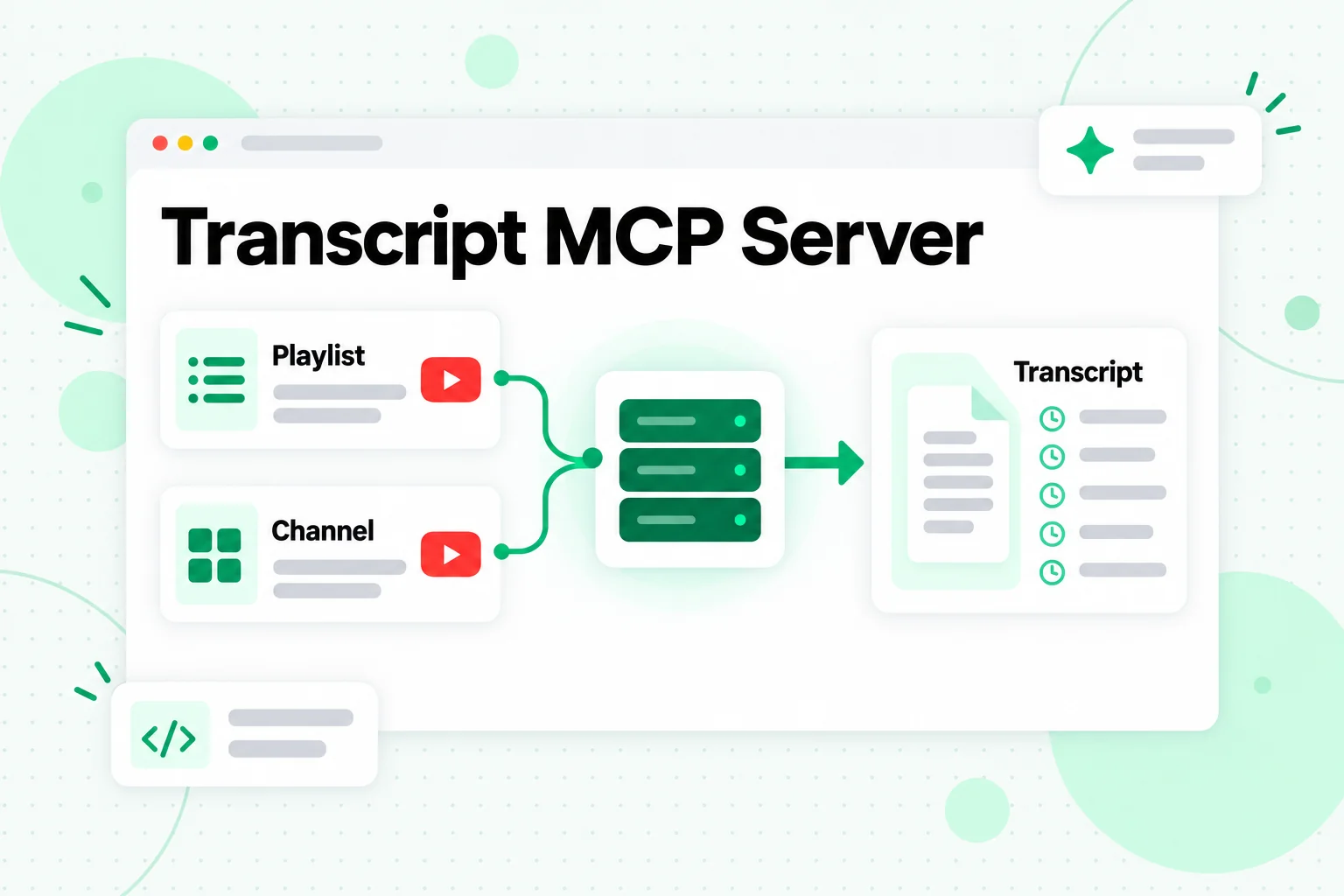
If the caller is an AI agent rather than a script, the Transcript.im MCP server gives it the same transcripts as tools. It is a remote HTTP endpoint at https://mcp.transcript.im/mcp, so there is nothing to install: an MCP client needs the URL and an API key.
Connect the Transcript.im MCP Server
In Claude Code, register the Transcript.im MCP server from the command line:
claude mcp add --transport http transcript https://mcp.transcript.im/mcp \
  --header "Authorization: Bearer YOUR_API_KEY"
Editors that read an mcpServers configuration, such as Cursor, take the same URL and key:
{
  "mcpServers": {
    "transcript": {
      "url": "https://mcp.transcript.im/mcp",
      "headers": { "Authorization": "Bearer YOUR_API_KEY" }
    }
  }
}
Claude can also add it as a custom connector, ChatGPT as an MCP connector with API key authentication, and OpenAI Agent Builder as an MCP tool with a Bearer credential. The key can be sent as Authorization: Bearer or x-api-key, and the server forwards it to the REST API, so the agent works with the same account as your scripts.
Tools Your Agent Gets
The Transcript.im MCP server publishes eleven tools:
- Transcripts:
get_transcriptextracts a transcript from a URL or reads the next chunk of a long one;get_transcript_inforeturns a video's metadata and available caption tracks. - Batches and exports:
create_batchstarts a run from a URL list, a playlist or a channel;get_batchreports status, counts and the next page of items;export_batchturns a finished batch into text or subtitles. - YouTube discovery:
search_video,get_channel,list_channel_video,list_playlist_itemandlist_captionfind videos, resolve channels, walk uploads and playlists, and read caption metadata. - Account:
get_usagereports the account's usage summary.
The server includes no AI tools of its own. Your client already runs the model, so the server stays focused on data and leaves summarizing and rewriting to the agent.
Long Transcripts Stay Manageable
A two-hour recording produces more text than an agent should receive in one tool result. The server returns long transcripts in bounded chunks: each chunk carries truncated: true and a nextPageToken, and the agent calls get_transcript again with that token for the next chunk. Errors come back as readable text with a code, an HTTP status and, when a language is missing, the availableLanguages, so the agent can choose its next step instead of retrying blindly.
Three Pipelines From YouTube to a Notebook
Put the pieces together and you get a few repeatable pipelines. Each one starts with transcripts and ends in a notebook or an agent.
Pipeline 1: A Channel Into the Consumer App
Run a channel batch through the Transcript.im API, export the result as text, and merge the transcripts into a handful of files grouped by topic, with each video's title as a heading. Upload those files to NotebookLM by hand or with notebooklm source add. Merging matters because NotebookLM counts sources, not words; our guide to whether NotebookLM is free explains the source limits on each plan and how merging keeps a large channel inside them.
Pipeline 2: A Playlist Into NotebookLM Enterprise
For a company notebook, create the notebook with notebooks.create, run the playlist through POST /v1/batch, and send each transcript to sources.batchCreate as a textContent entry whose sourceName is the video title. A short script in any language can do this end to end, and because both sides are plain REST APIs, it fits in a scheduled job that refreshes the notebook when new videos arrive.
Pipeline 3: An Agent With Two MCP Servers
Connect the Transcript.im MCP server and a NotebookLM MCP server to the same agent. Then a single request can cover the whole loop: "List the last 20 uploads from this channel, get their transcripts, add them to my research notebook, and ask the notebook which topics come up most often." The agent calls list_channel_video and get_transcript on one server, then the notebook tools on the other. If you are new to working inside a notebook once the sources are in, our tutorial on how to use NotebookLM covers sources, chat and Studio step by step.
FAQs
Is there an official NotebookLM API?
Yes, the official NotebookLM API is the NotebookLM Enterprise API in Google Cloud. It is a preview REST API for notebooks, sources, sharing and Audio Overviews inside an organization's cloud project. Google has not published a developer API for the consumer app used with personal Google accounts.
Can I use the NotebookLM API with a free Google account?
No, the NotebookLM Enterprise API only works with NotebookLM Enterprise notebooks in a Google Cloud project. For notebooks in a personal account, the options are unofficial tools such as notebooklm-py or a community MCP server.
What is the NotebookLM Enterprise API?
The NotebookLM Enterprise API is a set of v1alpha REST methods on Google's Discovery Engine service. It can create, get, list, delete and share notebooks, add and remove sources, and create an Audio Overview, with access controlled by Google Cloud IAM roles.
What is a NotebookLM MCP server?
A NotebookLM MCP server is a program that exposes NotebookLM actions, such as asking a notebook a question or adding a source, as tools an AI agent can call through the Model Context Protocol. The NotebookLM MCP servers available today are community projects, not Google products.
Is notebooklm-py official?
No, notebooklm-py is an unofficial community library. Its GitHub page says it is not affiliated with Google and that it uses undocumented Google APIs that can change without notice.
Is there a NotebookLM CLI?
Yes, but not from Google. The notebooklm command that comes with notebooklm-py works with the consumer app, and nblm is an unofficial NotebookLM CLI for the Enterprise API that signs in through gcloud.
Can the NotebookLM API import a YouTube playlist?
No, the NotebookLM Enterprise API adds YouTube videos one at a time through videoContent with a single youtubeUrl, and it imports only caption text. To bring in a whole playlist or channel, fetch the transcripts first with the Transcript.im API and add them as text sources.
How do I get YouTube transcripts into NotebookLM automatically?
Use the Transcript.im API or the Transcript.im MCP server to fetch transcripts for a video, playlist or channel, then add the text to a notebook by upload, with notebooklm-py, or with the Enterprise API's textContent sources.
The Bottom Line
The only official NotebookLM API is the NotebookLM Enterprise API in Google Cloud, and it is still in preview. For personal notebooks, notebooklm-py, its notebooklm CLI and community NotebookLM MCP servers fill the gap, with the understanding that they rely on undocumented access and can break when Google changes the app.
Whichever route you choose, the notebook is only as good as its sources. For video, that means complete text first: fetch transcripts for single videos, playlists and channels with the Transcript.im API or MCP server, group them into a few well-named sources, and let NotebookLM, or your agent, do the reading.
Transcript Generator
Turn Any Video Into Text
Paste a YouTube, TikTok, or Instagram link and read the transcript, with timestamps on every line.
Exports as TXT, SRT, or VTT.