
NotebookLM Podcast: Audio Overview, Video and Mind Maps
NotebookLM podcast guide: how Audio Overview works, its formats and languages, plus Video Overview, Mind Map, Infographic and Slide Deck in Studio.
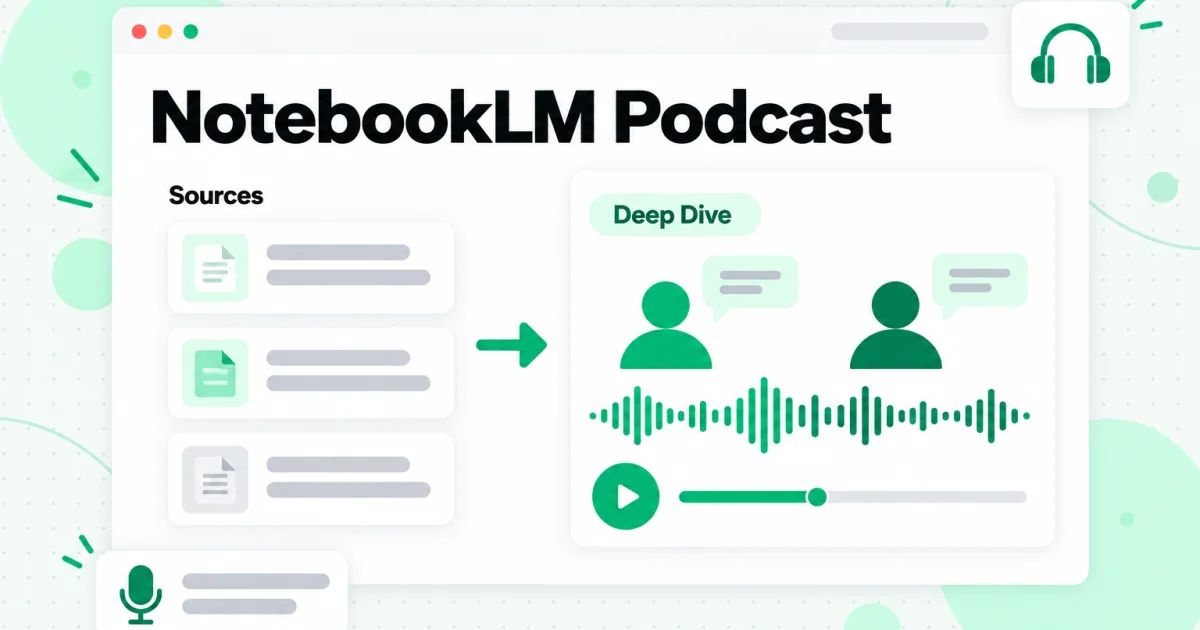
The NotebookLM podcast is a feature Google calls Audio Overview: you add sources to a notebook, open the Studio panel, and NotebookLM generates a spoken conversation in which AI hosts discuss your material. It is not a general chatbot reading the web aloud. The hosts talk only about the sources in your notebook, and you can choose a format, a length, a language and a focus before it starts. The same Studio panel also turns those sources into a Video Overview, a Mind Map, an Infographic and a Slide Deck, which makes NotebookLM one notebook with several ways to review the same material.
This guide covers how the NotebookLM podcast generator works, which Audio Overview formats and options exist today, how to share and download the result, and what each of the other Studio outputs does. It also covers two jobs people bring to it often: building an Audio Overview from a whole YouTube playlist or channel, and getting a podcast transcript of the finished audio so you can quote it, caption it or check it.
A naming note first. On July 16, 2026, Google renamed NotebookLM to Gemini Notebook, and the help pages now use the new name. It is the same product, and this article keeps the NotebookLM name because that is what most people still search for. If you are new to the tool, our NotebookLM review explains what it is and where it falls short. Every feature detail below was checked against Google's own help pages and announcements on October 23, 2026. Google changes these features often, so treat its current help page as the final word.
What Is the NotebookLM Podcast?
The NotebookLM podcast is an Audio Overview: an AI-generated audio discussion based only on the sources you selected in a notebook. Google introduced the feature on September 11, 2024, in a post that described it as "a new way to turn your documents into engaging audio discussions." In the original format, two AI hosts start a "deep dive" into your material, summarize it, connect topics across sources and trade a little banter along the way.
People call it a podcast because that is what it sounds like. There is no recording studio and no script to write: the hosts, the voices and the conversation are all generated from your notebook. That is also why searches for a "NotebookLM podcast generator" land on the same feature. There is no separate podcast product inside NotebookLM; the Audio Overview tile in Studio is the generator.
Three facts shape what you get:
- It reflects your sources, not the hosts' opinions. Google's help page says the overviews are meant to be an "objective reflection of your source content." If your sources are one-sided, the conversation will be too.
- It can be wrong. Google warns that Audio Overviews, including the voices, are AI-generated and "may contain inaccuracies or audio glitches." The audio carries no citations, so anything you plan to rely on should be checked in the chat, where citations point back to the source passage.
- It is a summary, not a recording of your material. Google's launch post put it plainly: the discussions are "not a comprehensive or objective view of a topic." Use the audio to get oriented and to review, not as a replacement for the sources.
When the feature launched, the hosts spoke only English and you could not interrupt them. Both limits have since changed, as the next sections show.
How to Make a NotebookLM Podcast
Making a NotebookLM podcast takes a few clicks once your sources are in place. The quality of the result depends mostly on those sources, so the how to use NotebookLM guide is the place to start if you have not built a notebook before. Here is the Audio Overview flow itself:
- Open or create a notebook and add your sources. You need edit access to the notebook to generate or delete an Audio Overview.
- Select the sources you want discussed. Untick anything that is off-topic. A tighter set gives a more focused conversation.
- Open the Studio panel and choose Audio Overview. Use the pencil icon, or the customize option, if you want to set the format, language, length or a prompt before generating.
- Generate it. The overview is built in the background, so you can keep chatting, read sources or create other outputs while it runs. Google says it can take "a couple of minutes."
- Play it in the Studio panel. You can change the playback speed from the More menu, rate it with thumbs up or thumbs down, and keep listening while you work in the rest of the notebook.
Since March 2026 you can also ask for an Audio Overview straight from the chat, and since July 2025 a single notebook can store several Studio outputs of the same type. That second change matters more than it sounds: you can keep a short Brief and a long Deep Dive of the same sources side by side, or one overview per module of a course.
To reopen an older overview, find it in the Studio panel and select Load. If you want to see what prompt you gave it, the three-dot menu next to it has "View custom prompt."
NotebookLM Audio Overview Formats, Lengths and Languages
A NotebookLM Audio Overview now comes in four formats, three lengths and more than 80 languages. Picking the right combination before you generate saves you a second run and some of your usage allowance.
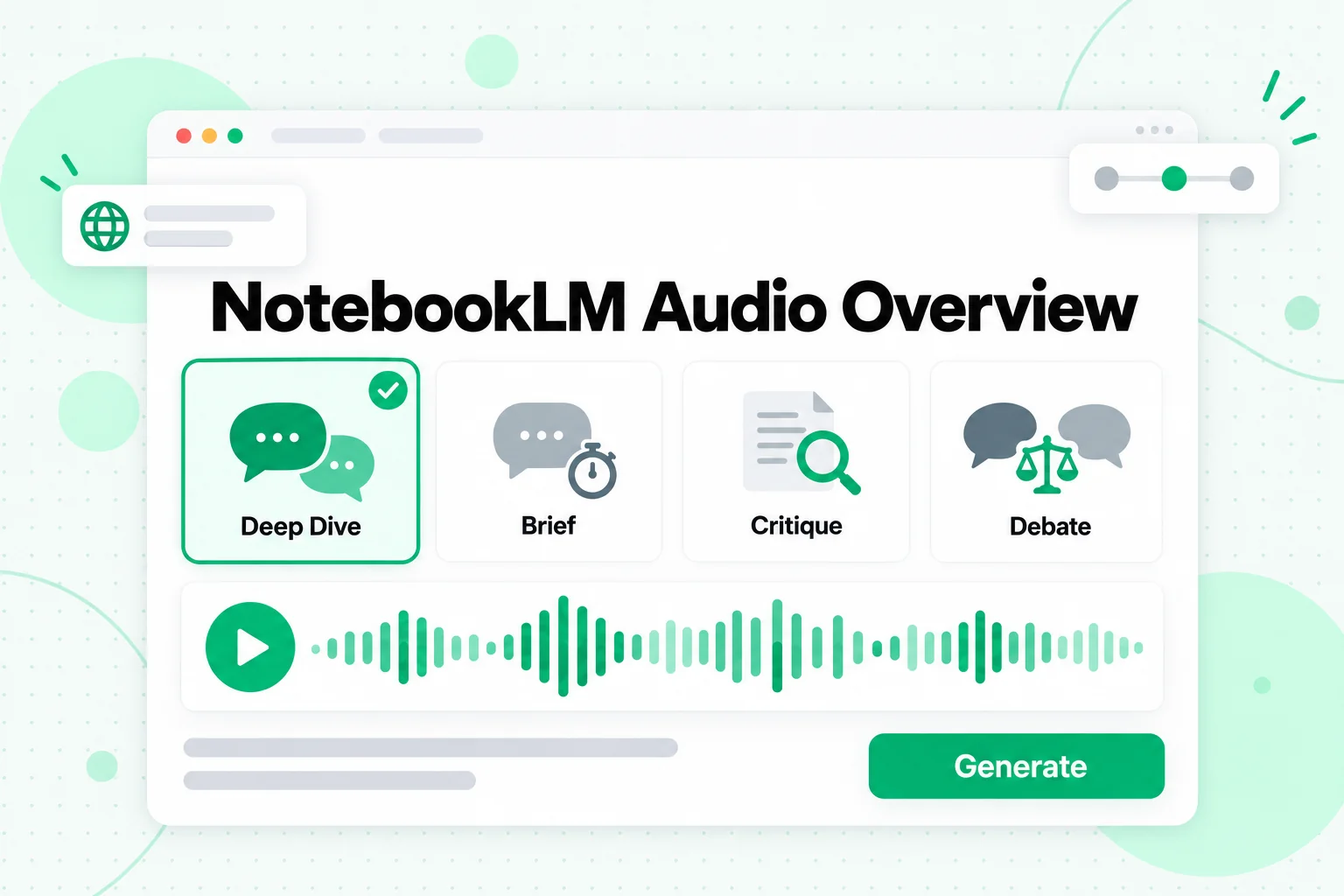
The NotebookLM Audio Overview formats, in Google's own words:
| Format | Speakers | What it does | Good for |
|---|---|---|---|
| Deep Dive (default) | Two hosts | A "lively conversation" that unpacks and connects topics across your sources | A first pass through a course module, a report or a book chapter |
| The Brief | One speaker | The key takeaways in "under two minutes" | A quick refresher before a meeting or exam |
| The Critique | Two hosts | A "constructive evaluation" of the material | Feedback on your own essay, pitch, design doc or draft chapter |
| The Debate | Two hosts | A "formal, back-and-forth debate" across different perspectives | Sources that disagree, or a decision with real trade-offs |
Length
You can choose Shorter, Default or Longer. Google notes that the Longer option is available in English only.
Language
Audio Overviews support more than 80 output languages, including several variants of Spanish, French for Canada and Europe, Simplified and Traditional Chinese, Japanese, Korean, Hindi and Arabic. The default is the preferred language in your Google Account settings, and you can pick a different one for each overview. Your sources do not have to be in the output language: a notebook of English lecture transcripts can produce a Spanish Audio Overview.
Prompt
The customize box takes a short instruction that steers the conversation. Google's examples are about focus and expertise level, and these are the kinds of prompts that work well:
- "Focus only on the sections about pricing and skip the history."
- "Explain this for a first-year student who has never studied statistics."
- "The listeners are engineers; go into the method, not the background."
- "Compare how the speaker's advice changes between the first and last episodes."
- "Spend most of the time on where the two papers disagree."
A prompt narrows the focus; it does not add facts. If the material you want discussed is not in the selected sources, no prompt will put it in the audio.
Interactive Mode: Join the Conversation
Interactive mode lets you interrupt a NotebookLM podcast and ask the hosts a question. To use it, create a new Audio Overview, select Interactive mode, and while it plays, select Join. When the hosts call on you, ask your question out loud; they answer from your sources and then pick up the overview where they left off.
A few conditions come with it, all set by Google:
- English only. Interactive mode works for English overviews.
- New overviews only. It works on newly generated overviews, not on older ones.
- Not for shared links. People who open a shared link to your overview can listen but cannot join.
- Your voice is not kept. Google says your voice and the transcripts of your questions are not stored or shared.
- Expect rough edges. Google warns of delays and glitches, such as random speaker switches.
Interactive mode is most useful for study. Let the hosts explain a concept, join when something is unclear, and ask for an example from the sources. It replaces the "pause, open chat, type the question" loop with a spoken one.
Sharing and Downloading Your Audio Overview
You can share an Audio Overview in three ways: share a link to the audio, share the whole notebook, or download the audio file and send it yourself.
- Share a link. Select Share in the player. The recipient needs access to the notebook, or the notebook needs to be set to "Anyone with a link" with access to the full notebook. Only owners and editors can make the audio public or manage access.
- Share the notebook. Anyone you share the notebook with finds the overview in the Studio panel.
- Download. Select Download and share the file however you like, for example in a course chat or a podcast app that accepts uploads.
Two restrictions are worth knowing. Public sharing is available only on consumer accounts; it is turned off for Workspace Enterprise and Education accounts. And deleting an overview breaks every link you shared to it, so download a copy before you clean up a notebook. Downloads can also be blocked for notebooks that use a Play Books ebook as a source, depending on the publisher's restrictions.
Before you publish an Audio Overview anywhere public, remember what it is built from. Only share audio made from material you are allowed to use, and listen to it in full first, since the hosts can misstate a detail.
Turn a YouTube Playlist or Channel Into a NotebookLM Podcast
A YouTube playlist or channel makes one of the best NotebookLM podcast sources: a course, a lecture series or a creator's back catalog, condensed into a conversation you can listen to on a walk. Getting that material into a notebook is the hard part.
NotebookLM can import a YouTube link, but only one video per link, only public videos with captions, and only the caption text; our guide to NotebookLM YouTube imports covers those rules and the errors they cause. A free notebook also holds 50 sources, so a 60-video playlist does not fit one link at a time; the NotebookLM free plan limits are explained in their own article. The reliable route is to turn the videos into text first and add the text as a few sources.
- Get every transcript in one run. Paste the playlist link into the YouTube playlist transcript tool on transcript.im. It queues the videos in playlist order and processes them in parallel. Each video's caption track is read when there is one, and AI transcription covers any video that was never captioned, so missing captions do not leave a gap in the conversation. A channel link works the same way on the channel transcript page, which queues the channel's public uploads.
- Export plain text. The playlist comes back merged lesson by lesson, and each transcript keeps its video title and timestamps. Export it as TXT, the format NotebookLM reads most cleanly.
- Group by topic. Combine related videos into one file per module, season or theme, and keep each video's title as a heading. One source can hold up to 500,000 words, so a module of ten one-hour lectures fits in one file.
- Generate one Audio Overview per group. Select a single module's file and generate a Deep Dive for it. Because a notebook can store several overviews, you end up with a short series: one episode per module, all grounded in the transcripts.
- Steer each episode. Use the prompt box: "Focus on the three techniques the instructor demonstrates," or "Compare the creator's advice in 2024 uploads with the 2026 uploads."
This is where the two tools fit together. transcript.im turns a lot of video into complete, labelled text; NotebookLM turns that text into a podcast, a mind map or a slide deck. Only transcribe and upload videos you are allowed to use, such as your own content, course material you have access to, or public videos you are studying for your own notes.
Podcast Transcript: Turn the Audio Overview Back Into Text
Google's help page for Audio Overviews lists playback speed, feedback, sharing and download, but not a text transcript of the conversation. If you want a podcast transcript of your Audio Overview, download the audio and transcribe it.
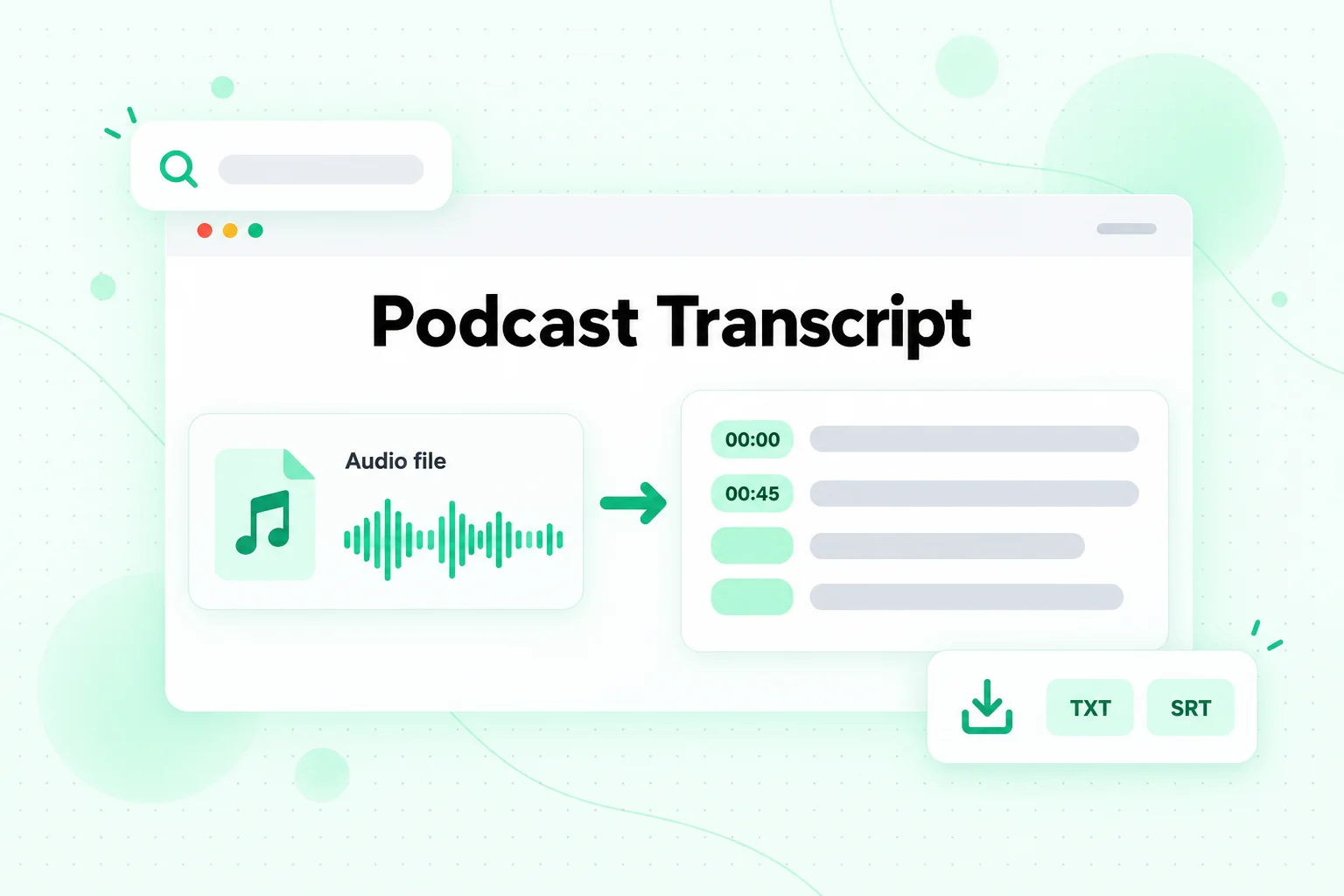
A podcast transcript of the overview is useful in more ways than it first seems:
- Check what the hosts said. The audio has no citations. With the text in front of you, you can search for each claim and confirm it in the notebook's chat, where every answer links to its source passage.
- Quote it. Pull a clear explanation into your notes or a study guide without replaying the audio to catch the exact wording.
- Caption it. If you publish the overview as a video, an SRT or VTT file adds subtitles that line up with the voices.
- Translate it. Share a written version with a study group that reads another language better than it listens to one.
- Write show notes. A transcript is the raw material for a summary, a list of topics and timestamps for each section.
The steps take a few minutes:
- Download the Audio Overview from the player in the Studio panel.
- Upload the file to an audio to text converter. The audio to text tool on transcript.im accepts MP3, M4A, WAV, FLAC and other common formats, detects the spoken language automatically and returns timestamped text.
- Read and search the transcript in the browser, and jump to any moment by its timestamp.
- Export it as a TXT file for notes, or as an SRT or VTT subtitle file for video.
One caution about feeding the podcast transcript back into NotebookLM. The transcript is a summary made by AI, not original material, so adding it to the same notebook as a source mixes the hosts' wording in with your real sources and muddies the citations. Keep it in your notes, or in a separate notebook if you want to ask questions about the conversation itself.
NotebookLM Video Overview
A NotebookLM Video Overview is the visual counterpart to the podcast: a narrated video built from your sources. When Google launched it in July 2025, the first format was narrated slides, with visuals that pull in images, diagrams, quotes and numbers from your documents.
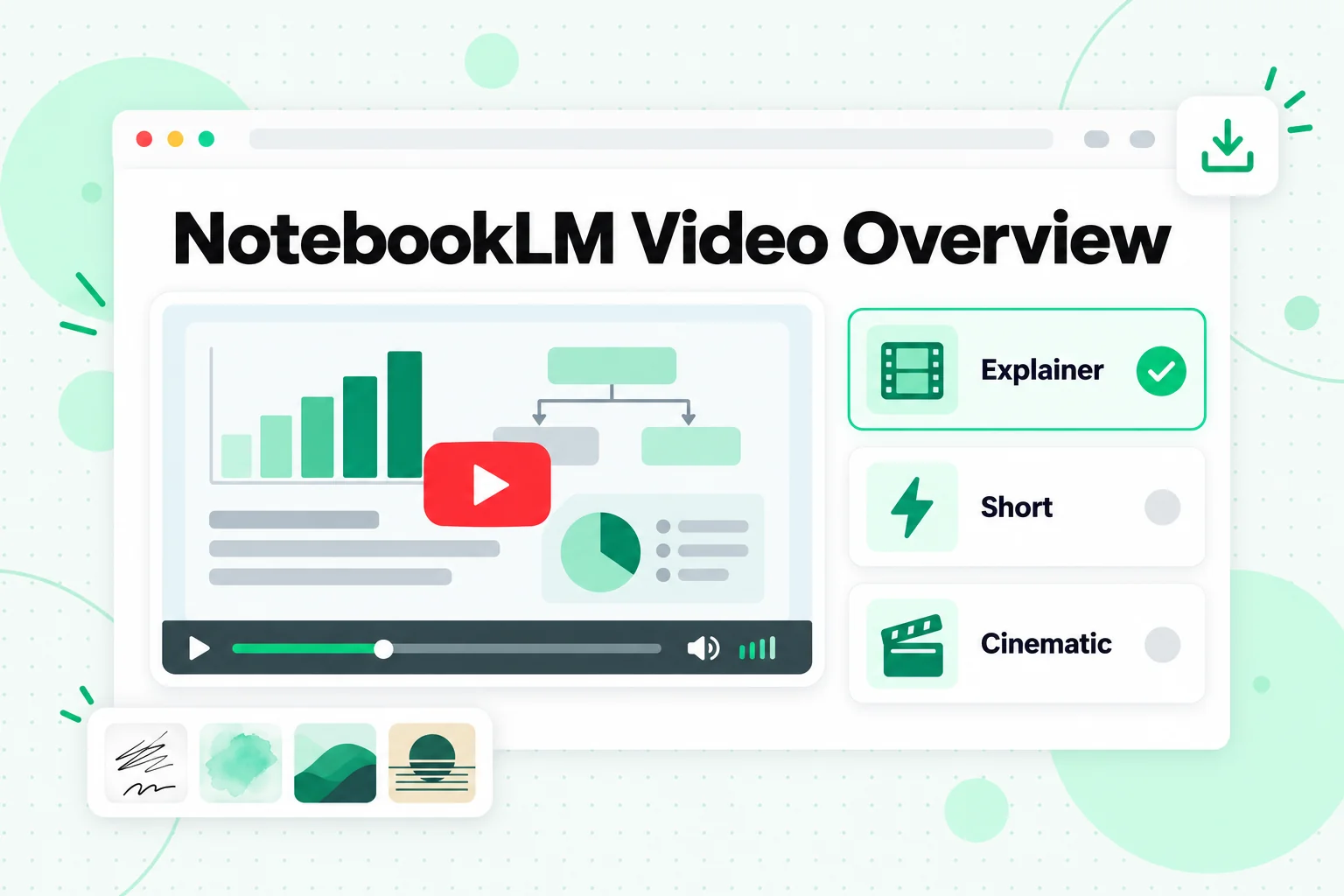
You generate a NotebookLM Video Overview from the Studio panel, the same way as audio: select Video Overview, customize it, then choose Generate now or Generate later. Google says it "may take a while," sometimes more than 30 minutes. The options today:
| Option | What Google lists |
|---|---|
| Format | Explainer, a structured overview that "connects the dots"; Short, "~60 second videos"; Cinematic, an immersive format with richer visuals and storytelling |
| Visual style | Classic, Whiteboard, Watercolor, Retro Print, Heritage, Paper-craft, Kawaii and Anime, or auto-select, or a Custom style you describe |
| Language | Many narration languages for Explainer and Short; Cinematic is English only |
| Steering prompt | Pick a suggested topic or describe your own focus |
Some limits apply. Visual styles are available only to users 18 and over, and not for Cinematic or Short overviews. Cinematic overviews are for users 18 and over, and Google's March 2026 announcement listed them for Google AI Pro and Ultra and for certain Workspace plans. A co-creation mode called producer notes, where you review the plan before final rendering, is available only to Google AI Ultra subscribers.
Playback works like any video player: scrub the timeline, skip, change the speed or go full screen. Sharing and downloading follow the same rules as Audio Overviews, including the rule that deleting a video breaks its share links.
A Video Overview is a study and briefing format. It explains your sources; it is not designed for producing a branded video with your own script, music and scene plan. If that is the goal, for example a course trailer or a product walkthrough, a dedicated explainer video maker that writes the script, plans each scene and adds narration, captions and music is the better fit.
NotebookLM Mind Map
A NotebookLM Mind Map is a branching diagram of your sources: the main topics in the middle and related ideas around them. It is the fastest way to see how a large notebook is structured before you listen to or read anything.
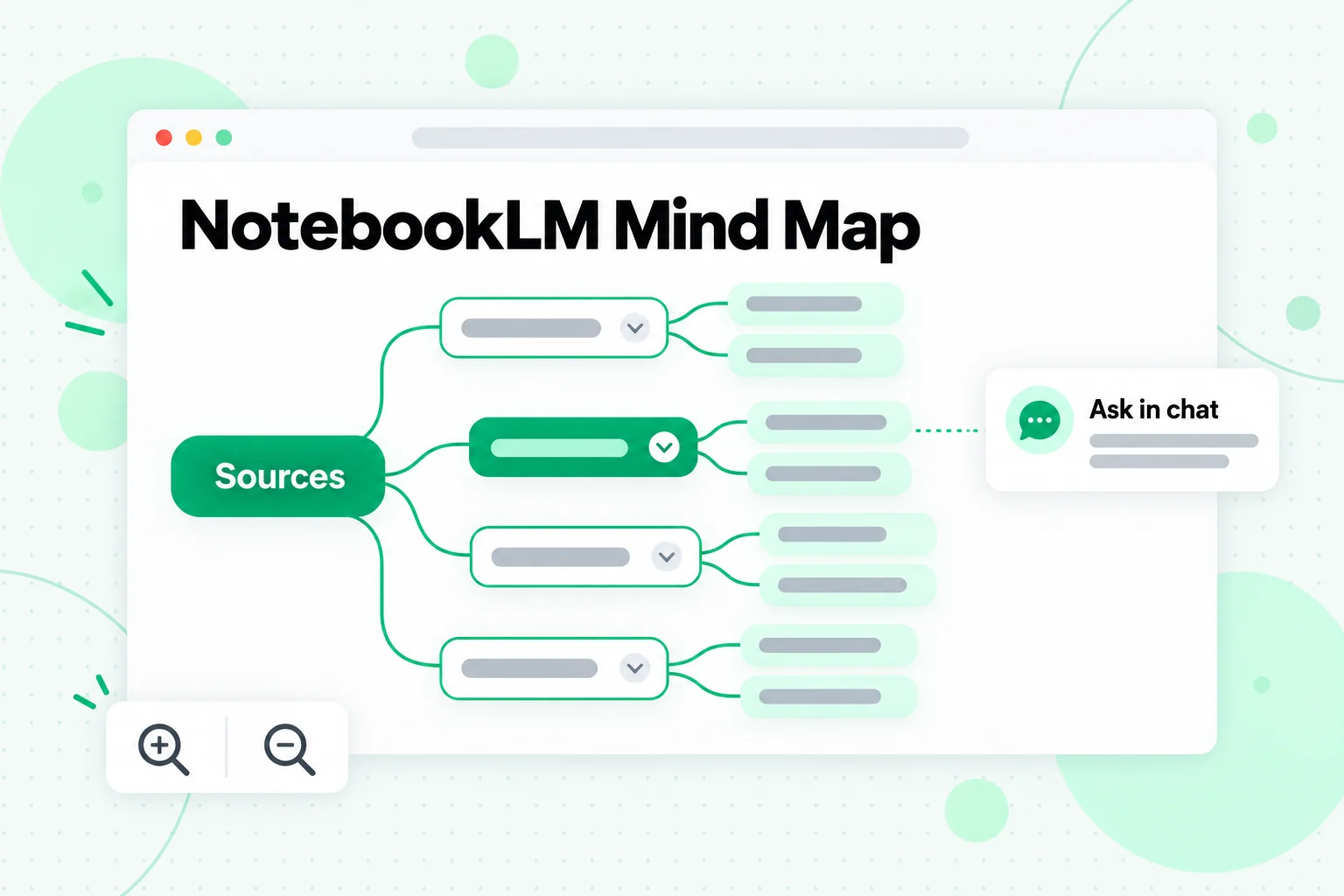
Unlike the other outputs, you create a NotebookLM Mind Map from the chat: select the Mind Map chip, and the map appears as a new note in the Studio panel, where you can reopen it any time. Inside the map you can:
- Zoom and scroll across the diagram.
- Expand or collapse branches to see more or less detail.
- Select a node to ask the chat about that topic, which turns the map into a navigation tool: see a branch you do not understand, select it, and get a cited answer.
- Download the map from the options at the top right and share the file, or share the whole notebook.
Google notes that the mobile app does not support Mind Maps at this time, so use the web version. To regenerate a map after adding sources, delete the old note from the More menu and create it again.
A mind map pairs well with the podcast. Generate the map first to see the topics, then write an Audio Overview prompt that focuses on the two or three branches you care about. For a general introduction to the idea, see the mind map article on Wikipedia.
NotebookLM Infographic
A NotebookLM Infographic turns your sources into a single image that summarizes the key points visually. It suits a one-page recap of a course module, a summary for a team channel, or a handout.
Generate it from the Studio panel by selecting Infographic, or use the pencil icon to customize it first. The options:
- Output language: pick one.
- Level of detail: Concise, Standard or Detailed, with Detailed marked as beta.
- Orientation: Square, Portrait or Landscape.
- Visual style: auto-selected, or a style you pick. Google's March 2026 update listed ten: Sketch Note, Kawaii, Professional, Scientific, Anime, Clay, Editorial, Instructional, Bento Grid and Bricks.
- Prompt: describe the look or focus, such as a color theme or the statistics to highlight.
You can rename the NotebookLM Infographic, download it as a PNG file, share it or delete it from the three-dot menu. The feature is available only to users over 18, and Google warns that infographics "may contain visual or factual inaccuracies," so check every number on it against the sources before you share it.
NotebookLM Slide Deck
A NotebookLM Slide Deck turns your sources into a presentation you can present, revise and download. It is the Studio output that is closest to something you would hand to other people.
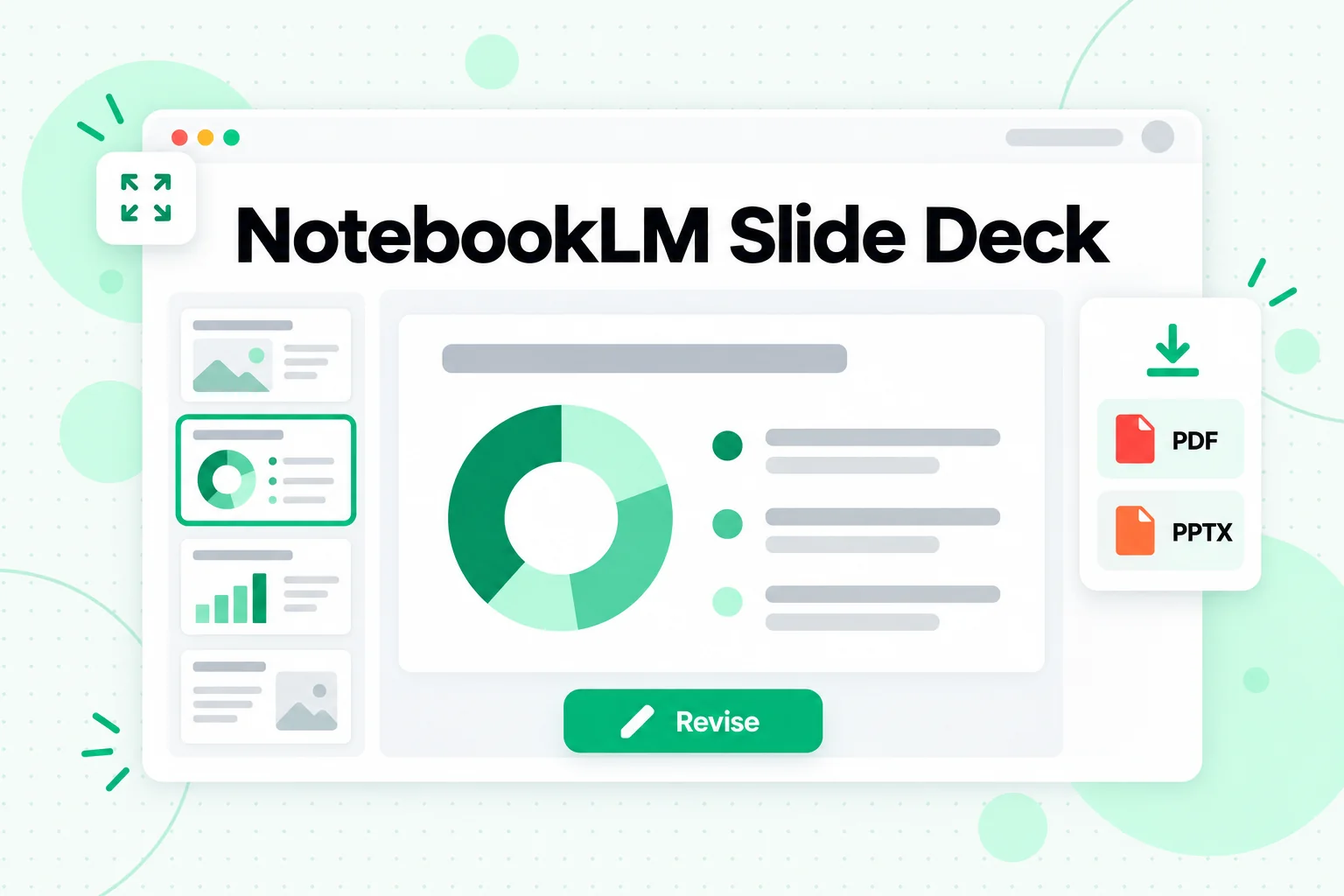
To make a NotebookLM Slide Deck, select Slide Deck in the Studio panel, choose a format, output language, length and sources, and describe the deck you want. Google's example prompt is "Create a deck for beginners using a bold and playful style." Generation can take several minutes, and Generate later is available. Once it is ready:
- Present it. Start slideshow opens a full-screen mode; use the arrow keys to move and Esc to exit.
- Revise it. Select Revise, write instructions for individual slides (edit text, change a layout, update a visual), and select Generate revised deck. Each revision creates a new deck, and Google says sources are not considered during revisions, so a revision changes presentation, not facts.
- Rearrange it. Delete or restore slides from the More menu, and drag thumbnails to reorder them.
- Download it as a PDF or as a PowerPoint (.pptx) file. PPTX export arrived in March 2026.
Slide Decks are available only to users over 18. Co-creating a deck from an outline that you review first is limited to Google AI Ultra subscribers.
A downloaded deck can go one step further. If you want the slides as a narrated video for a course page or a channel, a PPT to video tool can take the PowerPoint file, write a script, add narration and captions and export an MP4.
Which Studio Output Should You Use?
Each Studio output answers a different need. The table maps common goals to the right one:
| Goal | Best Studio output | Why |
|---|---|---|
| Learn a topic while commuting or walking | Audio Overview, Deep Dive | Long, conversational and hands-free |
| Get the gist in two minutes | Audio Overview, The Brief | One speaker, key takeaways only |
| Get feedback on your own draft | Audio Overview, The Critique | Two hosts evaluate the material |
| Understand a disagreement | Audio Overview, The Debate | Hosts argue both sides from your sources |
| See the structure of a big notebook | Mind Map | Branches show topics; nodes open cited answers |
| Watch instead of listen | Video Overview, Explainer or Short | Narrated visuals with diagrams and quotes |
| Share a one-page recap | Infographic | One PNG, square, portrait or landscape |
| Present to a class or team | Slide Deck | Slideshow mode, revisions, PDF or PPTX |
| Quote or caption the podcast | Podcast transcript | Download the audio and convert it to text |
A good routine for a new set of sources is map, then listen, then ask. Generate a Mind Map to see the topics, play a Brief or a Deep Dive to absorb them, and use the chat to verify any claim you will quote, since the chat is the only place where every answer carries a citation.
Usage Limits and Accuracy
Every Studio output draws on a compute-based usage allowance, so heavier formats such as a Video Overview use more of it than a short Brief; in Studio, a bar shows the expected cost before you generate. Plan quotas and source caps are covered in our article on whether NotebookLM is free.
Accuracy deserves the same attention. Google warns of possible inaccuracies on Audio Overviews, Video Overviews, Infographics and Slide Decks alike. The practical rule: treat Studio outputs as a way to review, and treat the cited chat answers as the way to verify.
FAQs
What is the NotebookLM podcast?
The NotebookLM podcast is Google's Audio Overview feature, which turns the sources in a notebook into a spoken conversation between AI hosts. The hosts discuss only your selected sources, and you can set the format, length, language and focus before generating.
Is there a separate NotebookLM podcast generator?
No, the NotebookLM podcast generator is the Audio Overview tile in the Studio panel. There is no separate product; you add sources, open Studio, customize the Audio Overview and generate it.
What are the NotebookLM Audio Overview formats?
The NotebookLM Audio Overview formats are Deep Dive, The Brief, The Critique and The Debate. Deep Dive is the default two-host conversation, The Brief is a single speaker in under two minutes, and the other two evaluate or debate the material.
What languages does the NotebookLM podcast support?
The NotebookLM podcast supports more than 80 output languages. The default is your Google Account's preferred language, the Longer length option is English only, and Interactive mode works only in English.
Can I download a NotebookLM Audio Overview?
Yes, you can download a NotebookLM Audio Overview from the player in the Studio panel and share the file. Deleting the overview later breaks any share links, but not a file you already downloaded.
Does NotebookLM give you a podcast transcript?
NotebookLM does not list a text transcript among the Audio Overview options. To get a podcast transcript, download the audio and run it through an audio to text tool, which returns timestamped text you can export as TXT, SRT or VTT.
What is a NotebookLM Video Overview?
A NotebookLM Video Overview is a narrated video generated from your sources, available in Explainer, Short and Cinematic formats. Explainer and Short support many languages and visual styles; Cinematic is English only and limited to users 18 and over.
How do I make a NotebookLM Mind Map?
You make a NotebookLM Mind Map by selecting the Mind Map chip in the chat. The map is saved as a note in the Studio panel, and selecting any node asks the chat about that topic. The mobile app does not support Mind Maps yet.
Can I export a NotebookLM Slide Deck to PowerPoint?
Yes, a NotebookLM Slide Deck can be downloaded as a PowerPoint (.pptx) file or as a PDF. You can also present it in slideshow mode and revise individual slides before downloading.
Can I make a NotebookLM podcast from a YouTube playlist?
Yes, but it works best through transcripts. NotebookLM imports one captioned public video per link, so transcribe the playlist first, merge the transcripts into a few text files by topic, and generate an Audio Overview from those files.
The Bottom Line
The NotebookLM podcast is the friendliest way into a pile of material: a two-host conversation, or a two-minute brief, built only from the sources you chose, in more than 80 languages, with an Interactive mode that lets you ask questions out loud. Around it, Studio adds a Video Overview for watching, a Mind Map for structure, an Infographic for a one-page recap and a Slide Deck for presenting, all from the same notebook.
What you put in decides what you hear. For video material, that means complete text first: transcribe the playlist or channel with transcript.im, group the transcripts by topic, and give NotebookLM a few rich sources to talk about. And when you want to keep what the hosts said, download the Audio Overview and turn it into a podcast transcript you can search, quote and check. Google's Audio Overview help page, its original Audio Overview announcement and the March 2026 Workspace update on slide revisions, Cinematic videos and new infographic styles are the sources to watch for changes.
Transcript Generator
Turn Any Video Into Text
Paste a YouTube, TikTok, or Instagram link and read the transcript, with timestamps on every line.
Exports as TXT, SRT, or VTT.