
NotebookLM YouTube: How to Add Videos and Fix Import Errors
How NotebookLM YouTube import works: add a video, fix transcript not available and the 72-hour wait, and bring in a whole playlist or channel.
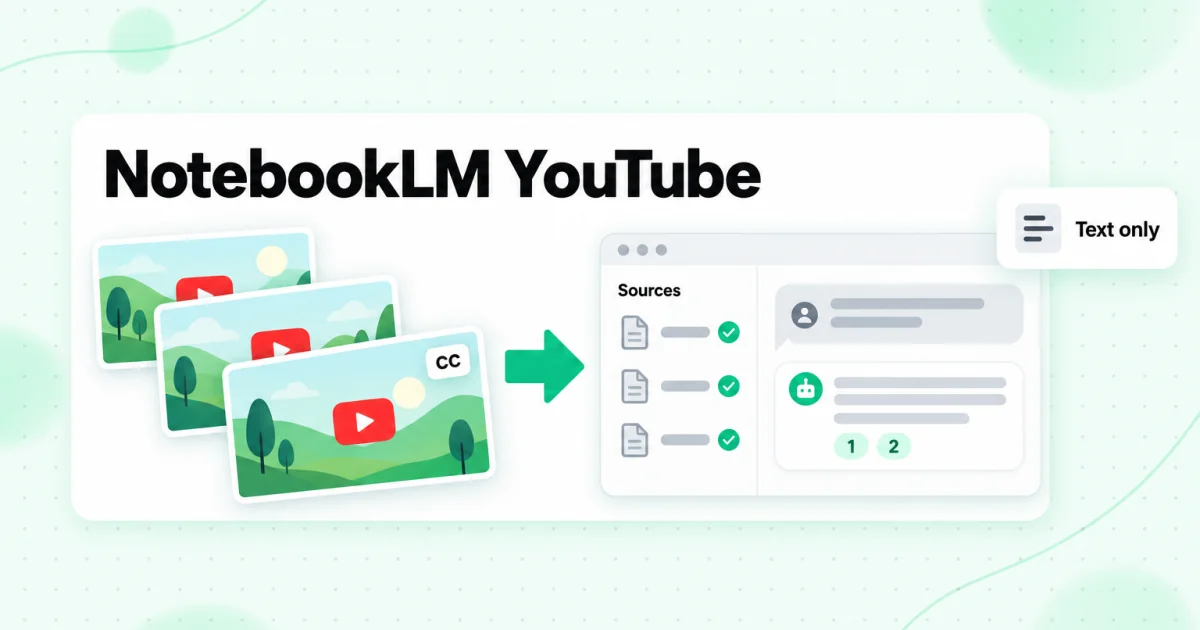
NotebookLM YouTube import works by pasting a video link as a source: NotebookLM reads the video's caption track and keeps that text, so you can ask questions about the video and get answers with citations. It only works for public videos that have captions, it may refuse videos uploaded in the last 72 hours, and it takes one video per link, with no way to import a playlist or a channel. When a video fails with "transcript not available," or when you have dozens of videos to add, the reliable route is to get the transcript first and upload it as a text source.
This guide is the detailed version of the YouTube section in our NotebookLM review. It walks through adding a single NotebookLM YouTube video, explains what the notebook actually receives, lists every import error Google documents and what to do about each one, and then covers the bigger jobs: a full playlist, a full channel, and the Chrome extensions people search for when they want to send YouTube to NotebookLM in bulk. NotebookLM was renamed Gemini Notebook on July 16, 2026; the YouTube import works the same way under both names, and this article uses NotebookLM because that is still what most people type.
How to Add a YouTube Video to NotebookLM
Adding YouTube to NotebookLM takes four steps, and the whole process is a paste rather than an upload. Google added YouTube links and audio files as source types in September 2024, in the update that brought YouTube support to NotebookLM, and the flow has not changed much since.
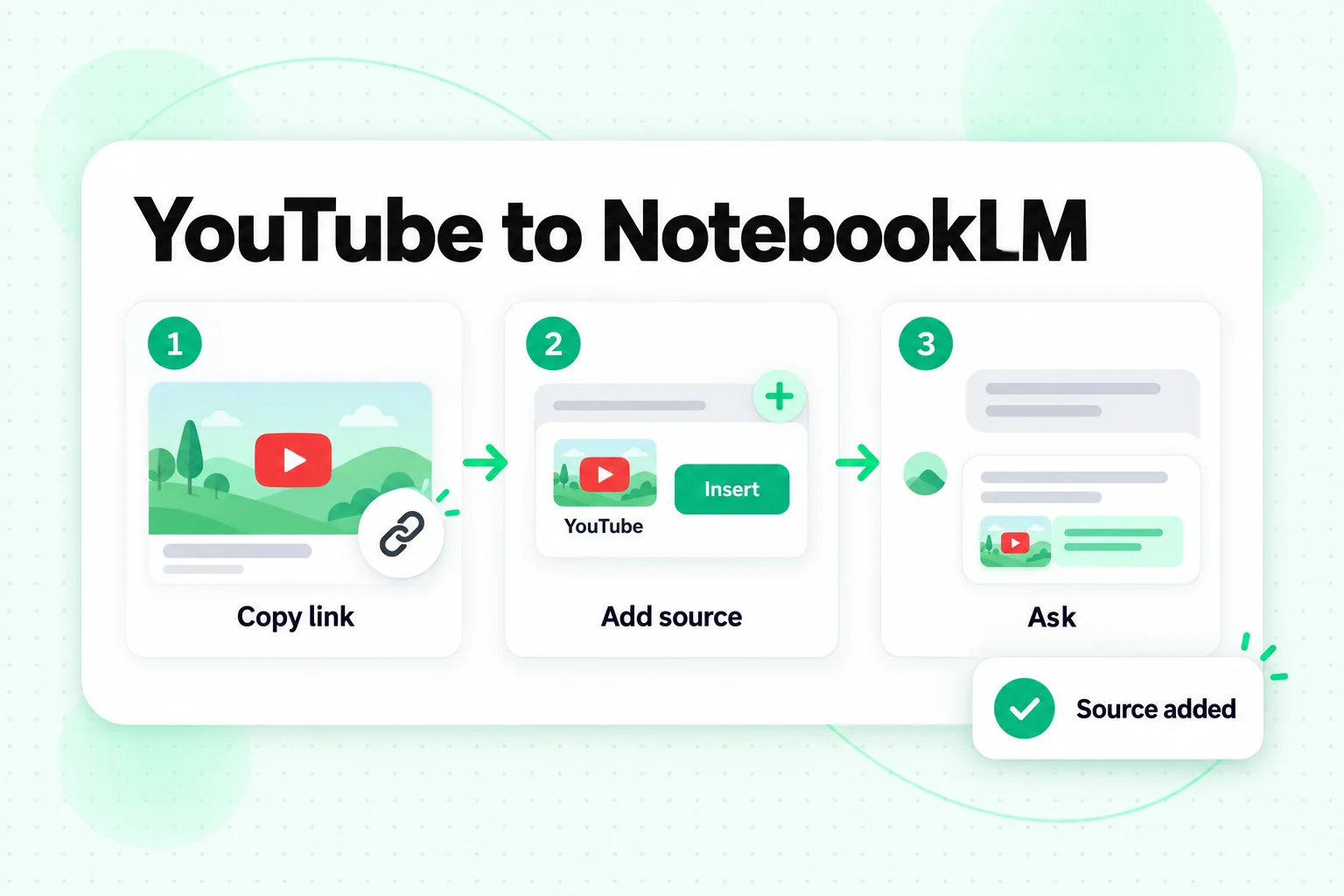
The YouTube to NotebookLM steps, in order:
- Copy the video link. Open the video on YouTube and copy the address from the browser bar or the Share button. The full
youtube.com/watch?v=address is the safest form to paste. A link to a playlist, a channel, or a search result is not a video link. - Open or create a notebook. In NotebookLM (or Notebooks in the Gemini app), open the notebook the video belongs in, or create a new one for the topic.
- Add the source. Select Add sources, choose the YouTube option, paste the link, and confirm. The labels on these buttons have shifted a few times as Google redesigned the interface, but the YouTube choice sits with the other link-based source types.
- Wait for the source to process, then ask. The video appears in the Sources panel with its title. Once it finishes processing, open it to see the imported text and the auto-generated summary, or go straight to the chat and ask a question.
Two habits make the rest of the notebook easier. First, rename nothing and delete nothing in a hurry: the source title is the video title, and that title is what you will see on every citation. Second, add one video and test it with a specific question before adding twenty more. If the first video imports poorly, the rest of that channel probably will too, and it is better to know before you build the notebook around it.
If the video is your own and you have the file, there is a second door. NotebookLM accepts local audio uploads, including MP4 and M4A files, and transcribes them at import, according to the Gemini Notebook help page on adding sources. That route skips YouTube captions entirely, which matters for the errors covered below.
What a NotebookLM YouTube Video Source Contains
A NotebookLM YouTube video source is the caption text of the video and nothing more. Google's help page is explicit: only the text transcript of the video is imported. That single fact explains most of the surprises people run into.
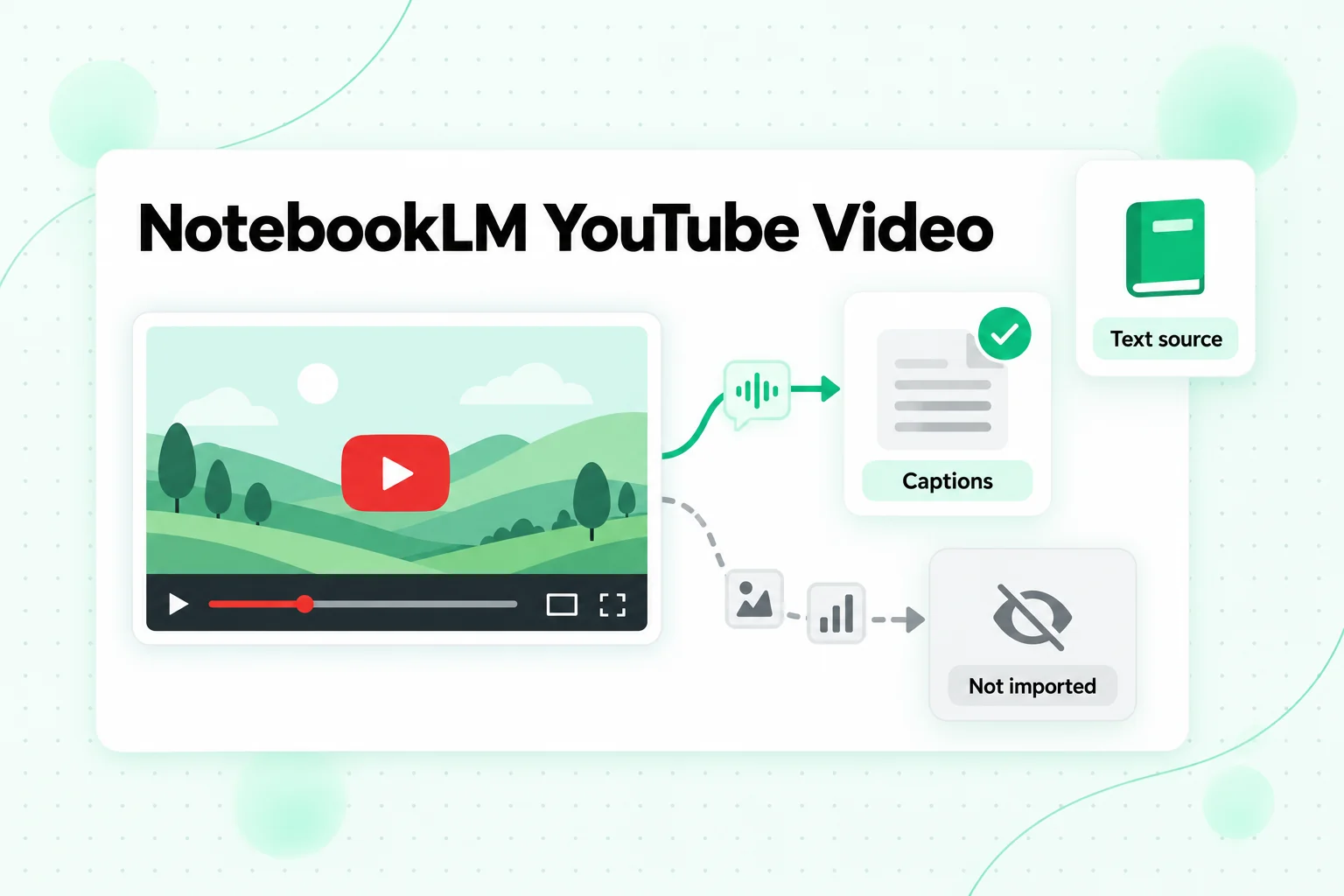
What the notebook gets from a NotebookLM YouTube video:
- The caption track as plain text. Either the captions the creator uploaded or the ones YouTube generated automatically. Creator captions are usually clean. Auto-generated captions carry the speech model's guesses, including misheard names, missing punctuation, and technical terms spelled phonetically.
- The video title as the source name.
- A source summary that NotebookLM writes for each source, which you can read in the source view.
What the notebook never receives:
- Anything shown on screen. Slides, code, charts, diagrams, product demos, and on-screen text are invisible to NotebookLM unless the speaker reads them aloud.
- Speaker labels. YouTube captions rarely say who is talking, so an interview or panel arrives as one undivided stream of words. Questions like "what did the second guest say about pricing?" are hard for the notebook to answer reliably.
- A playable link to the moment. The source is text, so a citation points to a passage, not to a time in the video. To find the moment, you have to search the video yourself.
- Comments, description links, chapters, or the video itself.
There are two quieter rules worth knowing. Length is not a limit: a video of any length imports unless its caption file runs past 500,000 words. And the source is tied to the video's status. If the creator deletes the video or makes it private, Google says the source is removed from your notebook within 30 days. If a video matters to your research, keep your own copy of its text, because the notebook's copy is not permanent.
Why NotebookLM Says "Transcript Not Available"
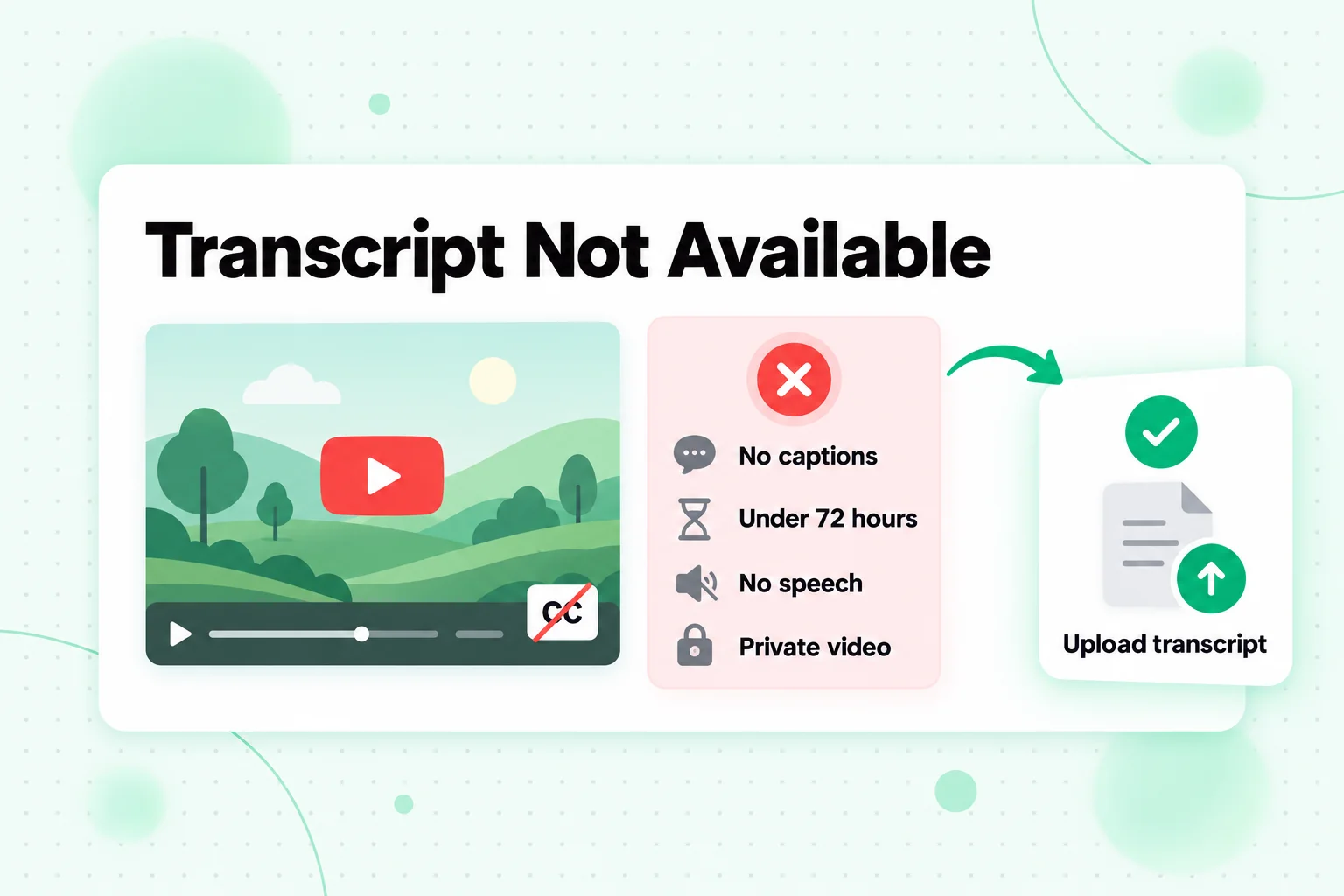
NotebookLM transcript not available errors mean the import found no caption text it could use. The video may play perfectly in your browser; what is missing is the caption file NotebookLM reads. Google's help page lists the documented causes, and each one has a different fix.
| Cause | What is happening | What to do |
|---|---|---|
| No caption track | The creator did not upload captions and YouTube did not generate any. Common for short uploads, screen recordings, music-heavy videos, and many non-English videos | Transcribe the audio elsewhere and upload the text |
| Uploaded less than 72 hours ago | Fresh videos may not be available to import yet | Wait, or transcribe the audio now and upload the text |
| No speech | Videos without speech are not supported | Nothing to transcribe; describe the video in your own notes |
| Private or deleted video | Only public videos are supported | Use a public link, or upload your own file if the video is yours |
| Invalid link | A playlist, channel, Shorts feed, or malformed URL | Use the single video's watch link |
| Potentially unsafe video | Google's checks flagged the video | Use a different source for the same material |
| Unsupported language | The caption language is not currently supported | Transcribe and translate the text, then upload it |
The most common of these is the missing caption track. YouTube generates automatic captions for many videos, but not for every video or every language, and a creator's own uploaded captions are optional. Wikipedia's article on closed captioning is a good overview of how captions are produced and why coverage varies so much from one platform and language to another.
There is no setting inside NotebookLM that transcribes a YouTube video's audio instead of reading its captions. So when the error appears, the fix is always outside the notebook: get the words some other way, then bring them in as text.
The 72-Hour Wait and Other Timing Problems
The 72-hour rule catches people who want to study a talk, a lecture, or a product announcement on the day it goes live. Google's wording is that videos uploaded less than 72 hours earlier "may not be available," so some fresh videos import fine and others do not. If you cannot wait three days, transcribe the video directly and upload the text. When the official captions appear later, you can compare them with your version if accuracy matters.
Live streams follow a similar logic. A stream that is still running has no finished recording to read, so treat it as unavailable until it has ended and the recording is published. transcript.im can transcribe a stream once the recording exists.
How to Get a NotebookLM YouTube Transcript From Any Video
A NotebookLM YouTube transcript you produce yourself fixes every caption-related error at once, because NotebookLM never has to look at YouTube. You give it text, and text is the one input it always accepts. The workflow takes a few minutes per video:
- Paste the video link into a YouTube transcript tool. transcript.im reads the creator's caption track when one exists and transcribes the audio with AI when it does not, so a video NotebookLM rejected still comes back as text.
- Check the words that matter. Skim the transcript for names, numbers, and technical terms. AI transcription and auto captions both stumble on unusual names. Fix them now, and every NotebookLM citation will carry the correct spelling.
- Export as TXT or Markdown. Both are source types NotebookLM accepts as uploads, so the NotebookLM YouTube transcript goes in as an ordinary file. Markdown lets you keep the video title as a heading at the top of the file.
- Upload the file as a source, or paste the text as a copied-text source and give it the video's title.
This route also brings back what the native import drops. transcript.im keeps a timestamp on every line, and those timestamps survive in the text you upload. When NotebookLM cites a passage, the timestamp next to it tells you exactly where to jump in the video. You can also translate a transcript into another language while keeping its timestamps, which helps when NotebookLM cannot import the video's language.
A self-made NotebookLM YouTube transcript is worth it even for videos that do import. If you plan to quote a video, cite it in a paper, or rely on it for a decision, the native import gives you citations without a time reference. Your own transcript gives you both.
Can NotebookLM Import a YouTube Playlist?
No. There is no NotebookLM YouTube playlist import: a pasted playlist link is never expanded into its videos, and each video has to be added as its own source. For a ten-video series that is ten pastes. For a 60-lesson course, it is 60 pastes, any lesson without captions leaves a gap, and every video uses one source slot in the notebook. The free tier allows 50 sources per notebook, and paid plans raise that number; our guide to whether NotebookLM is free covers the current limits on each plan.
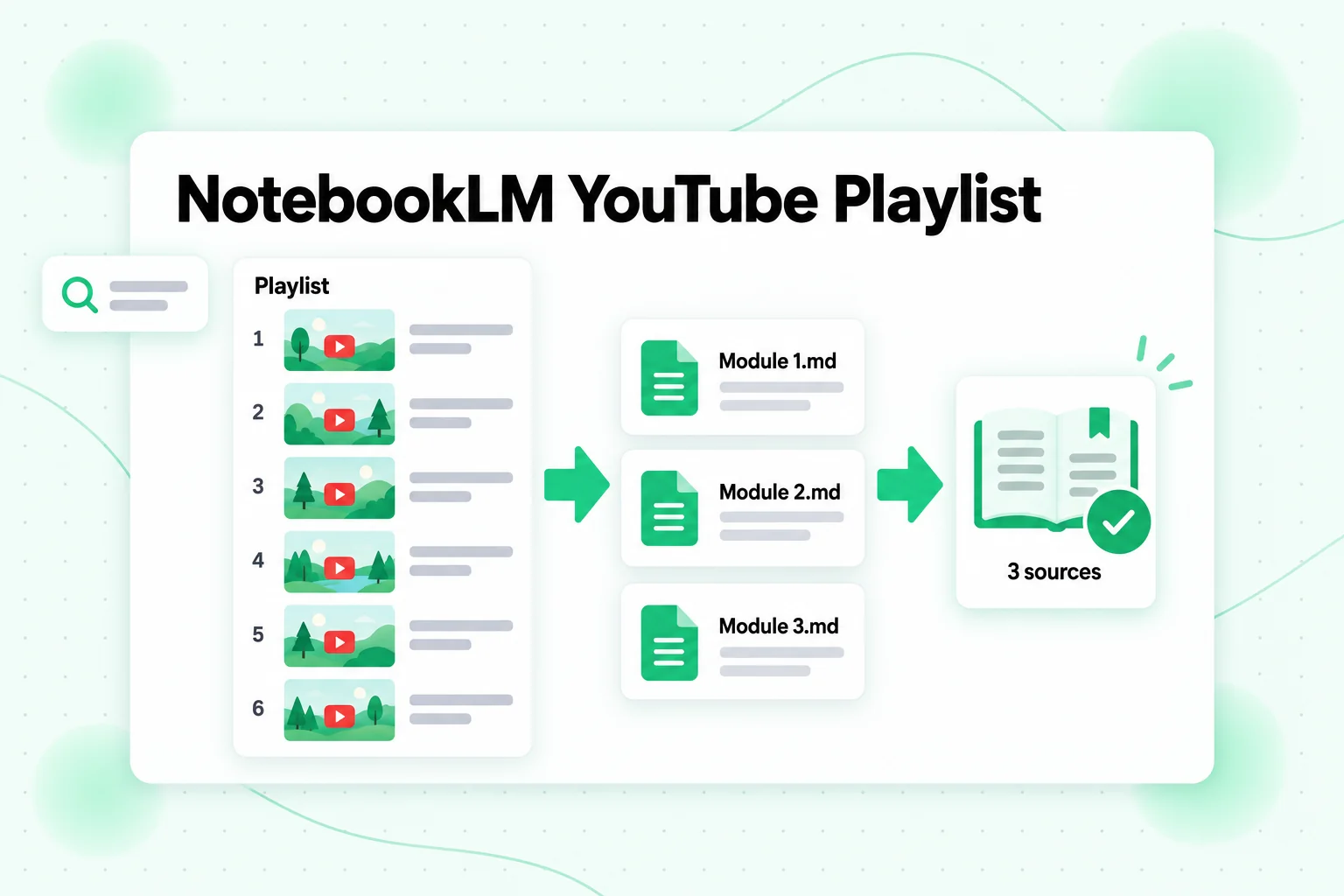
The way around both problems is to merge. One NotebookLM source can hold up to 500,000 words, and a one-hour talk produces roughly 8,000 to 10,000 words of transcript. So a single text file can carry the transcripts of many videos and still count as one source. The playlist workflow:
- Paste the playlist link into the YouTube playlist transcript page. One link queues every video in the order the playlist sets, and the videos are processed in parallel.
- Let missing captions fill in. Videos without caption tracks are transcribed from their audio, so the course arrives complete.
- Export the set. Each transcript is labelled with its video title and keeps its timestamps.
- Merge by module. Combine related lessons into a handful of Markdown files, such as one per module or one per ten lessons, with each video's title as a
##heading inside the file. - Name the files by scope, for example
Module 2 - Lessons 7-12.md, so the Sources panel reads like a table of contents. - Upload the files and ask questions across the whole course.
A 60-video course merged this way fits in six to eight sources instead of 60, leaving room in the notebook for slides, readings, and your own notes. The headings matter more than they look: they give NotebookLM clear boundaries between lessons, so a question like "which lesson introduces cohort analysis?" gets an answer that names the lesson instead of a vague passage from somewhere in the file.
Merging has one tradeoff. Within a merged file, NotebookLM can only tell lessons apart by the headings you wrote, so keep one video per heading and do not paste transcripts together without them.
Turning a YouTube Channel Into NotebookLM Sources
A channel is the same problem at a larger scale, and it is the job researchers, analysts, and creators bring to NotebookLM most often: everything a company has said about its product, every episode of a podcast, or every tutorial on one channel. NotebookLM has no channel import, so the native route is to find and paste every video link by hand.
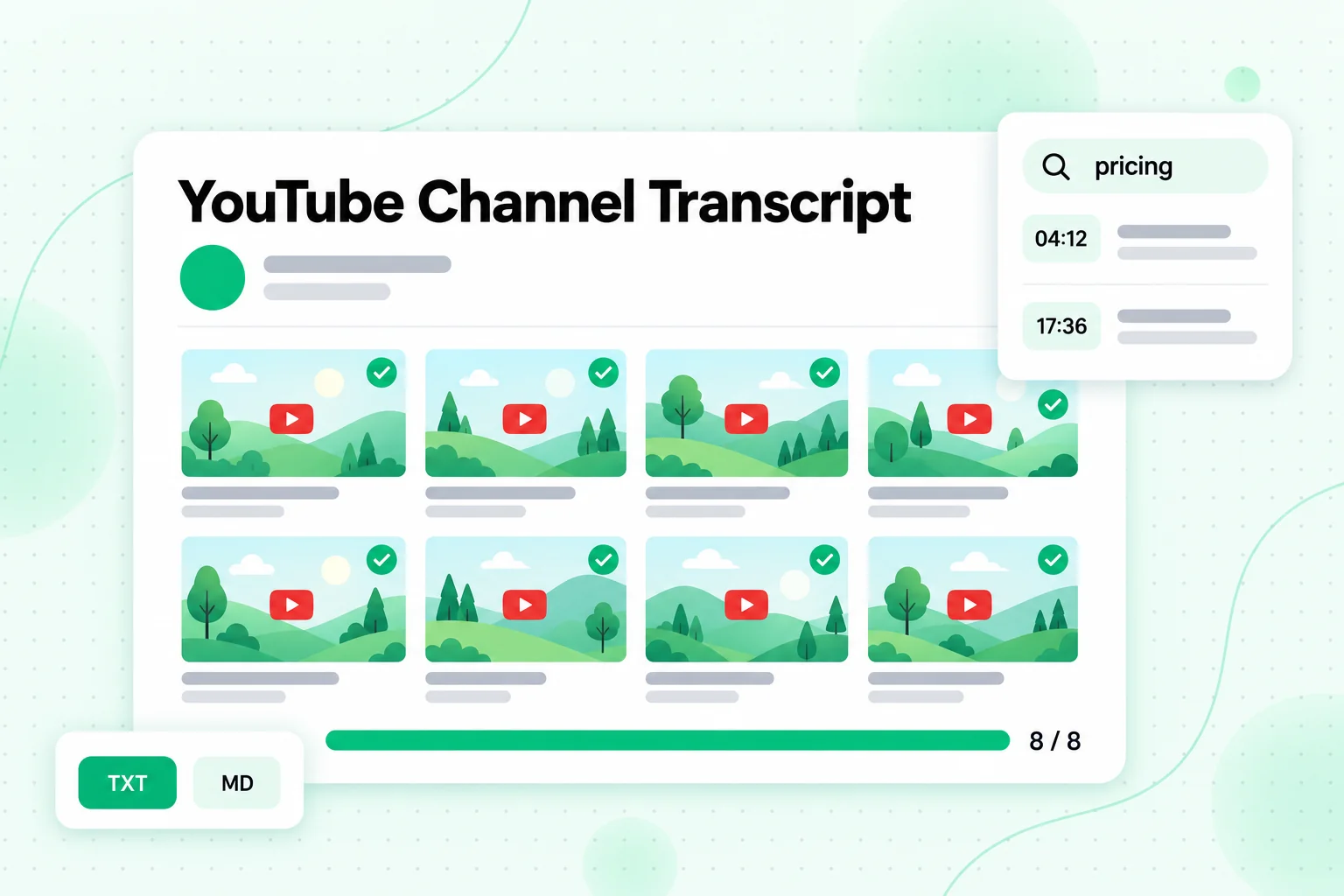
A YouTube channel transcript set does it in one pass. Paste the channel address into the YouTube channel transcript page: it queues the channel's public uploads, reads the captions that exist, transcribes the rest, and returns the set with each file labelled by video title. Before you send anything to NotebookLM, you can search across the whole set for a term, a product name, or a claim, and each match points to its video and timestamp. That search alone often tells you which 15 videos out of 200 are worth putting in the notebook.
Then organize the files the way you want to question them:
- By time when you are tracking how a message changed. One file per quarter or per year makes questions like "how did they describe the product before and after the rebrand?" easy to answer with citations.
- By topic when you are studying a subject. One file per theme, such as onboarding, pricing, or integrations, keeps the notebook focused.
- By series when the channel publishes in seasons or playlists.
For a channel that keeps publishing, do not rebuild the notebook. Transcribe the new uploads, add them as one new file, and leave the existing sources alone.
If you run the channel yourself, the same transcripts work in the other direction too. The notebook can show you which topics your audience heard most, which explanations you repeat, and where a long tutorial could be cut into short clips; a YouTube Shorts maker can then turn those picked moments into vertical videos. You can also generate a NotebookLM Audio Overview from the whole transcript set to hear the channel summed up as a podcast-style conversation.
YouTube to NotebookLM Chrome Extension: What It Changes
A YouTube to NotebookLM Chrome extension is a browser add-on that sends videos to a notebook for you, usually with a button on the YouTube page. The ones that show up for this search are made by independent developers, not by Google, and they tend to do some mix of three things:
- Send the current video to a chosen notebook without copying the link.
- Collect every video link from a playlist or channel page and add them one after another.
- Import other page types, such as articles or search results, through the same button.
What an extension leaves unchanged is what NotebookLM accepts. It automates the paste, then hands the link to the same import you would use by hand. Every video is still its own source and still uses a slot. A video without captions still fails with the same error. A fresh upload still hits the 72-hour window. And a playlist of 80 videos is still 80 sources, which is more than a free notebook holds. An extension saves clicks; it leaves the caption problem and the source-count problem exactly where they were.
If you do install one, check it the way you would check any extension that touches your Google account:
- Read the permissions it requests. Chrome lists them on install. An extension that can "read and change all your data on all websites" can see far more than YouTube. Google's developer documentation on how extension permissions are declared explains what each request allows.
- Check who publishes it and whether it is still maintained. NotebookLM's interface changes often, and an extension that depends on its layout can break without warning.
- Watch for duplicates. Batch-adding a channel can add videos you already have, and duplicates crowd out room for useful sources.
The alternative needs no extension at all: run the playlist or channel through transcript.im in the browser, merge the transcripts into a few files, and upload them. That covers videos without captions, skips the 72-hour wait, and keeps the notebook to a handful of sources.
Formatting YouTube Transcripts So NotebookLM Cites Them Well
How you lay out a transcript decides how useful NotebookLM's answers are. A wall of unbroken text gets you citations that are hard to read; a file with structure gets you citations that tell you exactly where you are.
Put the video title first
Start each video with a heading that holds its title, and on the next line add the channel name and publish date in plain text. NotebookLM can then answer "when was this said?" from the text itself.
Keep timestamps inline
A line like [12:40] The retention numbers dropped after the price change lets you go from a citation to the exact moment in the video. If you export SRT or VTT for a video editor, keep a TXT or Markdown copy for the notebook; subtitle files work in an editor, but cue numbers and timing arrows add noise to a notebook source. The WebVTT specification shows why: a VTT file is built for playback timing, not for reading.
Label speakers when you can
If the video is an interview, add the speaker's name at each change of voice. NotebookLM cannot infer who said what from captions alone.
Transcribe in the spoken language
Keep the original language for analysis and translate a copy if your study group needs another language. Mixing languages in one source makes citations harder to check.
One subject per notebook
A notebook built from twelve tightly related transcripts answers better than one built from forty loosely related ones. If a channel covers three unrelated topics, make three notebooks.
Questions to Ask NotebookLM About YouTube Videos
Once the transcripts are in, specific questions get much better answers than "summarize this." Our guide on how to use NotebookLM covers prompts for every kind of source; a few that work well on video material:
- "List every claim the speaker makes about [topic], with the citation for each."
- "Where do these two videos disagree, and what does each one say?"
- "Make a glossary of the technical terms used across these lessons, with the lesson each term first appears in."
- "Which videos mention [product or person]? Quote the line from each."
- "What questions from the audience come up in the Q&A sections, and how are they answered?"
- "Build a study guide for Module 3 that lists the main ideas in the order they are taught."
When an answer matters, click the citation and read the surrounding text, then use the timestamp to check the video itself. Captions and transcripts are close to what was said, not a guarantee of it, and the only way to be sure is to listen to the moment.
FAQs
Can NotebookLM watch YouTube videos?
NotebookLM YouTube support reads a video's captions, not its picture or audio. It imports the caption text of public videos that have captions, so anything shown on screen but not spoken is not part of the source.
How do I add a YouTube video to NotebookLM?
Open a notebook, select Add sources, choose the YouTube option, and paste the video's link. The video appears in the Sources panel with its title, and you can ask about it once it finishes processing.
Why does my NotebookLM YouTube import say "transcript not available"?
The video has no caption track NotebookLM can read. It may have no captions at all, it may be less than 72 hours old, it may have no speech, or its language may not be supported yet. Transcribe the video with a tool such as transcript.im and upload the text instead.
Can NotebookLM import a whole YouTube playlist or channel?
No. A NotebookLM YouTube playlist or channel link is not expanded into its videos, and each YouTube link is one source. To bring in a playlist or channel, transcribe the set, merge related transcripts into a few files, and upload those.
Does NotebookLM keep YouTube timestamps?
Not in a form you can use to jump to the moment. The imported source is text, so a citation points to a passage, not a time. Uploading your own transcript with timestamps on each line fixes that.
Is there a YouTube to NotebookLM Chrome extension from Google?
The YouTube to NotebookLM Chrome extensions people find are built by independent developers. They automate adding links, but every video still needs captions and still counts as its own source.
How long can a YouTube video be for NotebookLM?
There is no length limit unless the video's caption file runs past 500,000 words. In practice that covers almost any video, including multi-hour lectures and live stream recordings.
What happens to a NotebookLM YouTube source if the video is deleted?
Google says sources from videos that are deleted or made private are removed from your notebook within 30 days. Keep your own copy of the transcript for any video you depend on.
The Short Version
For one public video with good captions, paste the link and NotebookLM handles the rest. For everything else, which means videos without captions, fresh uploads, playlists, channels, and anything you want to cite with a timestamp, get the transcript first. Run the video, playlist, or channel through transcript.im, check the names and numbers, merge related transcripts into a few clearly titled files, and give NotebookLM text it can always read. The notebook does the thinking; the transcript makes sure it has the whole video to think about.
Transcript Generator
Turn Any Video Into Text
Paste a YouTube, TikTok, or Instagram link and read the transcript, with timestamps on every line.
Exports as TXT, SRT, or VTT.