
Downloading YouTube Videos: A Complete Practical Guide
Learn how to download YouTube videos with safe methods, lawful workflows, and smart transcript tools for creators, teachers, and teams.
You've got a tab full of YouTube links, a deadline, and one annoying question: do you need the video file, or do you just need the words, the clip, or a way to watch later without Wi‑Fi? That's the problem behind downloading YouTube videos. People start by hunting for an MP4, then discover halfway through that they really wanted a transcript, a subtitle file, or a lawful offline copy they can trust.
YouTube's scale makes that confusion easy to understand. Recent industry summaries put the platform at about 2.7 billion monthly users in 2026, with estimates ranging from 2.58 billion to 2.72 billion, roughly 1.06 billion daily users, around 1 billion hours watched per day, and about 720,000 hours uploaded each day YouTube statistics. At that size, downloading is not a niche hobby, it's part of how people research, archive, teach, edit, and travel with content.
Why Most People Want to Download YouTube Videos
A creator scrubs through a one-hour podcast to pull three usable lines for a newsletter. A student gets on a flight with no Wi‑Fi and wants a lecture saved for offline review. A teacher needs a clip that will still play in class if the connection fails. Same platform, different job, different answer.
The file is often not the goal
People say they want to download a video, but the core need is usually offline viewing, archival backup, content reuse, or text extraction. Offline viewing means the clip plays without a connection. Archival backup keeps a link change from breaking a workflow. Content reuse covers editing a clip into another project. Text extraction matters when the words matter more than the pixels.
A raw MP4 is often the wrong tool. A transcript belongs in notes, research folders, slide decks, and AI prompts. A subtitle file helps with captions and translation. A lawful offline copy handles travel without pretending every saved file should be edited or redistributed.
Practical rule: if you need quotes, timestamps, or translation, start with text. Only start with video if you need the moving image.
If you only need spoken content from a video, a transcript-first path is usually cleaner than ripping the media. If you need audio or a lighter export, the YouTube to MP4 guide and this guide to converting YouTube videos give you the right starting point.
What YouTube's Terms Actually Allow
YouTube's rule is simple, even if people like to blur it. You can't download content unless YouTube itself shows a download link or you have prior written permission. That's the core boundary, and it's why platform-sanctioned offline viewing is different from grabbing a public page with a third-party tool. The archival U.S. National Archives copy of the terms says Google may distribute provider content through a download function, but users are still prohibited from downloading unless YouTube shows that option for the content YouTube terms archive.
Lawful access and the gray zones
The lawful cases are easy to name. YouTube Premium offline viewing is the official in-app route. Your own uploads can be reused because you control the source. Creative Commons and public-domain content are different again, because the license or status can permit reuse under specific conditions. By contrast, saving lectures you don't own, mirroring videos for backup, or treating a public page as a free-for-all sits in a much shakier place.
Here's the cleanest way to think about it, using the legal and practical distinctions that matter most.
| Scenario | Permitted by YouTube ToS? | Notes |
|---|---|---|
| Premium offline viewing | Yes | In-app only, not a free-standing file |
| Your own uploaded video | Yes | You already hold the rights to your upload |
| Creative Commons clip | Sometimes | Depends on the license terms on that video |
| Public-domain footage | Sometimes | Status still has to be verified |
| Saving someone else's lecture for backup | No | Permission still matters |
| Downloading a video without a download button | No | The terms prohibit it |
DMCA issues can follow when copyrighted material gets copied or redistributed, but even before copyright law enters the picture, a terms-of-service breach can still be enforced. If you want a plain-language overview of the legal side, this copyright disclaimer guide is a useful companion.
Legality comes first. If the route isn't allowed by the platform or by the rights holder, no tool choice fixes that.
The Four Main Routes and Their Trade-offs
There are four practical routes people use, and only two of them are clean by default. Using YouTube Premium offline is the official route for consumers. Downloading your own clips through YouTube Studio is the right route when the content belongs to you. Creative Commons or public-domain sources let you work with material that is already intended for reuse. Third-party tools such as yt-dlp sit on the edge, useful only when you already own the rights and have the technical control.
The route should match the rights, not the hype
Premium solves one narrow job, namely watching while traveling or commuting, but it stays inside the app and does not give you an ordinary file. If your goal is to reuse the video, extract the text, or keep an editable copy, this is not the route you choose.
Your own files are the simplest case. Content creators and brand teams can go directly back to the source because they control it from the beginning. Open-licensed or public-domain material is suitable when you are building an archive or educational materials and want a lower-risk foundation. Third-party tools give you greater flexibility, but they quickly increase the legal risks if used on material you do not own.
If your decision is practical—between video and text—this YouTube to MP4 walkthrough is useful for understanding the process, but the right starting point remains the right to use the content and the purpose of the file.
| Route | Cost | Quality / Formats | Legal Status | Best For |
|---|---|---|---|---|
| YouTube Premium offline | Subscription-based | In-app playback, not a free file | Official and allowed | Plane rides, commuting, temporary access |
| Your own uploads | Free | Depends on what you uploaded and can retrieve | Allowed | Creators, brand teams, self-archiving |
| Creative Commons or public domain | Free | Varies by source | Allowed when license or status fits | Teachers, researchers, archive work |
| Third-party tools | Varies | Broad format control, subtitle extraction possible | Risky unless you already have rights | Technical users working on permitted content |
Subtitle extraction is part of the decision too, because many cases need the text more than they need the video file itself. The first question you should ask is not which tool, but: who owns this video, and what will you do with it after downloading?
A Safer Command-Line Workflow for Technical Users
If you have the rights to the content and want complete control, yt-dlp is the tool people turn to. Start by checking the available formats with -F, then choose the format with -f instead of relying on the defaults. YouTube often provides video and audio separately, and the wrong choice leaves you with a mismatched file or one that is harder to use yt-dlp manpage.
Start with explicit formats, not guesswork
The first command should be based on the available formats, not guesswork. Use selectors such as bestvideo[vcodec!=h265]+bestaudio when you want separate high-quality streams, or an alternative chain such as bestvideo[height<=MAX_VIDEO_HEIGHT][ext=mp4]+bestaudio[ext=m4a]/best[height<=MAX_VIDEO_HEIGHT][ext=mp4]/best when compatibility matters more. This way, you avoid a file that is difficult to edit or ends up at lower quality than the source.
Subtitles deserve the same attention. --list-subs shows what is available, --write-sub fetches human-created subtitles, and --write-auto-sub fetches automatic ones when they are the only option. If your goal is reading, quoting, or cleaning up the text, this is often more useful than pulling the video file itself.
You can also set the output filename and save everything in a dedicated folder to keep the files organized. For audio-only work, yt-dlp can extract the audio track, while FFmpeg handles merging or conversion when separate streams need to be combined. For anyone who wants a practical workflow from another technical angle, RenderIO's practical yt-dlp walkthrough is worth reading once.
Don't pass random URLs to scripts you haven't reviewed. Verify the source, verify the tool's version, and inspect the output folder before trusting the file.
Keep the basics simple. Update yt-dlp regularly, make FFmpeg available through PATH, store downloads in one folder, and review YouTube's terms whenever your workflow changes. Convenience is fine, but drift is what causes people to make mistakes.
{% youtube id="HQ_FRYebb3o" /%}
Getting the Words Instead of the Video File
If your real task is quoting an interview, indexing a lecture, drafting captions, or moving spoken content into an internal workflow, the transcript is the right output. A public YouTube link can go straight into YouTube transcript generator, which gives you timestamped text instead of forcing you to handle a video file first. That is the cleaner route for analysis, note-taking, translation, or reuse inside documents.
Build from captions, then clean the text
The workflow is direct. Paste the YouTube URL, let the tool pull captions or generate speech-to-text when captions are missing, then review the transcript beside the source so you can fix names, technical terms, and awkward machine phrasing. That review step matters because raw text is only useful after you check it against the video.
Export to TXT, SRT, VTT, or DOCX based on where the text needs to go next. If you are making subtitles, timing has to stay aligned. A 2024 peer-reviewed study on subtitle translation notes that translations can keep the original subtitle start and end times while changing only the text content subtitle translation study, which is why timestamp-preserving workflows work so well.
For subtitle files, format rules still matter. SRT uses sequence numbers and timestamp pairs in the form 00:00:00,000 → 00:00:00,000, with one or two lines of text per block, and files with more than 1,500 blocks may need splitting before upload SRT format review. That detail keeps captions from breaking later.
Transcript.im also works as a YouTube subtitle downloader and transcript generator, which fits text reuse better than a generic downloader. You can move from a public link to clean text, translate it, and export it without rebuilding the workflow from scratch.
Before you share the transcript, check speaker labels, timestamps, translation tone, and attribution to the original video. If those four items are clean, the file is ready for real work.
When a Transcript Beats a Download
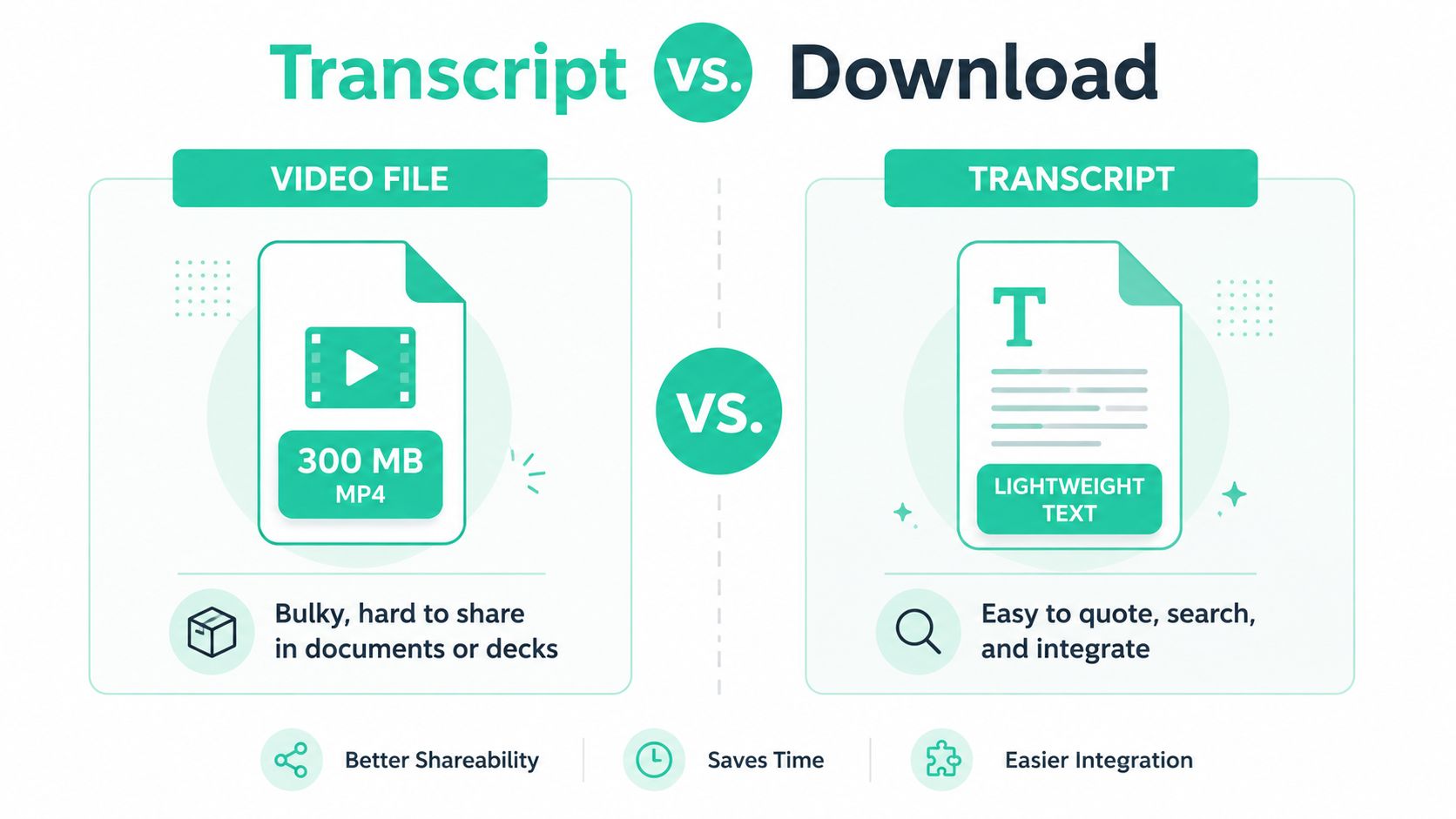
A transcript beats an MP4 whenever the point is search, quotation, translation, or reuse inside documents. A video file is bulky and awkward in a brief, a research note, or a slide deck. Clean text slips into all three without forcing the reader to scrub through a timeline.
Use the smallest artifact that solves the job
That's the whole reason transcript-first workflows are winning more often. Text is easier to search across long recordings, easier to translate, easier to store, and easier to reference without redistributing the actual video. It also keeps you away from the mess of moving a file around when you only need a few lines and a timestamp.
There are still cases where video wins, especially if you're editing reels, clipping footage, or watching offline on a flight. But even then, a transcript can sit beside the file and give you a faster way to locate the exact section you want. That's the smarter pairing, not an either-or choice.
A good workflow doesn't start with downloading. It starts with deciding whether you need motion, sound, or words.
If your real need is summarization rather than storage, this YouTube video summarizer is a better fit than a traditional downloader. The file you save should match the task, not your habit.
Your Decision Tree by Goal and Role
Start with the job, then the person doing it. That keeps you from downloading a file you do not need.
Creators usually care about reuse or archival control. Students usually want notes, citations, or offline study. Teams need something compliant that fits a shared workflow and does not create a mess later.
| Goal | Creator | Student | Team |
|---|---|---|---|
| Watch offline | Use YouTube Premium for personal travel viewing. It stays inside the app and avoids file handling. | Use YouTube Premium for a lecture on a trip or commute. | Use licensed library access or an approved platform. Training material should stay easy to manage and audit. |
| Archive | Re-upload or back up your own uploads, since you already own the source. | Save only material you created yourself or that's clearly open-licensed. | Store approved internal assets and open-licensed clips in the team archive. |
| Repurpose | Use transcript extraction for quotes, edits, subtitles, and localization. | Use transcript extraction for class notes, citations, and study packets. | Use transcript extraction for briefs, captions, and content reuse without moving the whole video. |
| Analyze | Use transcript extraction so you can search, mark timestamps, and review faster. | Use transcript extraction for lecture review and research notes. | Use transcript extraction for meeting notes, summaries, and structured analysis. |
If your goal is outside those rows, stop. Watch the video in the browser, quote the relevant line, or use the official route instead of forcing a download that does not match the rights or the task.
That rule saves time and avoids the dumb mistakes. A huge file is the wrong answer for study notes, citations, or quick reuse, and a transcript is usually the cleaner tool. If you still need public YouTube links, subtitles, transcripts, and translation in one place, use transcript.im. It is built for the jobs people usually confuse with downloading, and it turns a video link into timestamped text without guesswork.
Transcript Generator
Turn Any Video Into Text
Paste a YouTube, TikTok, or Instagram link and read the transcript, with timestamps on every line.
Exports as TXT, SRT, or VTT.