
Transcript Instagram Video: Methods That Actually Work
Learn practical methods to transcript Instagram video and Reels, from native captions to AI tools that export clean timestamped text you can actually use.
You finish a Reel, save the link, and then realize the one line you wanted is trapped inside a video you can't search, copy, or reuse cleanly. The captions are on screen, but the words you need are not in a place you can edit. That's the problem with a transcript Instagram video workflow, the job isn't watching, it's getting usable text out of the clip.
A good transcript turns a Reel into something you can quote, search, translate, and paste into a draft without scrubbing through audio again. That's why I treat transcript work as an output problem, not a viewing problem. If the text can't leave the video, it doesn't help much outside the app.
Why You Need the Words, Not Just the Captions
A creator can finish an interview Reel, replay it three times, and still lose the best quote because the caption text disappears with the post. That's the moment the difference between captions and a transcript becomes obvious. Captions are a rendering layer, while a transcript is the artifact you can keep, edit, and reuse.
The practical test is simple. If you can't copy the words into a blog draft, newsletter, or research note without recapturing them by hand, you don't have a workflow yet. You have a viewing aid.
That matters even more when the audio is messy. Music beds, abrupt cuts, and quick speaker changes all make a pretty caption layer less useful for repurposing, which is why transcript cleaning and sound isolation for video editing often sit in the same production stack. For a clean text output, a scrubbed transcript is far more useful than a visual subtitle overlay, and a tool like transcript cleaning workflow can help keep the text editable after the video ends.
Practical rule: if the text can't survive outside the app, it isn't a transcript yet.
The biggest mindset shift is to ask what happens after the Reel is published. A caption helps the viewer. A transcript helps the creator, editor, and marketer who need to move the same words into other places. That's the difference that drives every choice below.
What Instagram Gives You Out of the Box
Instagram does give creators captioning tools, but each one has a narrow job. Reels can be published with automatic captions, Stories can use the Captions sticker, and some workflows support subtitle files during upload. Those are useful starting points, but they're still platform-native layers, not a reusable text system.
The limits show up fast. Auto captions need to be enabled, punctuation is often messy, speaker labels are missing, and the text usually stays locked inside the app interface. Manual subtitle files also assume you already have a finished transcript file, which many creators don't.
The workflow breaks down further on teams. Mobile-first editing means tiny keyboards, clumsy corrections, and no real transcript workspace for search or review. If you need to compare a Reel against past clips, search your own library, or export text for legal review, Instagram's native tools stop short.
| Feature | Coverage | Main Limitation |
|---|---|---|
| Auto captions on Reels | On-screen subtitle generation during posting | Text stays inside the app and isn't a copyable transcript |
| Captions sticker | Subtitle overlay for Stories and short clips | Built for viewing, not export or search |
| Subtitle file upload | Possible in some publishing workflows | Requires a completed file before posting |
| Account-level caption controls | Lets creators manage caption behavior in settings | Still doesn't create an editable transcript workspace |
The gap is not whether Instagram can show words. It's whether those words can leave the app intact. A transcript-first process solves the broken paragraph problem, the missing search problem, and the “where did that quote go” problem in one step.
Using a Transcript Workspace With a Public Link
The cleanest workflow starts with the public Instagram link itself. Copy the Reel URL from the share menu, confirm the account is public or that you have access, then paste the link into a tool that accepts social video URLs. The system should load the media directly, so you do not have to download the clip first or convert it into another file format.
Once the link resolves, the transcript should appear in an editable panel with timestamps attached to the text. From there, the work is human review. Fix names, brand terms, and slang while the inline player lets you jump from a line of text back to the exact moment in the Reel.
That part matters more than it sounds. Reels move fast, so the text has to stay tied to the source. A service that processes the link server-side usually handles that better than a tool that makes you download, upload, and reprocess the file manually.
Before you export, run a quick check:
- Confirm the source loaded correctly, especially if the Reel uses music or layered audio.
- Check proper nouns first, because those are the words most likely to break.
- Review timestamps around cuts, since quick edits can pull text out of sync.
- Scan for missing punctuation, which affects readability when the transcript becomes a blog draft.
- Export only after the text reads cleanly, because downstream reuse gets harder once errors spread.
If you use transcript.im's video transcript generator, the advantage is straightforward. You move from a public link to editable, exportable text without rebuilding the media yourself. That is the difference between on-screen captions and a transcript you can paste into a blog draft, newsletter, or internal doc.
Caption Retrieval Versus AI Speech-to-Text
The useful way to think about this choice is not “which feature is better,” but “which retrieval path fits the clip.” Caption retrieval is fast when captions already exist and are accessible. AI speech-to-text becomes the fallback when the clip has no captions, low-confidence captions, or audio that needs a fresh pass.
| Dimension | Caption Retrieval | AI Speech-to-Text |
|---|---|---|
| Accuracy on accented speech | Matches what was already published, but inherits the creator's errors | Can improve readability, but still needs review on accents and fast speech |
| Brand terms and code-switching | Often preserves the original on-screen wording if captions exist | Misses names and mixed-language phrases more easily |
| Availability when no .SRT exists | Limited by what the platform exposes | Can still produce a transcript from audio |
| Speed on short clips | Very fast when captions are present | Still fast, but usually slower than direct retrieval |
| Edit effort before publishing | Lower if the captions are already clean | Higher, especially for names, jargon, and music-heavy clips |
| If the video is deleted | No longer useful if the source captions disappear | Depends on whether you've already processed and saved the transcript |
There's a practical rule I use on Reels. Try caption retrieval first, then fall back to AI when confidence drops or when the clip is dominated by music and scene changes. That avoids re-decoding text you already have while still covering clips that were never captioned properly.
Caption retrieval also fails in a subtle way when creator settings lock the text away or when the app renders subtitles that can't be exported. AI speech-to-text fixes access, but it can misread jargon, especially when words sound close together in short-form speech. I've seen that kind of error around financial or technical terms more than once, which is why the editor still has to do a final pass.
If you're choosing a tool, the best one is the one that keeps timestamps usable and lets you correct the text before you export. That's where a speech-to-text workflow is more useful than a pretty caption layer.
Export Formats, Timestamps, and Translation
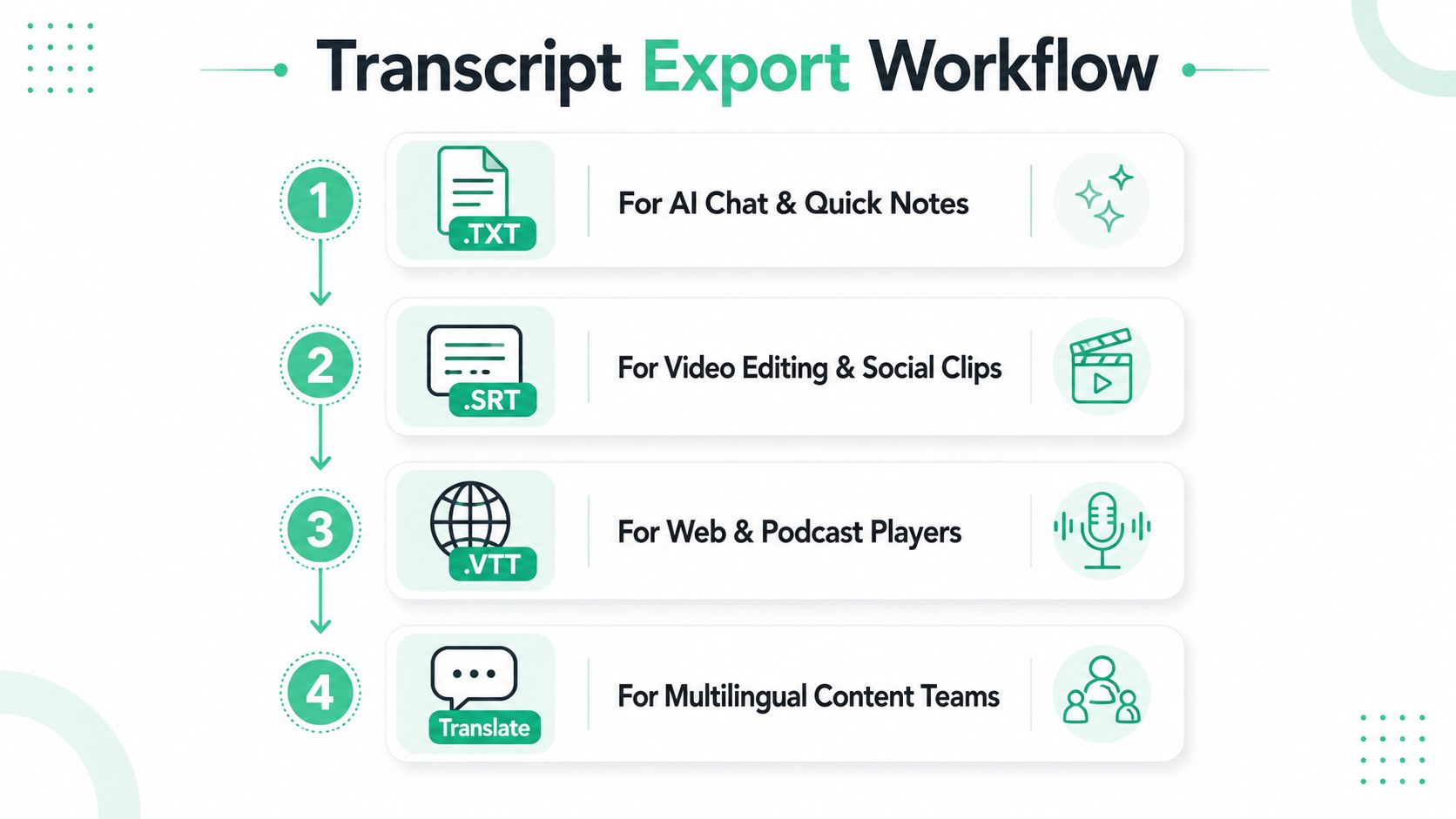
Once the transcript lands, export format becomes the next real decision. .TXT is for quick paste jobs, .SRT is for subtitle reattachment in editors, .VTT fits web playback, and .CSV is helpful when QA lives in spreadsheets. For legal or editorial review, a .DOCX copy is easier to annotate than a block of raw text.
Timestamps deserve the same care. Scene-level markers help when you're trimming clips, speaker turns help when you're studying an interview, and bracketed cues like [00:12] are handy when the transcript needs to survive copy and paste into a newsletter platform. A transcript that keeps the text aligned to time is more useful than a plain speech dump, because the reader can move from words back to the source moment.
Translation should be treated as its own stage, not a checkbox. Detect the source language first, preserve speaker labels and timing, then review named entities before anything goes live. That's especially important in social clips where a creator references a previous Reel, a meme, or a phrase that only makes sense in context.
Practical rule: translate the transcript as a conversation, not line by line.
For teams that need video translation, the safest process is to keep the timing intact while changing the language, then do a human pass on names and references. A tool like video translation is useful when the goal is reuse across markets, but the transcript still has to stay synchronized after the language changes. If you want a workflow that ends in exportable subtitle text, YouTube subtitle generator style output is a good model for how timing and text should travel together.
Turning the Transcript Into Reusable Content
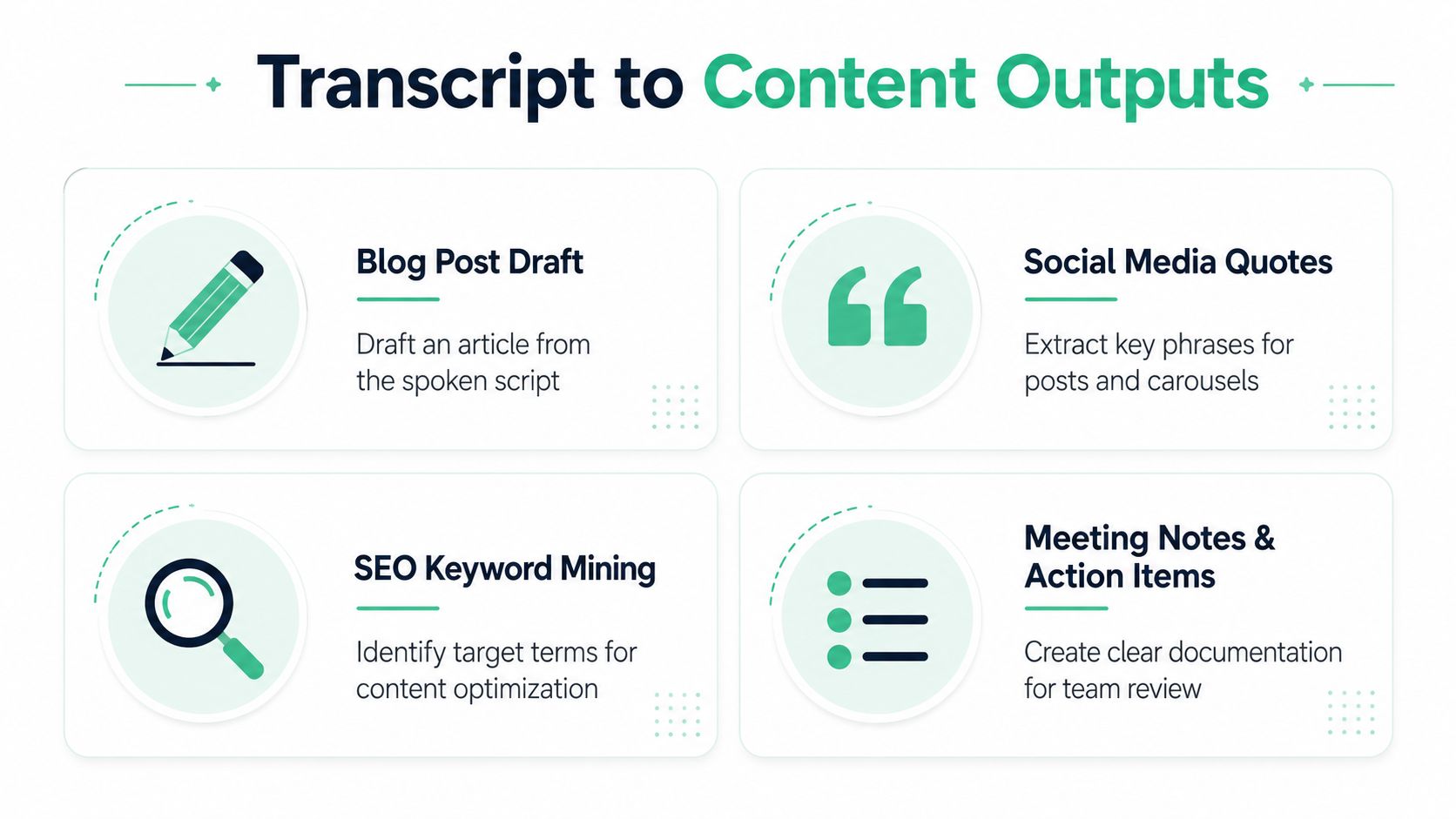
A clean transcript pays off only when it leaves the transcript window. The first obvious output is a blog post draft, because the spoken structure of a Reel already gives you a hook, a point, and a close. A second output is a newsletter paragraph, where a single tight section can be condensed into a short update without rewatching the video.
The same transcript can also become a social thread. Pull the strongest line, the clearest promise, and the CTA, then rewrite them for a format that rewards scanning. A fourth output is quote cards for carousels, which work best when the original wording is already clean enough to stand alone.
Localization is where the compounding effect shows up fastest. One Reel can become multiple regional assets when the transcript is translated cleanly and then reused across captions, post copy, and blog drafts. That is also why tweets from video transcripts are such a useful repurposing pattern, the text is already there, you just need to shape it.
Accessibility belongs in the same conversation, not as an extra. Closed captions in the native uploader help viewers, a transcript page linked from bio helps screen-reader users, and alt text on repurposed stills keeps the content usable when the video itself isn't enough. If the transcript isn't editable and exportable, it stops being a content asset and becomes a temporary display layer.
The practical takeaway is simple. Treat transcripts as raw material, not deliverables. When the text can be edited, exported, translated, and reused, the Reel keeps working long after the views stop.
If you want a faster way to turn public Instagram videos into clean, timestamped text, visit transcript.im and use it as your transcript workspace for Reels, exports, and repurposing. It's built for the exact workflow discussed here, from link-based transcription to text you can clean, copy, and reuse anywhere.
Transcript Generator
Turn Any Video Into Text
Paste a YouTube, TikTok, or Instagram link and read the transcript, with timestamps on every line.
Exports as TXT, SRT, or VTT.