
Translate YouTube Video to Text, Keep Timestamps
Translate a YouTube video to text by generating the spoken lines first, then translating them. Each line keeps the timestamp of the original moment.
To translate a YouTube video to text, write down what was said, then translate those lines. The picture is not the thing being translated. The spoken words are. YouTube can show you captions while a video plays, and on some videos the player can draw a translated caption over the picture for as long as you watch. That overlay leaves when you leave. A translation you can quote, search, or hand to someone else is a transcript that has been translated, with each line still pointing at the original moment.
YouTube's help page on viewing transcripts describes the reading view: open Show transcript in the description, follow the current line, click a line to jump. It does not describe a translated document, and it does not describe saving one. The rest of this page is the order that produces the document. Generate the transcript. Translate the lines. Keep the times where they were.
Why translate a transcript
The reason to translate the transcript, rather than the video file, is that the words are what you will reuse. A lecture you follow better in writing than by ear, a claim you need to quote in the language of your notes, and a cut you will caption for another audience all start from the same object: the spoken lines, in text. Translating the MP4 does not produce that text. Dubbing a new voice track does not produce it either. Those are different jobs, and this page is not about them.
A few viewers only need the overlay. If the player already shows a translation and you are watching once, stay there. Leave it when you need the wording after the tab is closed, when you need to search for a phrase, or when the translation has to move into a document or an editor. The overlay is a display. The transcript is the text.
The transcript also draws a hard line around what can be translated. Speech is in scope. Burned-in title cards, lower thirds, and other text painted into the picture are not read, so they are not translated. A music video with little or no speech comes back thin, because there is little speech to write down. Two people talking at once, a noisy room, and a muffled mic weaken the source lines, and a translation cannot repair a line that was already wrong. Read the source against the timestamp before you treat the translation as a quotation.
The link has to be public. A private video, a deleted video, a members-only video, or a link that only plays inside someone else's account will not open from a pasted public URL. Age limits and region limits can stop the same request. There is no switch that forces a video YouTube will not serve.
Generate then translate
Translation is the second step. The first step is the transcript, in the language of the captions or of the speech. Skip that step and there is nothing line-shaped to translate. A summary, a comment thread, or the video description is not a stand-in. They are not the spoken sequence, and they do not carry a time for each line.
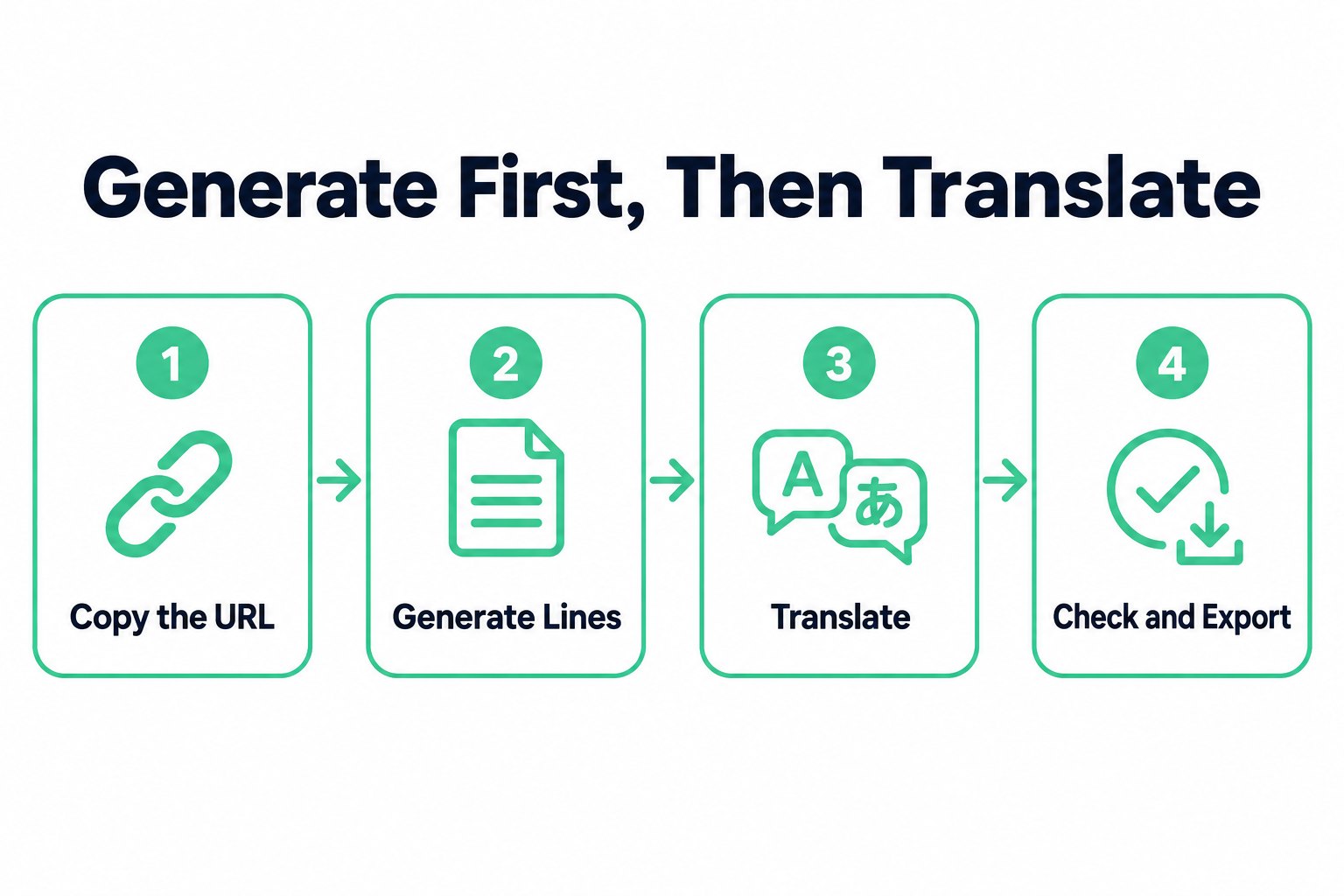
On transcript.im, do it in this order:
- Copy the URL of the public video you want in another language.
- Paste it and generate the lines before you choose a target. Captions already on the video are the source. Speech is transcribed only when those captions are absent.
- Run Translate on those lines and pick one supported language. The wording changes. The upload on YouTube does not.
- Check the translated line against its original time. Export when the translation has to live outside the browser.
To translate a YouTube transcript you already have the link. You do not re-upload the video, and you do not type the translation in by hand unless you are correcting a line afterward. A correction stays in your copy. It is not written back to the original upload.
The target is one of the supported languages: Arabic, Chinese (Simplified), English, French, German, Hindi, Italian, Japanese, Korean, Portuguese, Russian, and Spanish. Chinese here is Simplified, not a separate Traditional target. Portuguese is one target, not split by country. If the language you need is not on that list, this step will not invent it. Pick a target the tool actually offers, or translate the exported text somewhere that does offer that language, and accept that the second tool may not keep the cue times unless you carry them yourself.
The source language is whatever the captions or the speech already were. A video spoken in Japanese comes back as Japanese lines first, even if you intend to read Spanish. The translation is a later choice of target, and a different target is a separate translation of the same source lines. Switching from Spanish to German does not edit the Spanish result into German. It translates the source again.
Automatic captions, when they exist, are still the source. They are only as good as that caption track. Names, accents, and fast asides are where they slip. Transcribing from the audio, on a video that was never captioned, has the same kind of limit: the text follows the recording. Translate after you have looked at the source line you care about, not before.
Keep timestamps aligned
The time stays put because the translation does not rebuild the timeline. Each line keeps the start and the duration it had before the wording changed. Only the text is replaced. A sentence that began at 1:02 still begins at 1:02 in the translation, even when the new wording is longer or shorter than the original.
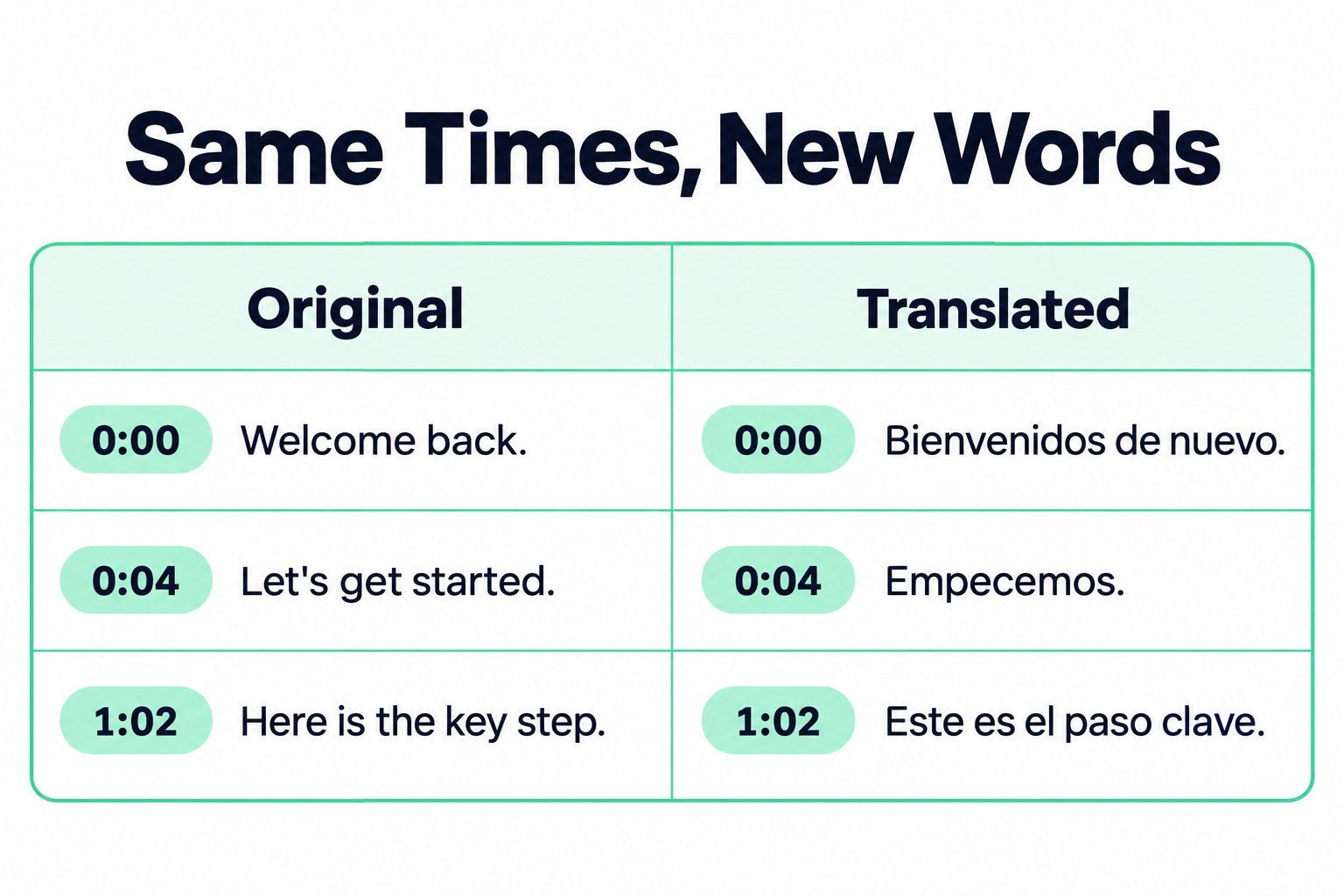
That is how the translation stays attached to the moment in the video. The translated line is a label on the original instant, not a new performance with its own pacing. The time beside the line is still that instant in the source video. You hear the original speech, and you read the translation. You do not hear a dubbed voice, because no new audio was made.
Export uses those same times. TXT of the translation is the translated words only, one line per cue, with the times left out. SRT and VTT keep a start and an end so an editor or a web player can show the translated cue. The end is the original line's end, trimmed so it does not overlap the next cue. A player then shows one line at a time instead of stacking two.
A longer translation is the part people misread. The cue does not grow to fit the new sentence. The words have to live inside the original window. A short English line that becomes a long German line still ends when the original cue ends. On screen, a player may wrap more text into that same span. The file did not retime the video to a voice that speaks the translation. If you later record a dub, you will time that dub yourself. This export will not do it for you.
The reader can show the start time beside each translated line while you check it. Copying the passage, like the TXT export, takes the words and drops the times. If the time has to travel with the sentence, use the SRT or VTT, or write the time down next to the sentence you paste into notes. The alignment is only useful if you keep it attached to the line you are about to quote.
Clean, if you run it, is a different pass. It fixes grammar, punctuation, and recognition errors in the text and keeps the times. It is not a translation. Translate is the pass that changes the language. Run Clean on the source when a line is garbled, then translate, so you are not translating a recognition error into a confident wrong sentence in the other language.
Common pitfalls
The usual miss is translating the wrong object. On-screen titles, slides filmed by a camera, and captions burned into the picture are not in the transcript, so they do not come out in the other language. If the video's meaning is in those graphics and the voice never says it, the translation will not recover it. You would be reading speech only.
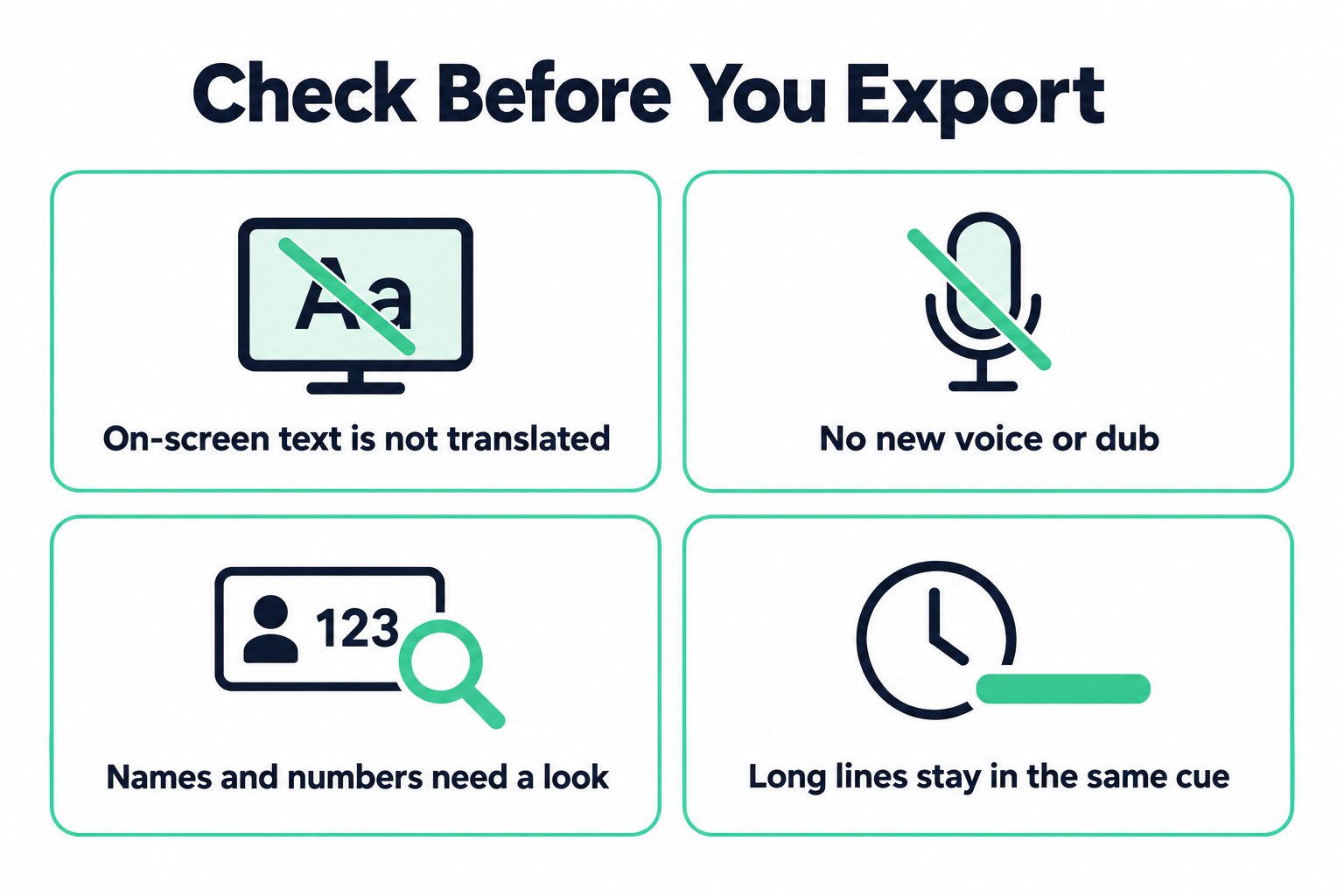
The next miss is expecting a new soundtrack. Translate YouTube video to text and the thing you can keep is the wording. You do not get a replacement voice, a lip-synced dub, or a timeline rebuilt around the length of the translated sentence. The original audio stays the clock. A dub is a separate edit.
Another miss is translating a short retelling and expecting line-level times. Summary, Core Points, and Chapter Summary are shorter views of the same transcript. They are useful before you read every line. They are not the translated transcript, and they do not give you one timed cue per spoken line. The translation that stays aligned runs on the transcript lines themselves. Study Notes, Meeting Summary, Creator Repurpose, Moments, and MindMap are other views of that text. None of them is the language change. MindMap can point a node at a moment, which helps you navigate. It still is not the translated wording of each line.
Proper names, numerals, and idioms need a human look. A name may be transliterated, half-translated, or left as it was heard. A joke that depends on the original language will not survive a straight line-by-line rendering. Before you quote the translation as what the speaker said, open the timestamp and listen. The translation is a rendering of the line. The recording is the source.
Fast speech in a short cue has the same practical limit as a long translation. The window was set by the original line. If you drop the SRT into an editor and the translated cue feels cramped, split or rewrite that cue in the editor. Do not expect the export to have lengthened the moment.
A video with almost no speech will translate into almost nothing. Silence, music, and applause are not sentences. If the transcript is a handful of lines, the translation will be a handful of lines. That is a property of the source, not a failed target language.
If the transcript never starts, the translation never starts. The usual cause is a video that is not publicly reachable.
If the destination is a timed caption track for a player, export SRT or VTT of the translated lines. The page about building that kind of track from a YouTube link, as captions rather than as a reading text, is the YouTube subtitle generator. Use this article when the job is the translated wording, including the timed file of that wording. Use the subtitle generator when the job is the caption track itself.
When the overlay is enough, watch with it. When you need the words in another language and the original moment attached, generate the transcript, translate the lines, and keep the times. The YouTube transcript generator is where that public link becomes the text you then translate.
Transcript Generator
Turn Any Video Into Text
Paste a YouTube, TikTok, or Instagram link and read the transcript, with timestamps on every line.
Exports as TXT, SRT, or VTT.