
YouTube Transcript Download: TXT, SRT, or VTT
A YouTube transcript download saves the words as TXT, SRT, or VTT. How to download a transcript from YouTube without saving the video.
A YouTube transcript download is a file of the words spoken in a YouTube video, saved so you can open it after the watch page is gone. YouTube's own transcript view, documented on its help page for viewing transcripts, is a scrolling list of caption lines. You read along, and you click a line to jump the player. That help article does not describe a document you can keep. This page is about the file.
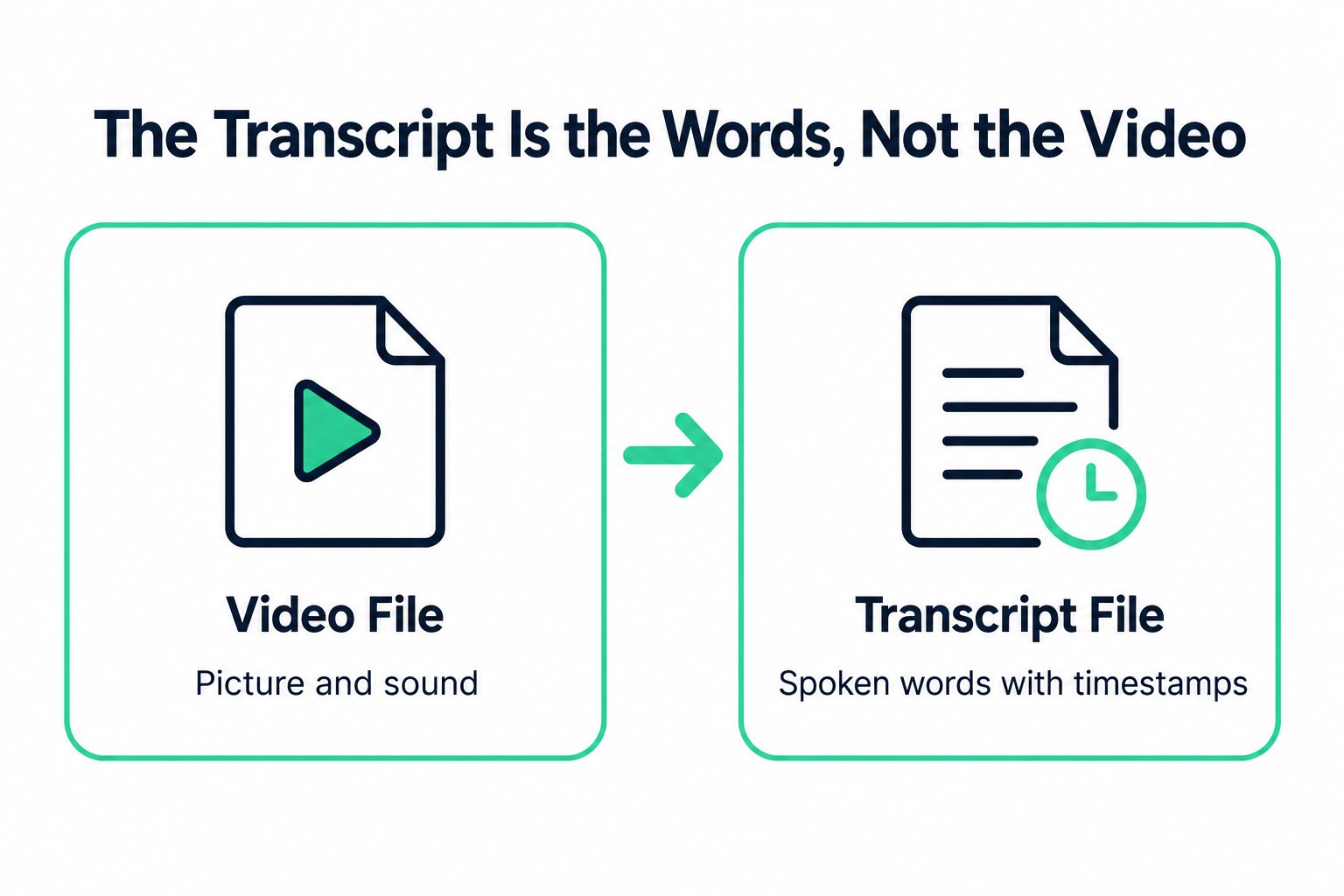
The file is also not the video. An MP4 keeps the picture. An MP3 keeps the sound. Neither one is the wording. And the file is not the same job as saving the caption track a player displays over the picture. That caption-file job is what a YouTube subtitle downloader is for. Here the object is the transcript: the spoken lines, written out, with a format you choose because of what you will do next.
What "downloading a transcript" means
"Downloading" in this article means a named file of the speech. The lines come from the creator's caption track when the video has one. When it does not, they come from a transcription of the spoken audio. Either way the result is the sequence of what was said, not a copy of the watch page.
Several things on that page look related and are not the file. The description is the creator's blurb. Chapters, when the video has them, are navigation marks. On-screen title cards and burned-in captions are pixels in the picture, and they are not read as text. Comments are other people's writing. The file skips those and keeps the speech.
The help article covers reading and jumping, and only on a video that already has captions. This page does not repeat the taps that open that view. When the video was never captioned, the panel has no lines, and a file can still be made by transcribing the speech. Reading beside the player ends when the tab closes. A YouTube transcript download is the copy that is still there the next day.
The file is only as clear as the speech it came from. A quiet talking-head track is easier to read than a street interview with traffic under the voice. Overlapping speakers collapse into one line. A name the caption track never spelled does not become correctly spelled because you exported it. Check the cue you plan to quote.
The pasted URL has to open for the public. A private upload, a removed video, or a members-only upload will not produce a file from that paste. A video YouTube withholds until it knows the viewer's age, or one it will not play in a given region, stops at the same point. Managing your own uploads in YouTube Studio is a different job, and it only covers videos on a channel you control. This article stays with a public video someone else can already watch.
The download is finished when the words have left the browser tab. Until then you are still reading YouTube. After that you have a file you can move, rename, and open in something else.
Copying vs exporting
Copying is what you do when one sentence, still on the screen, is enough. Highlighting the panel on a computer takes whatever the browser will allow. On a lecture that selection is unreliable: you stop halfway, a row gets skipped, and any times that ride along arrive in the order the page happened to use. Selecting the whole panel on a phone is clumsier. Copy a second sentence and the first one is gone. Nothing was stored under a name.
Exporting starts after the lines already exist as a transcript. A YouTube transcript downloader writes a file from those lines. You pick the format for the program that will open it, not for the browser's selection. The copy action on the finished transcript, and the TXT export, both take the words and leave the times behind. The times stay on screen while you read, and they stay in SRT and VTT when you need a cue with a start and an end.
How to download a transcript from YouTube, once the words are what you want to keep:
- From the public watch page, copy the video's URL.
- Paste it on transcript.im. One URL, one transcript.
- A caption track already on the video is read as the source. With no caption track, the spoken audio is transcribed instead. Each stretch of speech becomes a line.
- Save the file. TXT is the wording. SRT or VTT is the save when the next program needs a start and an end. Markdown and JSON are the other two saves, for a notes app or a script. The shapes of TXT, SRT, and VTT are below.
That order matters. The lines have to exist before a file can. The help article stops at reading and jumping, so the export happens after you leave that view.
A short video and a two-hour lecture follow the same path. The lecture is where copying by hand falls apart, because the selection is long and the miss is invisible until you need the line you skipped. The download is the whole sequence, not the part you managed to highlight.
Treat a manual copy as a way to grab one sentence while you are still on the watch page. Treat the export as the way to keep the video's wording. If the next step is a quote in a document, a caption on your own edit, or a text you will search next week, you want the file.
Exporting TXT, SRT, or VTT
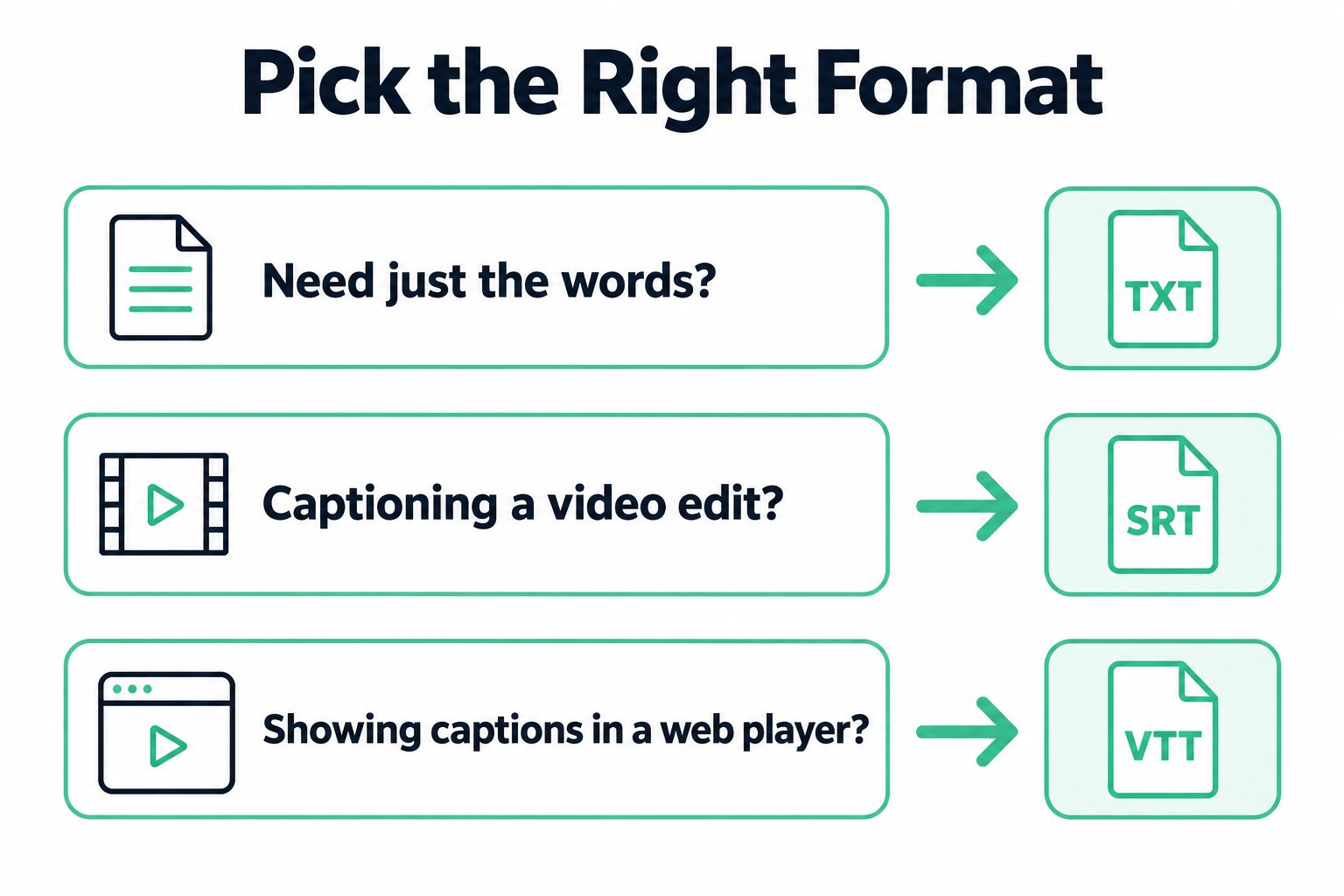
Pick the format from the job, not from habit. The three that cover reading and timed cues are TXT, SRT, and VTT. The samples below use one invented line so the shape is visible. A real file uses the times from the video, and it has a cue for every line, not one.
| File | What is in it | Open it when |
|---|---|---|
| TXT | The words only, one cue per line, no times | You will read, quote, or paste the wording |
| SRT | Numbered cues, with a comma before the milliseconds | An editor expects a SubRip file |
| VTT | A WEBVTT header, with a period before the milliseconds | A web player expects WebVTT |
TXT is the plain wording. A line that was spoken about a minute in is just that sentence, with a line break after it. The start time you saw beside it in the reader is not written into the TXT. That is what you want for notes, for a quotation, and for pasting into a document or a chat. It is the wrong file if a player or an editor has to display the line at a moment.
SRT is the timed form most editors already import. The same invented line looks like this:
1
00:01:02,000 --> 00:01:05,200
The sample line at one minute.
The number is the cue index. The arrow separates a start from an end. The comma is part of the SubRip timestamp, not a pause in the sentence. Each following cue is separated by a blank line.
VTT carries the same cues for a web player. The header is required, and the milliseconds use a period:
WEBVTT

00:01:02.000 --> 00:01:05.200
The sample line at one minute.
Swap the comma and the period and some players reject the file. The words did not change. The container did. If an editor says it wants SRT, do not hand it VTT and hope the import is forgiving.
The end time is the line's own end, trimmed so it does not run into the next line. Caption tracks, especially automatic ones, sometimes give a line a duration that overlaps the following line. A player that honors both ranges will show two cues at once. The export cuts the earlier cue so it ends when the next one starts, and it never ends before its own start. You still get every line. You do not get two lines fighting over the same moment.
Markdown and JSON are optional shapes of those same lines. Markdown puts a minutes-and-seconds mark in front of each sentence, which is handy in a notes app. JSON keeps the raw segments, which is handy in a script. Neither one replaces SRT or VTT when the destination is a player or an editor.
To export the transcript as TXT, SRT, or VTT, generate the lines from the public link first, then choose the format. Editing the file afterward does not write anything back to the YouTube video. A correction stays in your copy. If what you actually needed was the caption track as a subtitle file for a player, and not the wording as a document, that is the subtitle downloader's job, not a second copy of this one.
Reusing a downloaded transcript
A file you never open was not worth saving. The reuse is ordinary, and the format should already match it.
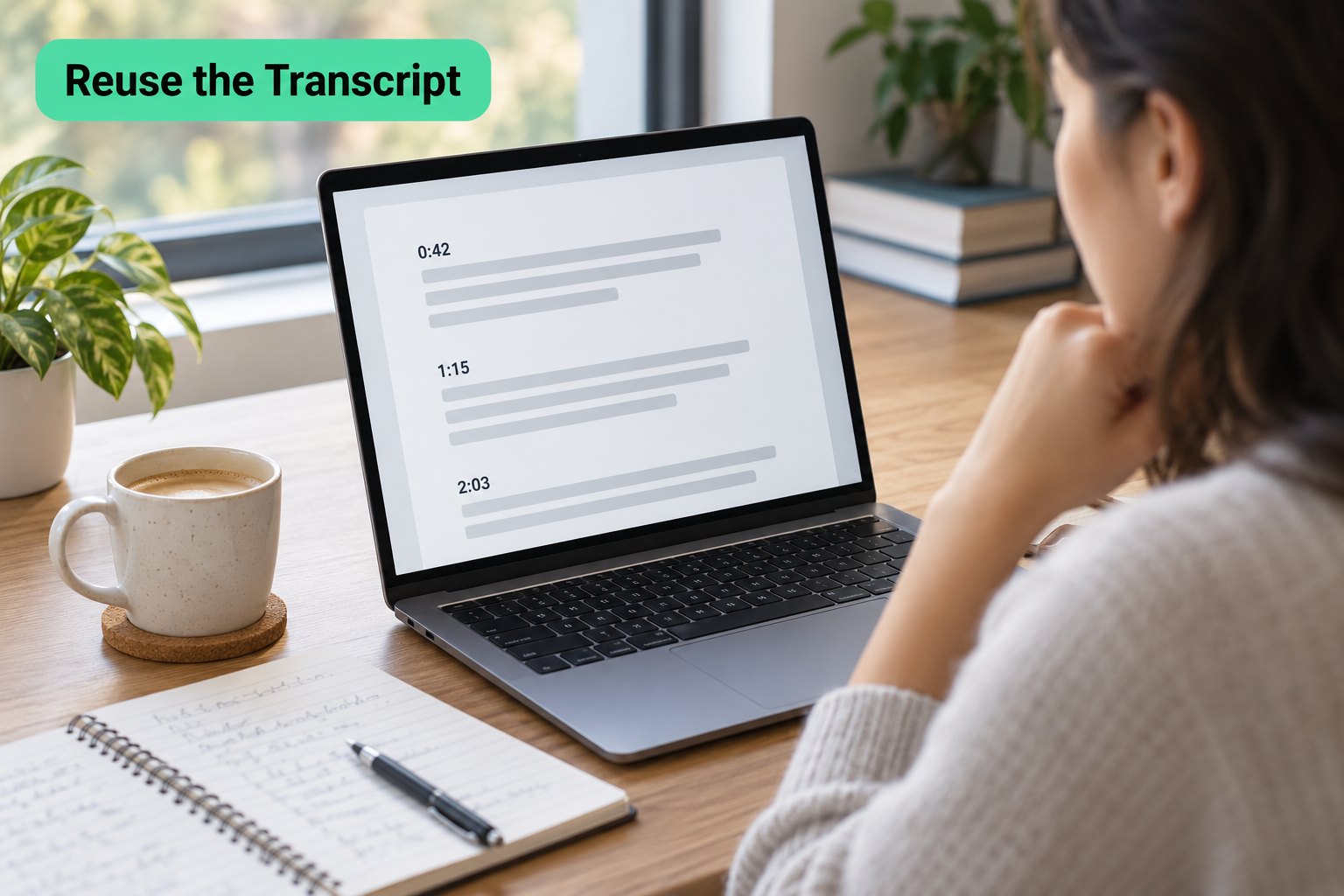
A lecture note that has to point back at a minute should not be built from TXT alone. TXT is the sentence. The cue time lives in the SRT or VTT, and on screen until you close the reader. Write that time next to the sentence in the notes. A claim you have to find again is a search through the text, which beats dragging a playhead across a long upload. The video itself is not a document you can search.
An editor captioning their own cut wants SRT or VTT, then imports that file into the editor. The cues are a starting track, not a finished grade. Names, accents, and overlapping speech still need a read-through. A wrong word in the transcript becomes a wrong caption on screen if you skip that read. Nothing in the export step checks the wording for you.
NotebookLM, ChatGPT, Claude, Gemini, Kimi, and Manus take text, not a watch page. Paste the TXT into the one you already use. On transcript.im the same lines can also go through Clean before a noisy cue is trusted, through Translate when the notes need another language, or through Summary, Core Points, Chapter Summary, Study Notes, and MindMap when a long talk needs a shorter view. Those results sit beside the file. They are not another TXT, and they do not replace SRT or VTT when an editor is the destination.
Keep the time attached to any sentence you quote, or you will not be able to reopen the right moment. Read a noisy recording before SRT or VTT goes into an editor. The file will not flag a wrong word. It will display it.
Stay on the watch page when reading along is the whole task. When the words have to outlast the tab, download a YouTube transcript and save the format the next program opens.
Transcript Generator
Turn Any Video Into Text
Paste a YouTube, TikTok, or Instagram link and read the transcript, with timestamps on every line.
Exports as TXT, SRT, or VTT.