
TikTok Transcript Downloader: Save the Words
A TikTok transcript downloader saves spoken words as TXT, SRT, or VTT. On-screen captions are not a file, and TikTok does not hand you a transcript export.
A TikTok transcript downloader saves the spoken words of a TikTok video as a file you can keep. TikTok does not give you that file. The app can show captions on a video when the creator generated them, and some builds offer a Captions or CC control while you watch, but those captions are an on-screen overlay. They are not a transcript you can export, and the control is not in one fixed place across app versions, phones, and regions. If the creator never added captions, there is often nothing to read at all.
So "download" on this page means the text, not the video. Saving the MP4 is a different job for a TikTok downloader. What people are asking for with a TikTok transcript download is the wording: a quote they can check, a caption file for an edit, or a clean copy they can hand to someone else. Copying what you see on the glass and exporting a file are not the same step.
Copying vs exporting
Copying is whatever you can do inside TikTok. Exporting is a file that still exists after you leave the app.
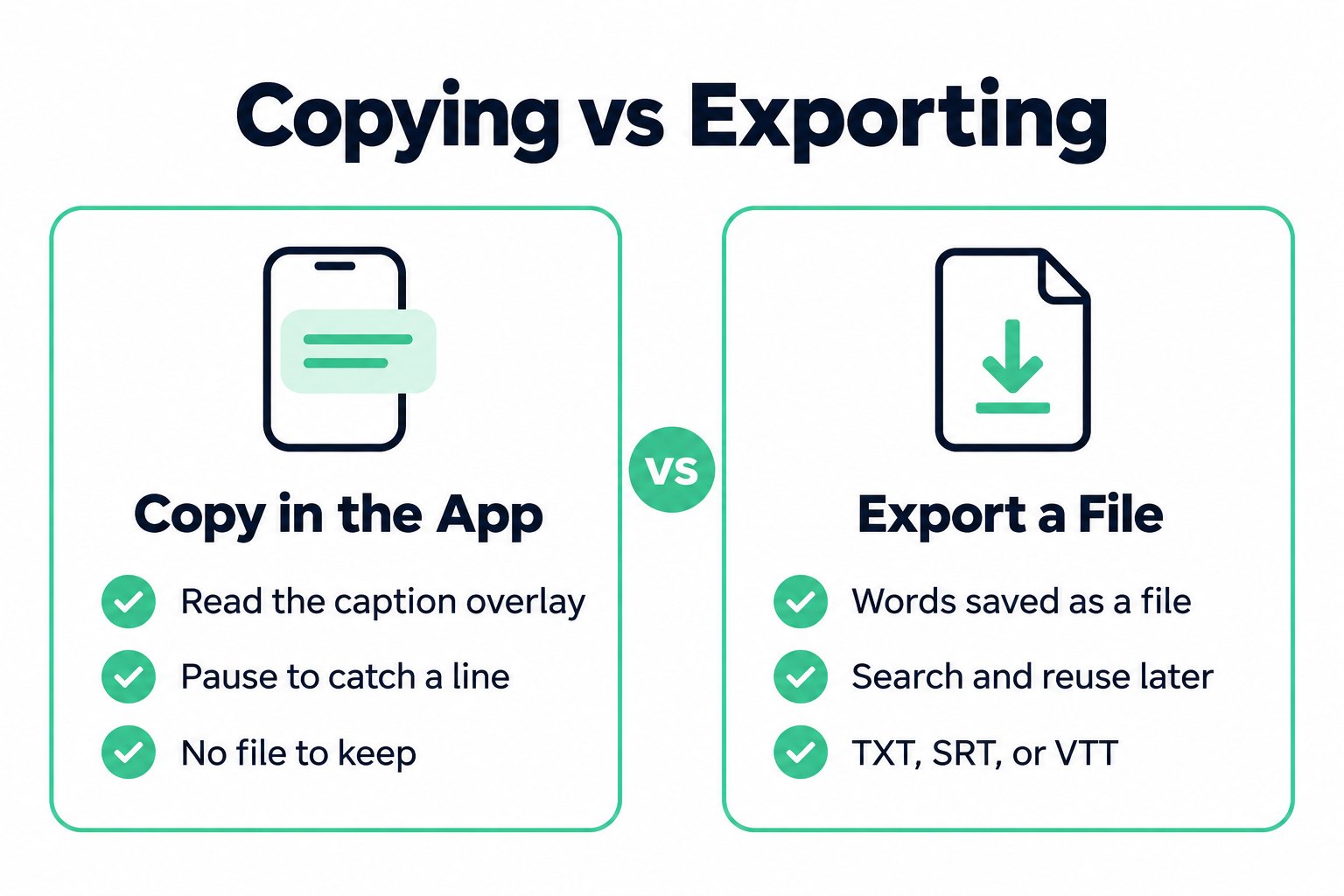
What copying usually looks like:
- Open the video in TikTok.
- If captions are available, look for a Captions or CC control on the video, or inside the share and more-options area. Some accounts also have a captions preference under Accessibility. The label and the menu move between versions, so treat this as a search of the playback controls, not as a guaranteed button.
- Read the overlay while the video plays. Pause when you need a line.
- There is no documented "copy the whole transcript" or "download transcript" action in that flow. A careful copy means retyping, or selecting text only if that particular screen actually lets you select it. Many captions are drawn on the video and cannot be selected.
That path fails in predictable ways. The creator turned captions off, or never generated them. The words on screen are a text sticker or a title card, not speech. Two people talk over a track and the overlay only catches a fragment. Music is the whole point of the clip and there is almost no speech to copy. You can watch the video ten times and still not have a document.
Exporting starts from the public link instead of from the overlay.
- Copy the public TikTok URL. A private account, a friends-only post, or a link that only plays while you are logged in as the owner is not a public URL.
- Paste it into transcript.im. You can download a TikTok transcript from that link without first saving the video file to your camera roll.
- If the video already has a caption track, the tool reads it. Most TikTok videos do not, so the spoken audio is transcribed instead. The lines come back with timestamps aligned to the speech.
- Read and search the text in the browser. Then export.
A TikTok transcript downloader is that last step made repeatable: the words leave the app as TXT, SRT, or VTT. The on-screen overlay cannot do that, even on a video where captions look perfect, because the overlay is for watching. The file is for reuse.
Creator captions and viewer captions are different doors. TikTok's introducing auto captions post says creators turn captions on from the editing page and can edit the generated text, and that those captions are part of the video. The same 2021 post tells a viewer who wants captions off to open the share panel and use the captions button. That button is not an export. A later update also let viewers turn captions on for some videos, still as an overlay. App versions move the control, and a viewer never gets the creator's editor. The viewer's input for a file is the public link. If the creator attached a real caption track, transcript.im reads it. If they only painted words onto the frames, the track is empty and the spoken audio is what gets transcribed.
Burned-in subtitles need a separate warning. If the creator typed captions into the picture, those pixels are not a caption track. A downloader that only fetches an existing track will see nothing. Transcription listens to the audio, which is what you want for spoken words, and it will not OCR a title card. If the line you care about was never said out loud, it will not be in the transcript.
TXT, SRT, or VTT
Once the transcript exists, the format is a choice about the next tool, not about TikTok.
| Format | What you get | Use it when |
|---|---|---|
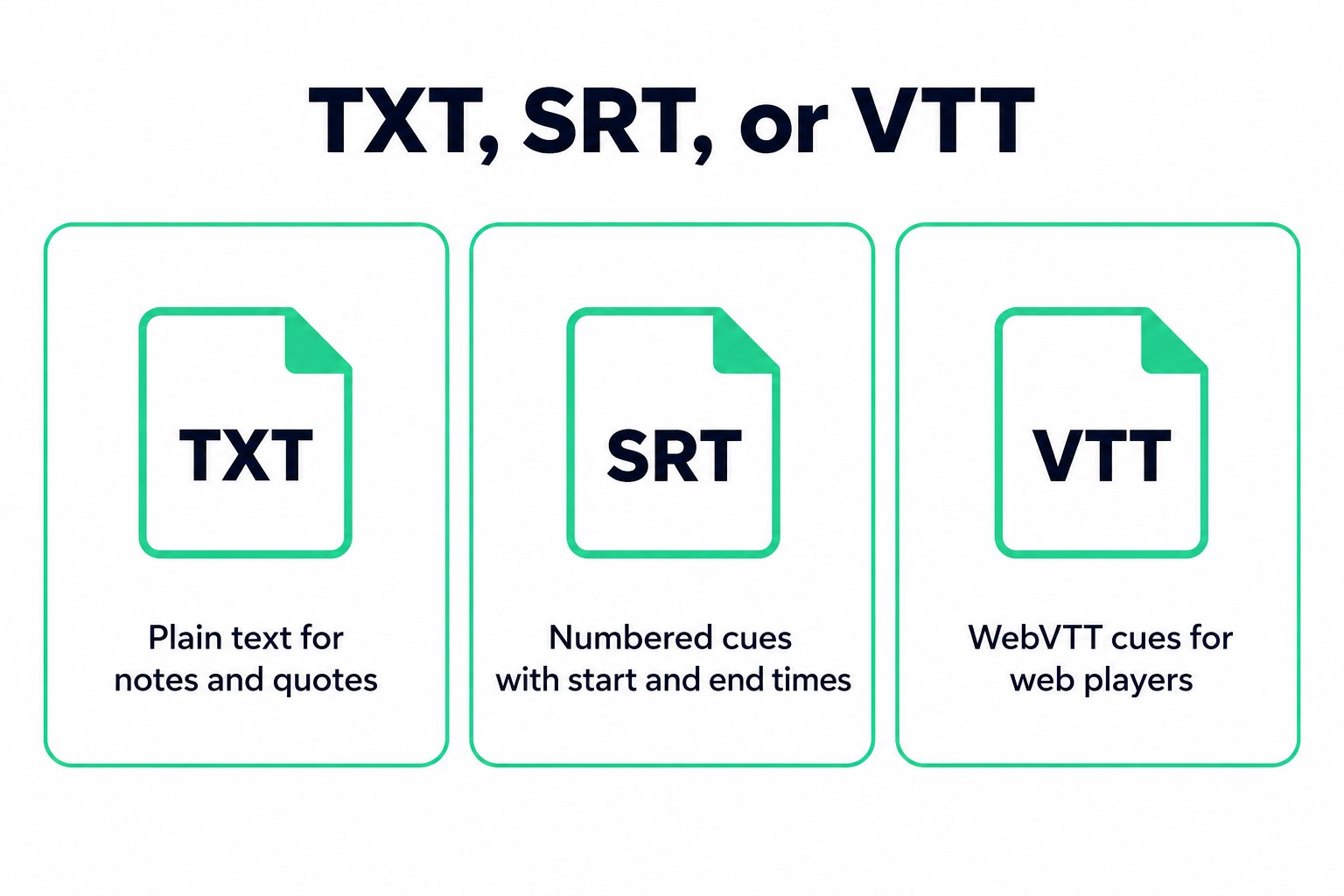
| TXT | The words as plain text | Notes, quotes, a draft, a paste into another app |
| SRT | Numbered cues with a start time and an end time | A video editor or a caption tool that expects SubRip |
| VTT | WebVTT cues with timestamps | A web player or a caption workflow that expects VTT |
TXT is the reading copy. It is what you paste into a doc when the goal is the wording. SRT and VTT keep time ranges, so a line can sit on a timeline instead of floating as a paragraph. transcript.im exports all three from the same transcript. It can also translate the lines into another supported language and keep the timestamps with them, which matters when the translated text has to become captions rather than a loose paragraph.
The app never asks you to pick TXT, SRT, or VTT, because it never gives you the words as a file. There is nothing to choose until the words are out of the overlay. A TikTok transcript downloader is where those three formats become real options.
A few limits are properties of the audio, not of the file extension. A 20-second talk tracked over a loud song will transcribe worse than a quiet voiceover. Overlapping speakers collapse into one stream of lines unless the recording actually separates them. Slang, brand names, and usernames are the usual errors. Changing TXT to SRT does not repair a wrong word. Read the line, use the timestamp to hear that second again, and fix it before you publish captions.
Do not expect a transcript of a clip that has no speech. A dance set to a commercial track, a slideshow of photos, or a text-on-screen joke can come back nearly empty. That is a correct result. The downloader did not miss a hidden caption file. There was no speech to write down.
Public access is the other hard stop. If TikTok will not play the video from a public link, pasting that link will not produce a transcript. Region locks and removed posts fail the same way. Screenshot OCR and retyping are the remaining options, and they are slower than they look as soon as the clip is longer than a sentence.
Reusing a TikTok transcript
A file is only useful if you know which copy you are about to trust. Keep three versions distinct. The overlay is what viewers saw. The transcript is what the audio (or the caption track) contained. Your edit is what you changed after you read it. Quote the transcript, and check the timestamp, when the exact words matter. Do not quote a title sticker as if the person said it.
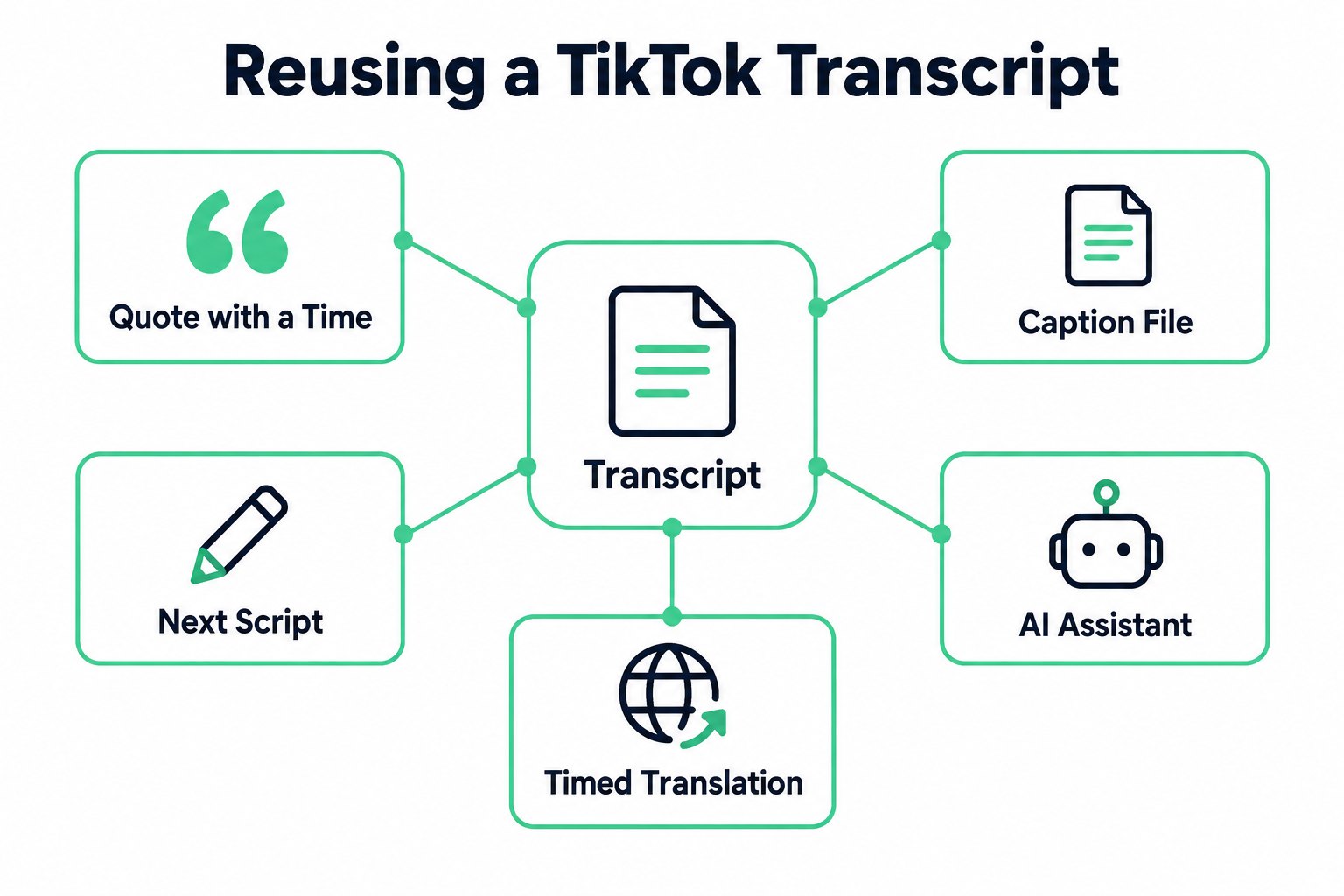
Common reuse, in the order people actually do it:
- A quote with a time. Search the transcript for the phrase, copy the line, keep the timestamp beside it. Whoever checks your work can open the video at that second.
- A caption file for a new cut. Export SRT or VTT and import it into the editor. The times are a starting point. If you trim the clip, the cues have to move with the picture.
- A script for the next post. The transcript is the raw talk. Rewrite it into a shorter script, a pinned comment, or on-screen text. The original lines stay as the record of what was said.
- A source for an assistant. Paste the text into Google NotebookLM, ChatGPT, Claude, Gemini, Kimi, or Manus. Those tools work from the words you give them. They do not pull a TikTok caption track on their own.
- A translation that stays timed. Translate from the transcript and keep the timestamps, then export SRT or VTT if the translation has to ride on a video.
Before you send the file on, check three timestamps. Play the first line and confirm it matches the voice. Play a line near the middle, especially one with a name or a number. Play the last line, so a cut-off run does not pass as a short script. If those three match, the file is fit to quote or to import. A wrong name is fixed on that line. Switching TXT to SRT does not correct it.
Inside transcript.im you can also run Summary, Core Points, or MindMap on the same text before you export. That is a reading aid for a long stitch or a talking-head series. It does not replace the transcript. The full lines are still what you quote.
Reuse breaks when the file is treated as video metadata. A TikTok transcript download does not include the view count, the comments, the duet, or the sound name. It will not tell you which words were a text overlay. If your notes need the sound credit or the on-screen joke, write those down from the video itself and keep them next to the transcript, not inside it.
Teams trip on a second confusion: they download the video, pull the audio, and still do not have a document anyone can search. The video file is the picture. The transcript file is the words. You want the second one when the task is quoting, captioning, or rewriting. Export a TikTok transcript as TXT when someone needs to read, or as SRT or VTT when an editor needs cues. Start from the public link, and use the on-screen captions only as a way to follow along while the video is open.
Transcript Generator
Turn Any Video Into Text
Paste a YouTube, TikTok, or Instagram link and read the transcript, with timestamps on every line.
Exports as TXT, SRT, or VTT.